How to Configure Equipment Rules and Templates
Set up system templates to automatically filter your equipment catalog by tier so every quote stays consistent and your team quotes faster without searching the full price book
How to Set Up System Templates in SetSale
System Templates control which equipment shows up on each tier of a quote. Instead of your technicians searching the whole price book, SetSale filters it down to the model lines you've picked for Platinum, Gold, Silver, and Federal Minimum.
Set them up once, and every quote stays consistent and profitable, even when it's built by a brand-new tech who doesn't know your catalog yet.
Step 1: Open System Templates
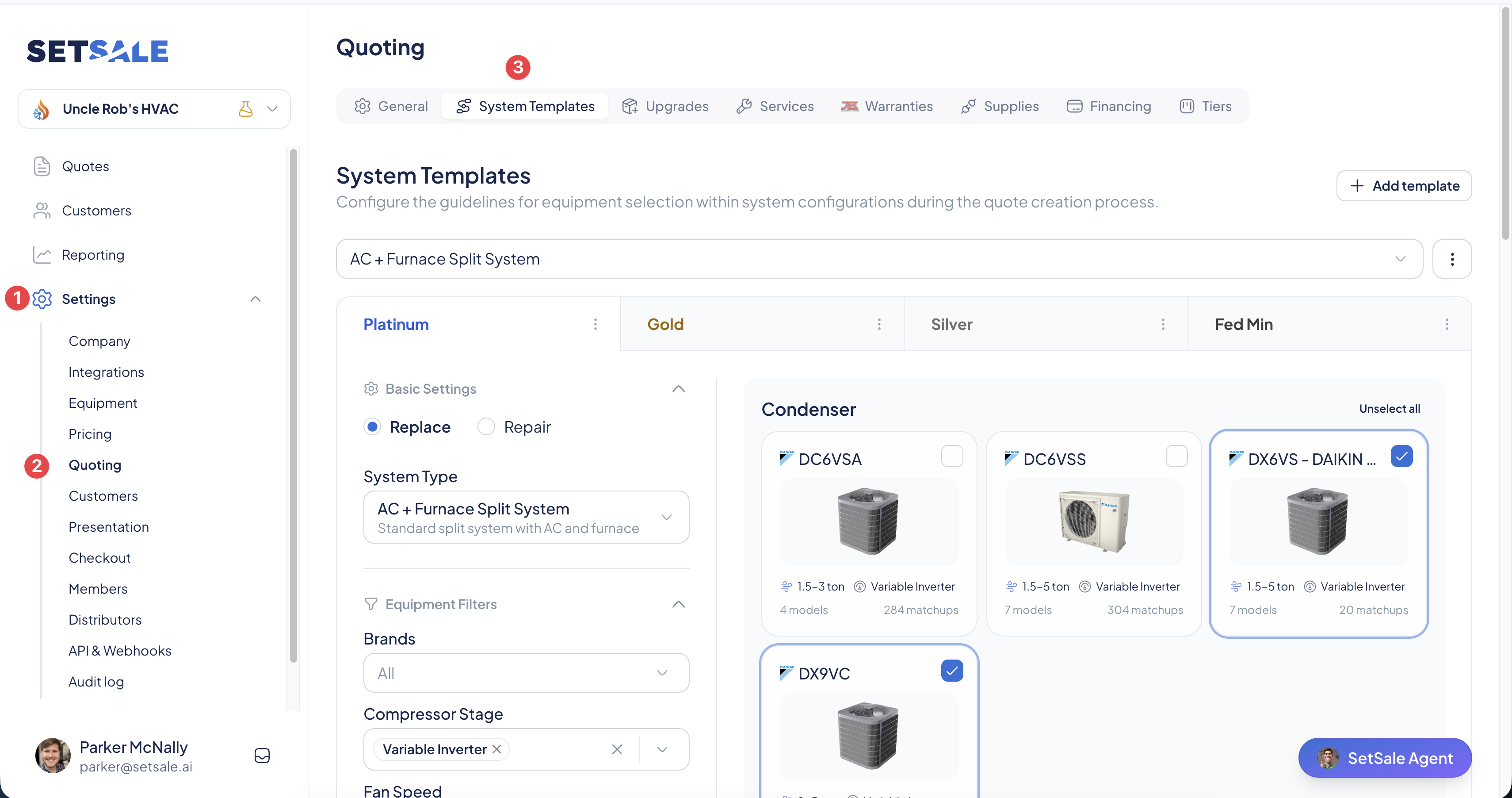
- Go to Settings > Quoting.
- Click the System Templates tab.
Step 2: Create or Edit a Template
Think of a template as a set of favorites built on specs rather than individual model numbers.
- Click Add Template, or select an existing template to edit it.
- Give the template a name that describes the system (e.g., "AC + Furnace Split" or "Heat Pump System").
- You'll see the four tiers: Platinum, Gold, Silver, and Federal Minimum.
Step 3: Choose Model Lines for Each Tier
SetSale filters your equipment based on your uploaded price book. For each tier:
- Select the tier (e.g., Platinum) to see the available equipment.
- Set spec requirements, like a minimum efficiency rating (e.g., at least 18 SEER2) or Energy Star certification.
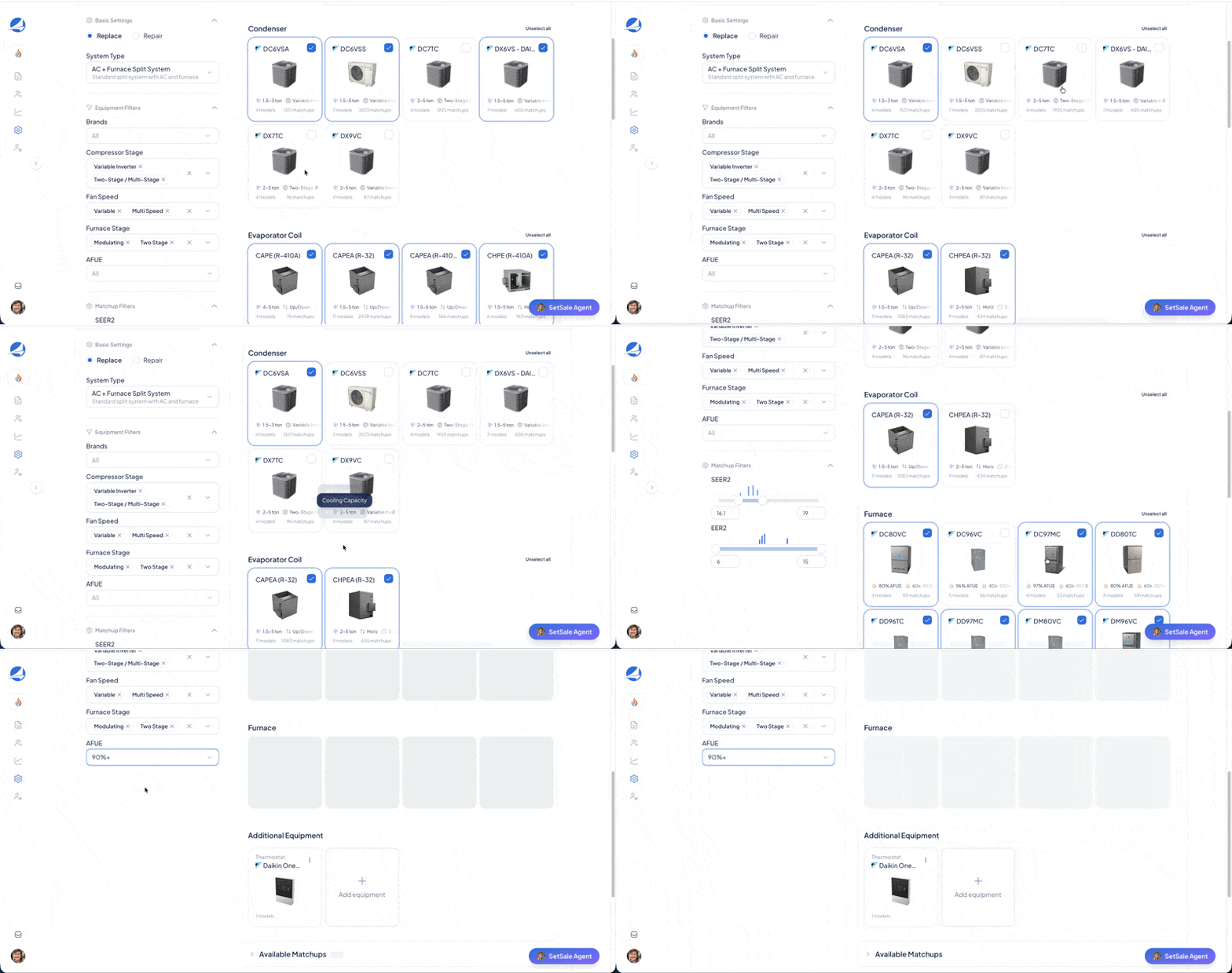
- Pick your model lines. Use the checkboxes next to the equipment images to select or deselect model lines. The Matchup Table updates as you go.
- Filter the matchups. Narrow the Matchup Table by system size, BTU, cabinet size, configuration, and furnace type to find specific combinations faster. SetSale remembers your filter choices for each template.
- Remove specific matchups you don't want. If a particular AHRI matchup doesn't work for you (for example, the price is too high because you aren't a factory-authorized dealer for that brand), deselect it so it never appears in the field.
Step 4: Mix System Types Across Tiers (Optional)
Each tier in a template can use its own system type.
For example, set Platinum and Gold to Dual Fuel, and keep Silver and Federal Minimum as standard Heat Pump systems.
- Change the System Type dropdown for the tier.
- Choose the equipment you want to appear for that tier.
SetSale loads only the fields that apply to the equipment types in each tier, so you won't see irrelevant options.
Step 5: Check Your Coverage and Save
- Review the System Coverage Map. Scroll to the bottom of the template. The map shows which equipment options a technician will get for each tonnage and configuration.
- Look for gaps. A red or empty area means no equipment matches your rules for that combination. Adjust your filters or model lines to fill it.
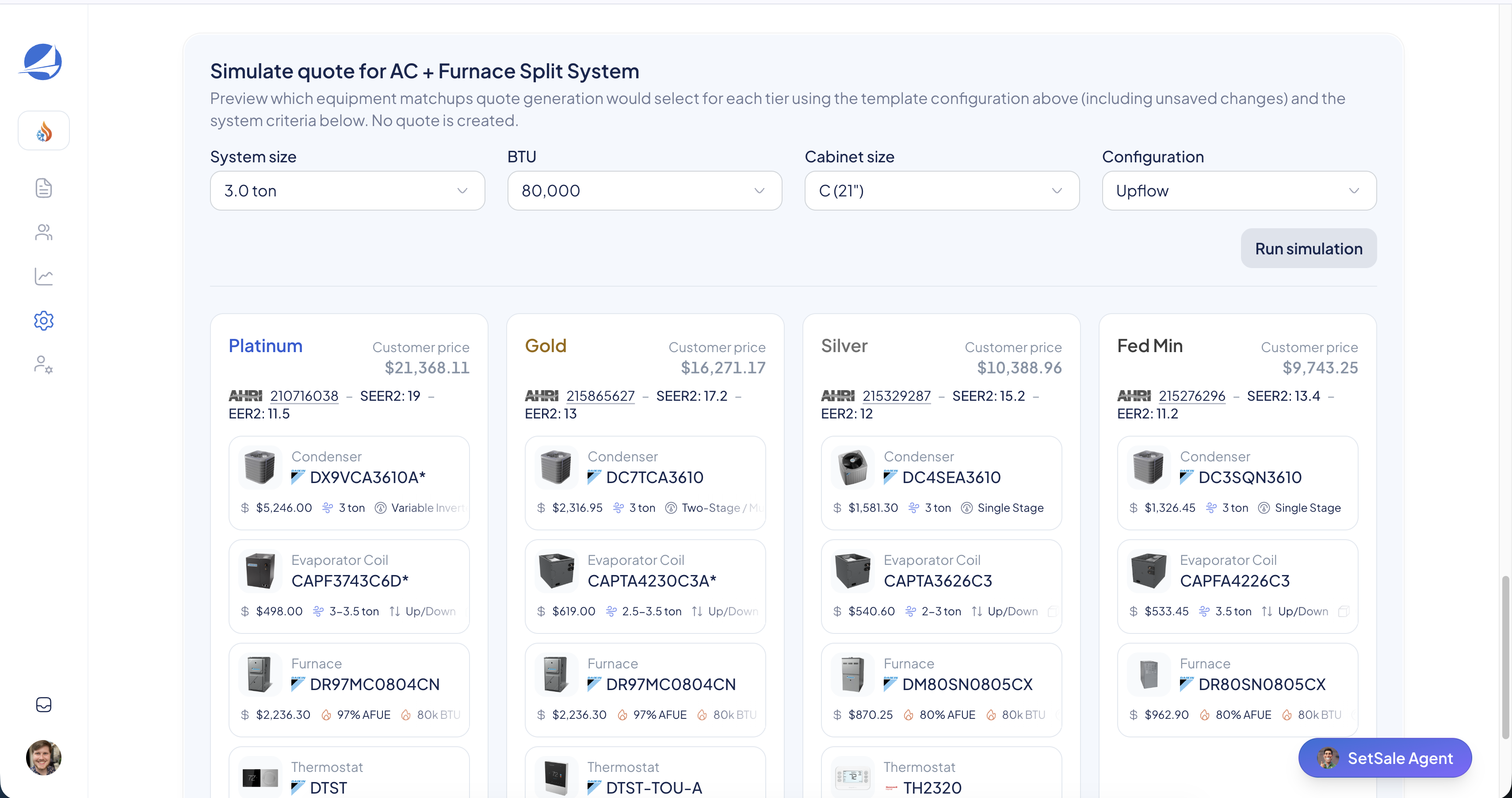
- Preview with the Quote Simulator. See exactly how a quote will look on each tier before you save.
- Click Save.
Tips for Success
💡 Phase out old equipment here. Deselect model lines you no longer stock so technicians can't quote parts you can't get.
💡 Fix gaps before they hit the field. A gap in the Coverage Map means a technician could end up with an empty tier on a real job.
💡 Start with your most common system. Build out your highest-volume template first, then copy the approach to the rest.
Need Help?
If you have a complex price book and want a second set of eyes on your setup, email us at support@setsale.ai.