Configuring Your Quoting Settings
Configuring Your Quoting Settings
The Quoting section of your settings is where you set up the defaults your team uses on every quote. This includes system templates, supplies, services, upgrades, warranties, financing, and tier names. When these are configured up front, your team builds quotes faster and your pricing stays consistent.
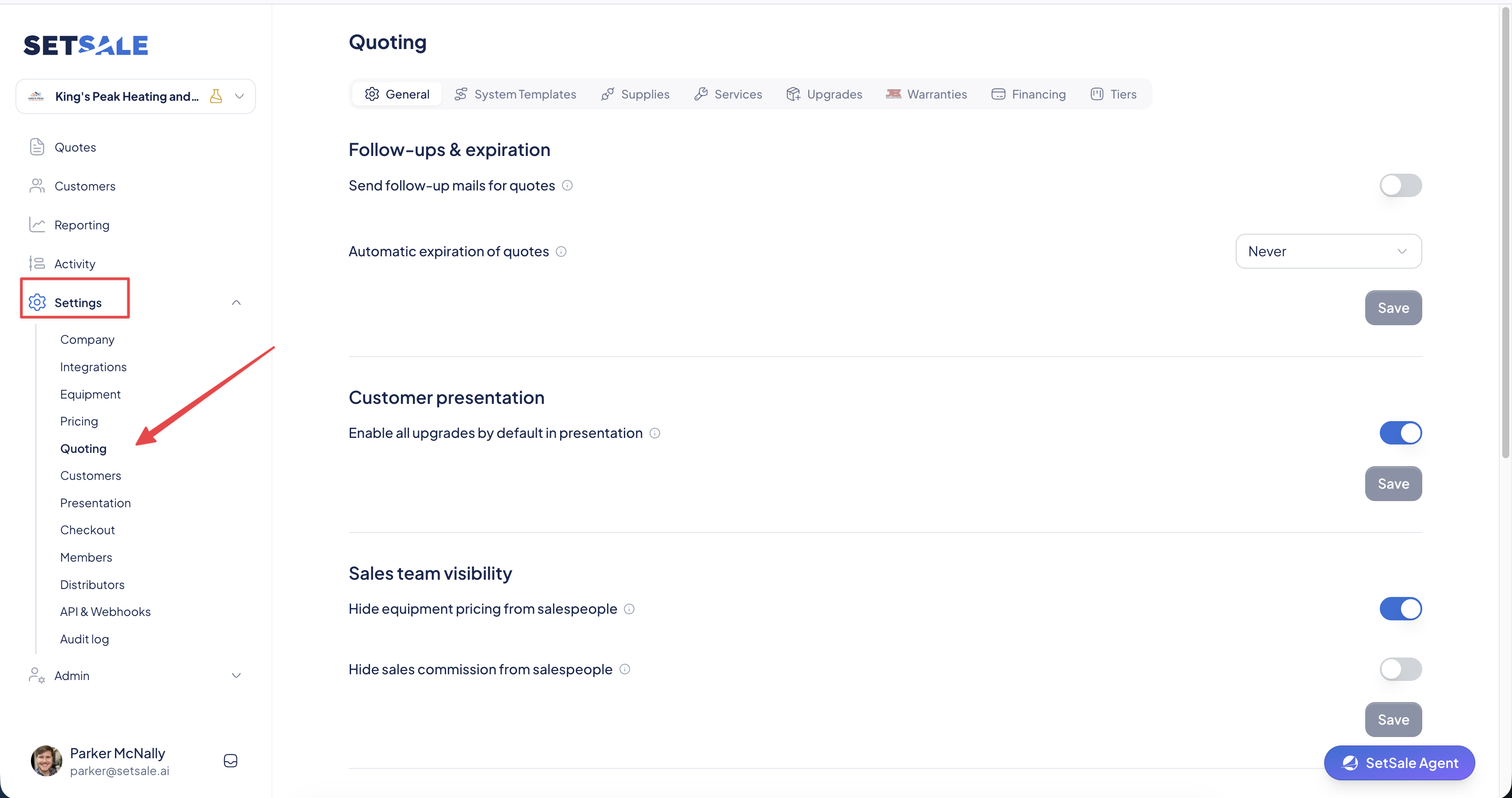
How to Find Quoting Settings
- In the left-hand menu, click Settings.
- Select Quoting.
- Use the tabs across the top to move between sections.
General
The General tab controls company-wide quoting behavior. It has five sections, and each one has its own Save button, so save each section after you make changes.
Follow-ups & expiration
- Send follow-up mails for quotes: When this is turned on, SetSale automatically emails the customer a reminder 1, 3, and 5 days after a quote is sent.
- Automatic expiration of quotes: Choose how long a quote can go without activity before SetSale marks it as Lost. Select Never to turn off expiration.
Customer presentation
- Enable all upgrades by default in presentation: When this is turned on, every upgrade starts toggled on when the customer views the presentation. The customer can still turn any upgrade off.
Sales team visibility
- Hide equipment pricing from salespeople: Salespeople see the selling price but not your equipment cost.
- Hide sales commission from salespeople: Removes commission amounts from the salesperson's view.
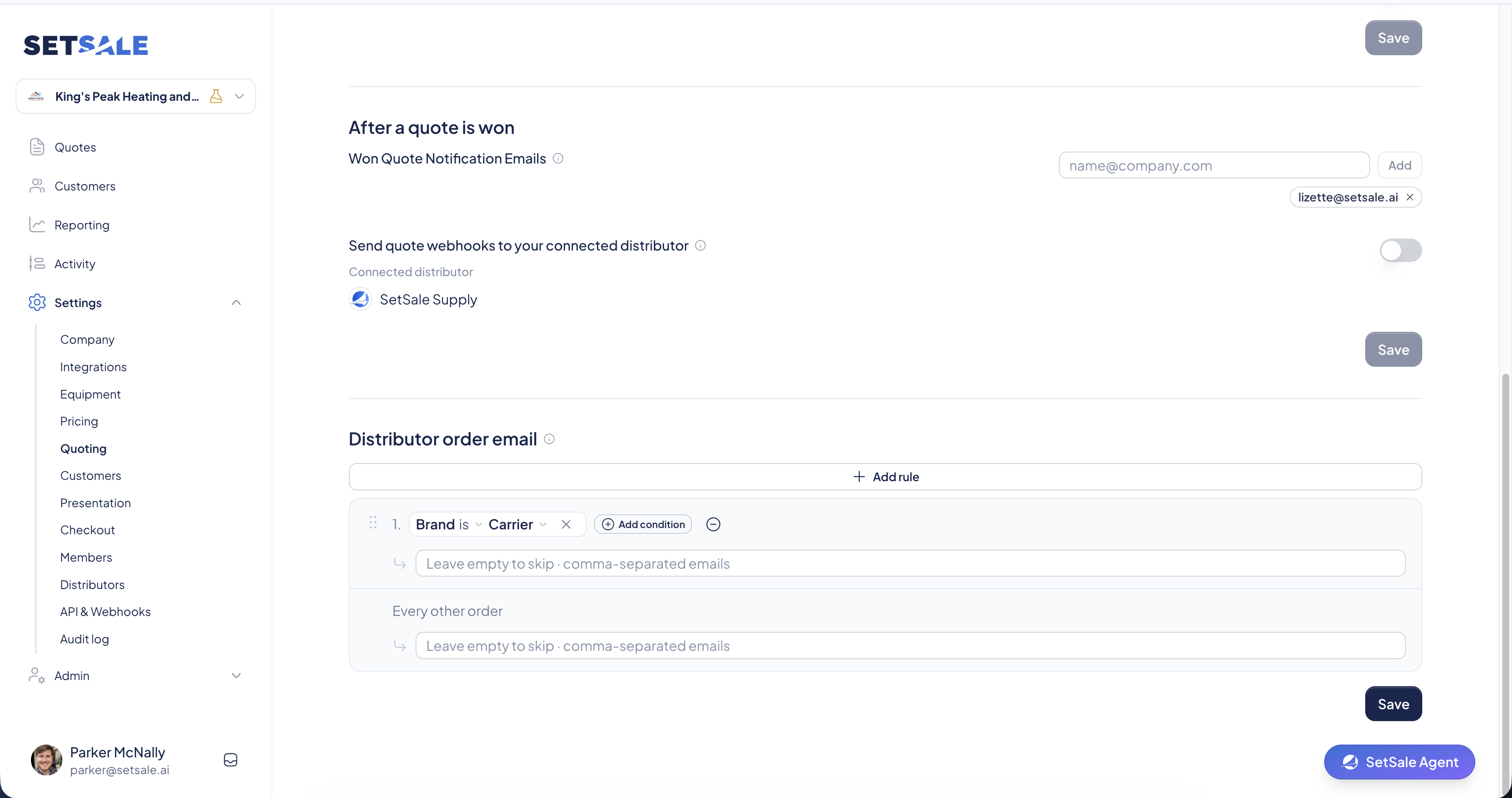
After a quote is won
- Won Quote Notification Emails: Enter an email address and click Add to notify that person whenever a quote is won. You can add multiple addresses, such as an office manager or install coordinator. Click the x next to an address to remove it.
- Send quote webhooks to your connected distributor: When this is turned on, SetSale sends quote data to the distributor your account is connected to. Your connected distributor is listed below the toggle.
Distributor order email
Choose who receives an email when an order is placed.
- The Every order rule applies to all orders. Enter one or more email addresses, separated by commas. Leave the field empty to skip sending the email.
- Click Add rule to send order emails to different recipients based on conditions you set.
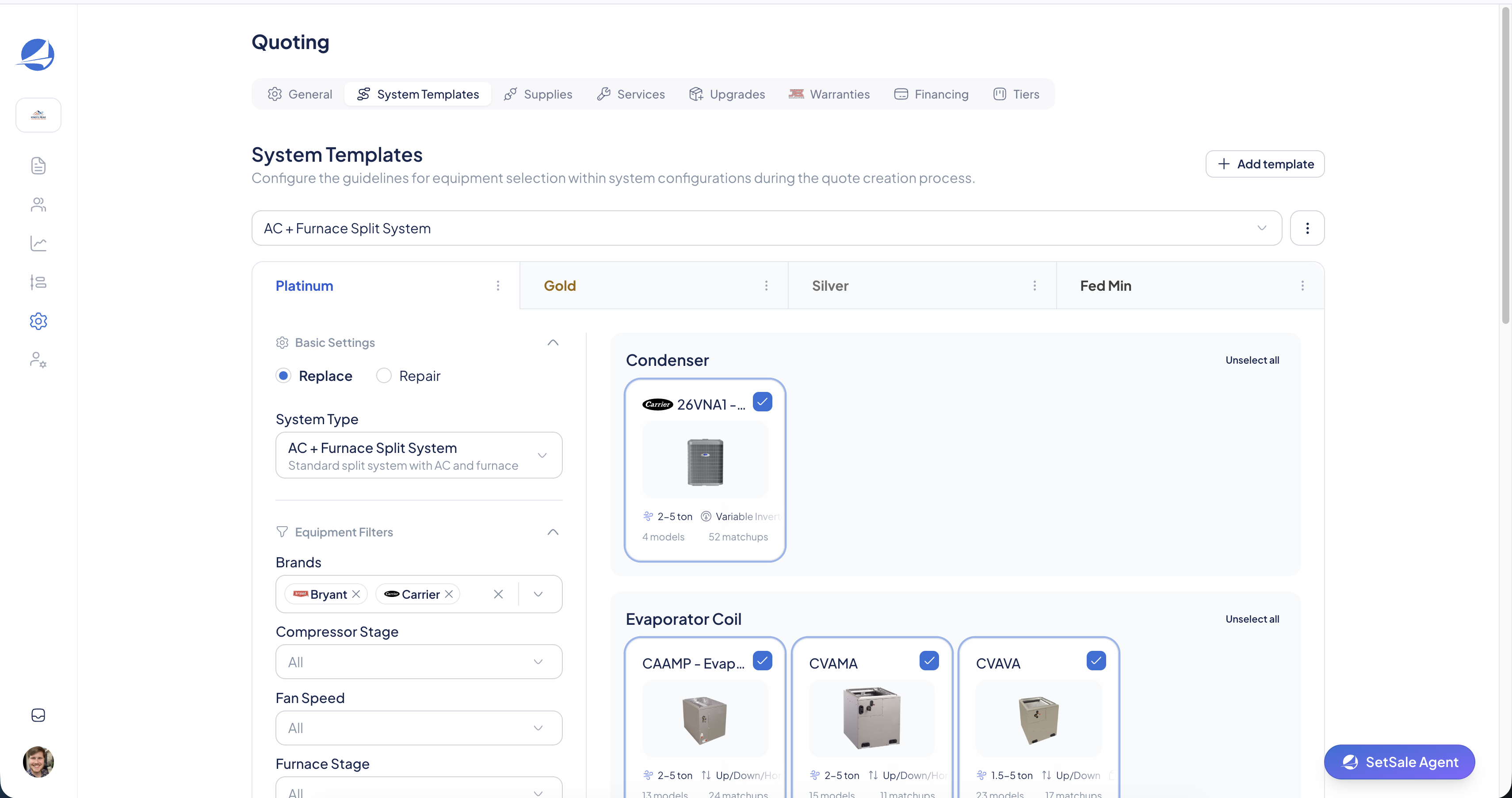
System Templates
Create and save your most common AHRI matchups. When you start a new quote, SetSale defaults to these templates, so you can build proposals for your standard system types in a few clicks.
Supplies
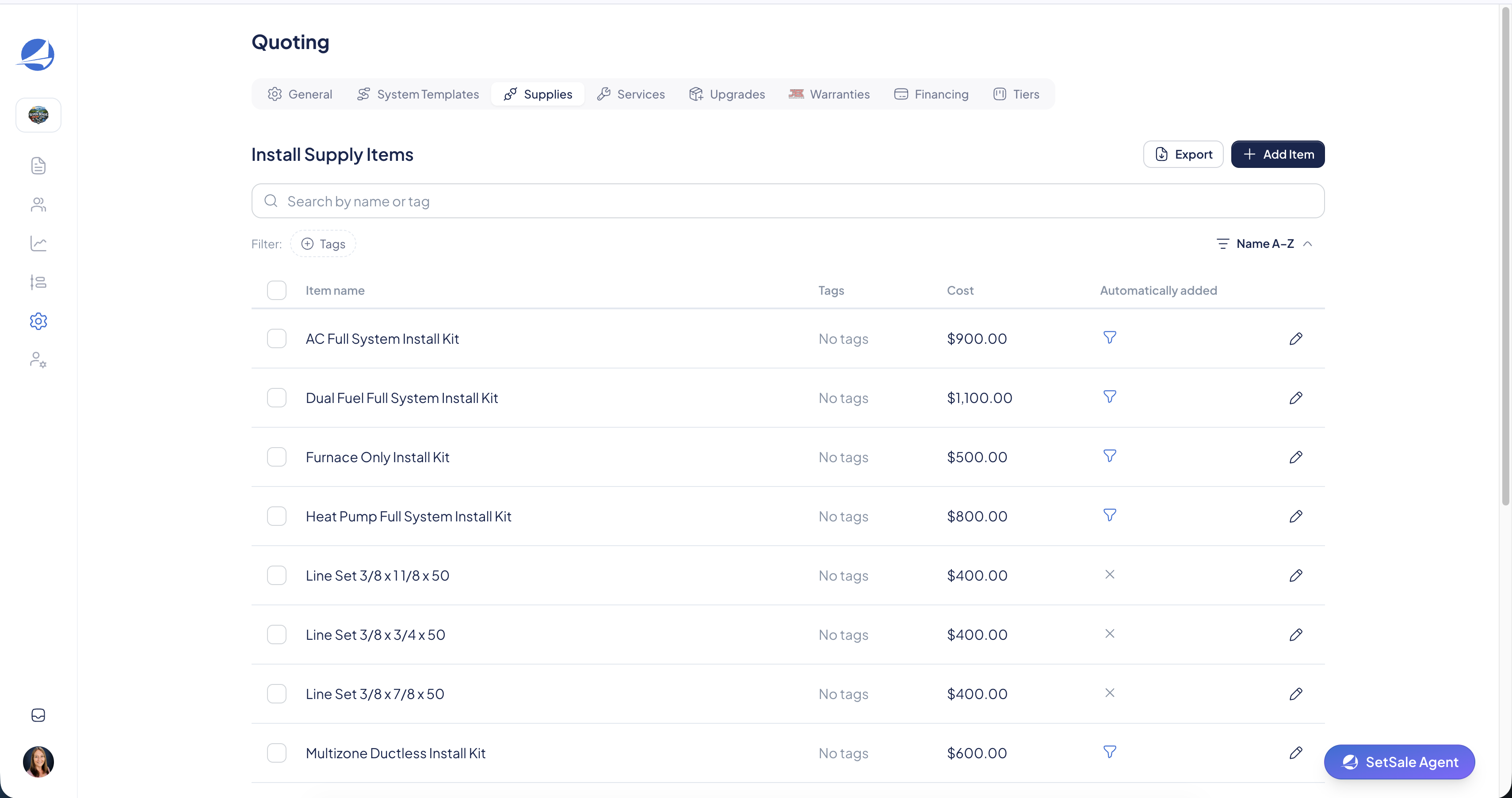
Bundle the parts and materials needed for each type of installation (for example, gas furnace or heat pump). SetSale automatically adds the bundle cost to every relevant quote. Customers can't remove supplies because they're built into the price. Use our Automatically Added rules to adjust what supplies show up when.
Services
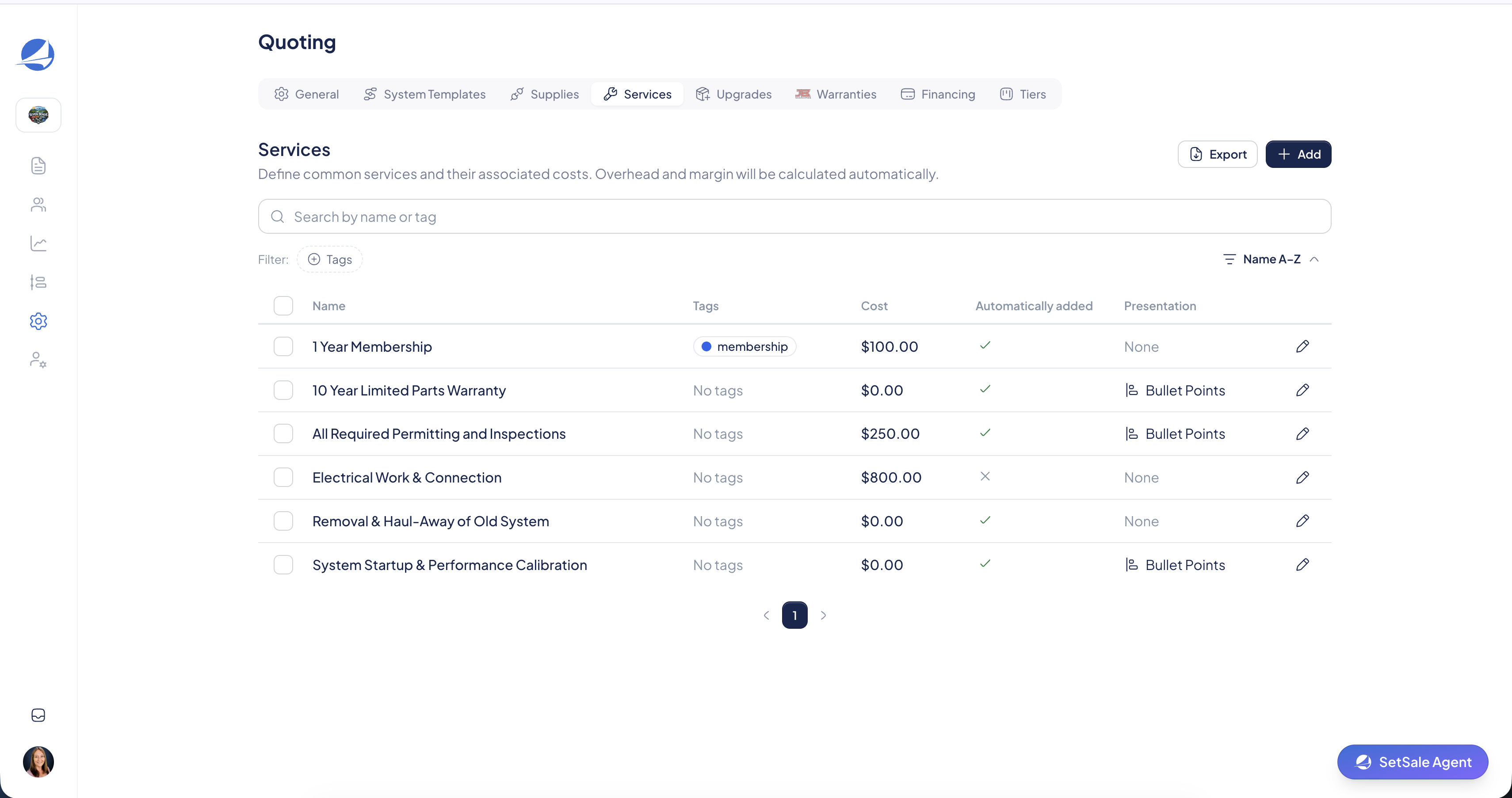
Services cover job costs such as demo work, permits, crane fees, and labor warranties. Their cost is built into the tier price, so your margins stay accurate without adding a separate line item to the customer's quote.
You can add bullet points, brochures, or videos to a service. These details appear in the proposal as "Included," which shows the customer what they're getting.
Upgrades
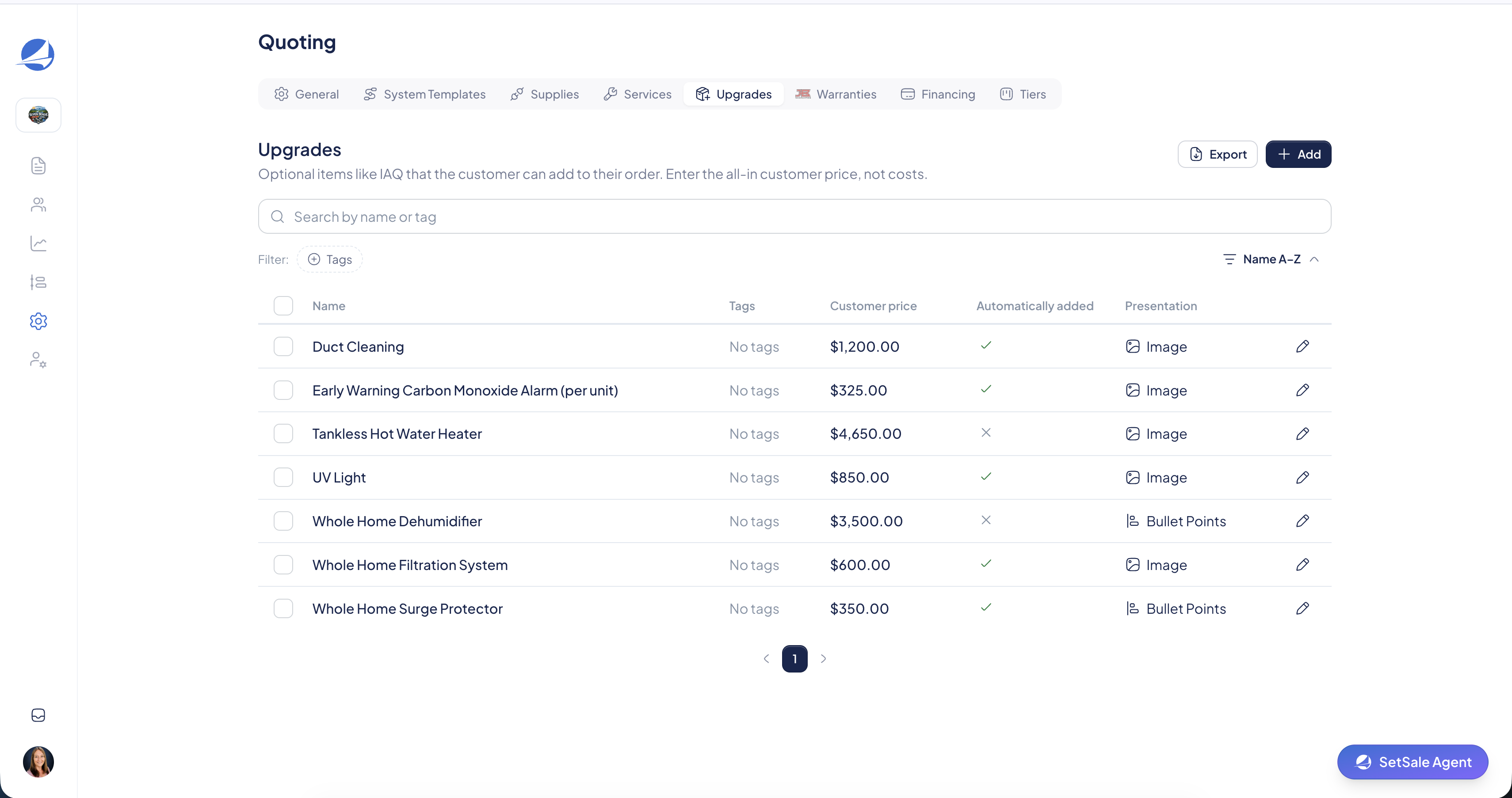
Add optional products and services the customer can choose to add, such as indoor air quality (IAQ) products, surge protectors, or maintenance plans. Upgrades appear as toggles in the presentation, and the quote total updates as the customer turns them on or off.
Warranties
If your company is integrated with JB Warranties, this is where you manage your warranty settings. You'll need to connect your JB account in Settings → Integrations first.
Set your defaults
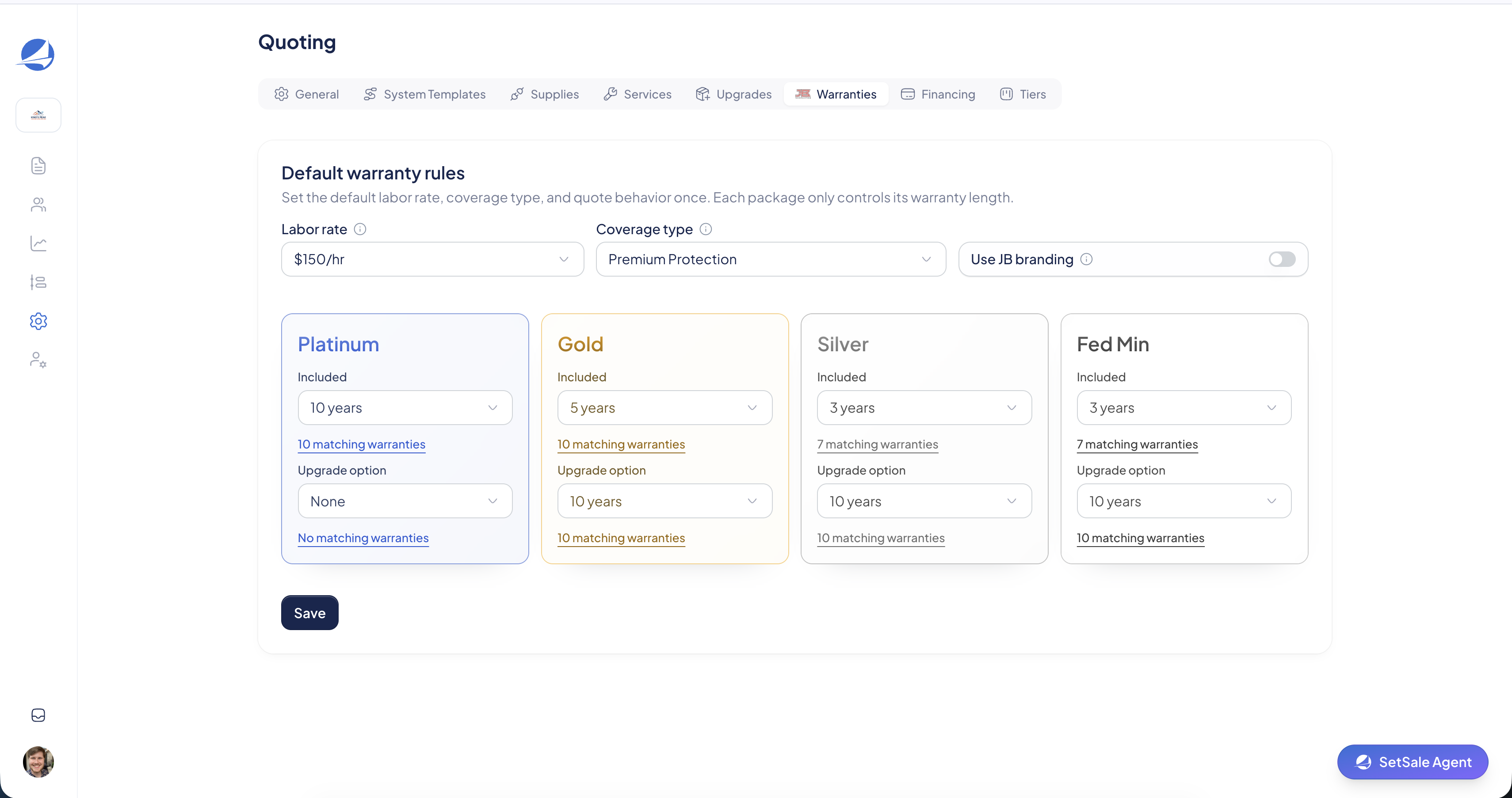
- Labor rate: Set the labor rate used for warranty coverage.
- Coverage type: Choose the type of coverage to apply.
- JB Branding: Choose whether JB branding appears on the quote.
Assign warranties to each tier
- For each pricing tier, set the standard warranty and any optional upgrade warranties.
- Click Save.
The JB API shows the warranties that apply based on the defaults you've set. After you save, the warranty you assigned is added to each tier automatically when you build a quote. On multi-system quotes, each system gets its own warranty.
Financing
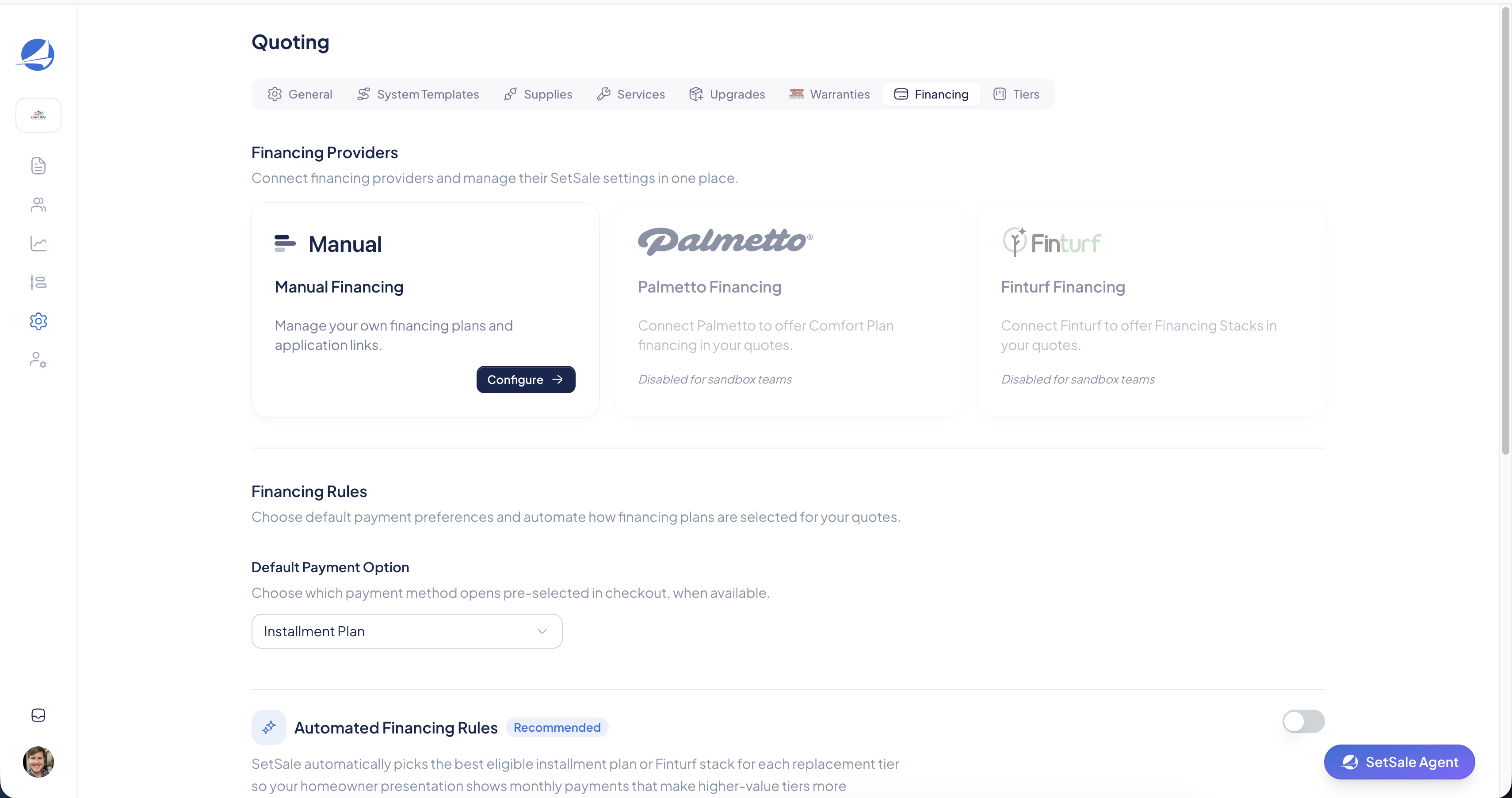
Enter and manage your company's financing plans, including installment loans and promotional offers. On financed jobs, SetSale builds the dealer fee into the price, so the fee isn't taken out of your margin.
You can also add an External Financing link under your Manual Financing options. It appears in the Next Steps section after a customer approves a quote. If you are integrated with Palmetto or Finturf, you can manage those integrations here.
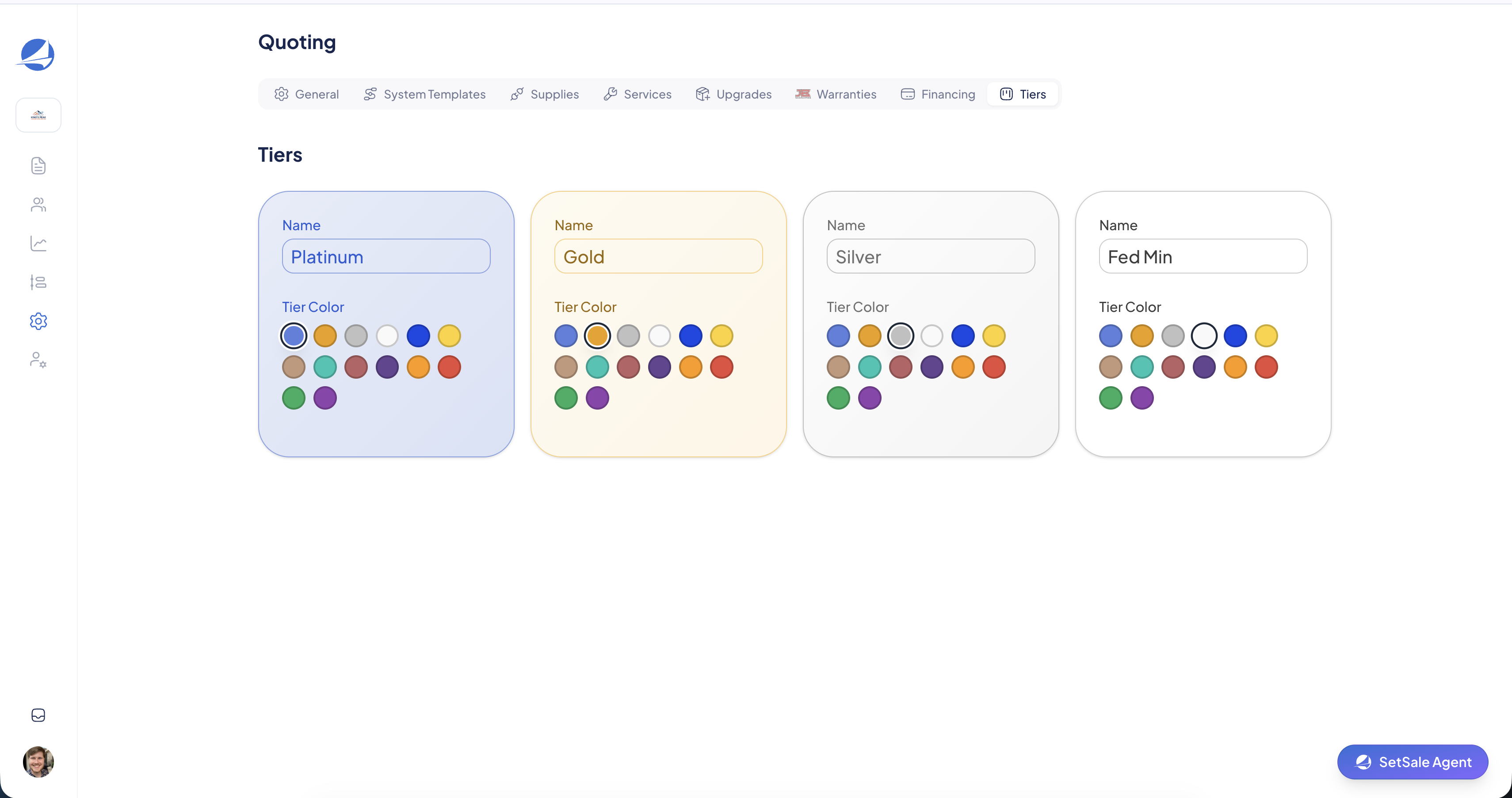
Tiers
Customize the names and colors of the tiers your customers see. For example, you might use "Good, Better, Best" or "Silver, Gold, Platinum."