SetSale Connect Guide
Manage your contractor network, inventory, and pricing in one portal to track sales performance and control what equipment your contractors quote
What Is SetSale Connect?
SetSale Connect is the distributor portal for SetSale. It connects your inventory, pricing, and system templates directly to the contractors who quote with SetSale, and gives you real-time visibility into what your network is quoting and selling.
This article walks through each section of the portal so you know where to find everything.
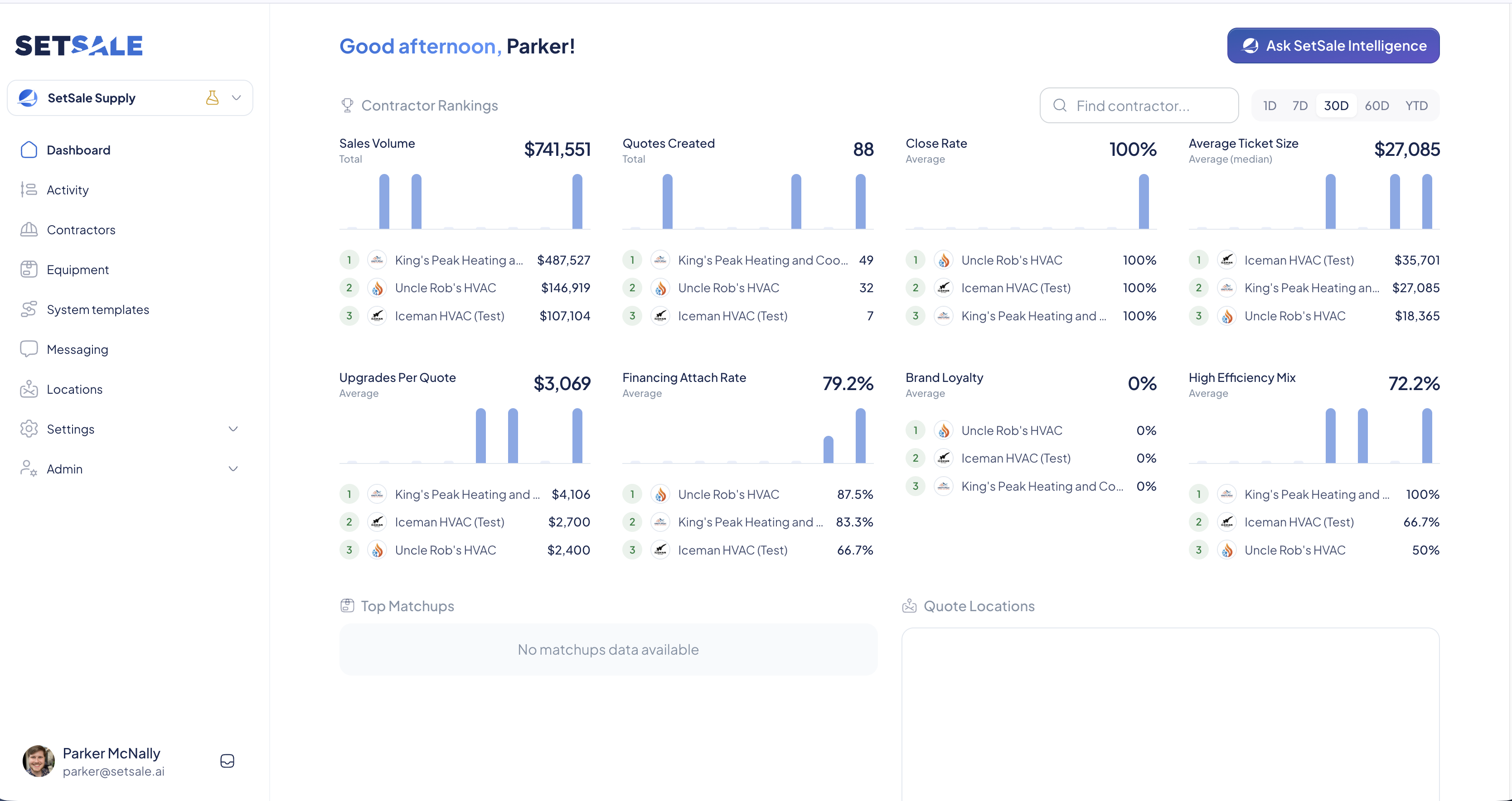
Dashboard
The Dashboard shows how your connected contractors are performing at a glance.
- Time filters: Use 1D, 7D, 30D, 60D, or YTD in the top right to set the window for every metric on the page.
- Find contractor: Search for any contractor by name.
- Ask SetSale Intelligence: Click the button in the top right to get AI-generated insights about your contractor network.
Contractor Rankings
Eight metric cards rank your top three contractors in each category:
| Metric | What it measures |
|---|---|
| Sales Volume | Total dollar value sold across your network |
| Quotes Created | Total number of quotes your contractors have built |
| Close Rate | Percentage of quotes that turn into sales |
| Average Ticket Size | The typical (median) value of a quoted job |
| Upgrades Per Quote | Average upgrade dollars added per quote |
| Financing Attach Rate | Percentage of quotes that include a financing option |
| Brand Loyalty | How consistently contractors quote your brands |
| High Efficiency Mix | Share of quotes featuring high-efficiency equipment |
Top Matchups
See the equipment pairings your contractors quote and sell most often. Each matchup shows times quoted, times sold, total sales volume, and its AHRI certificate number.
Quote Locations
A heat map shows where your equipment is being quoted most, so you can spot hot markets and untapped territory.
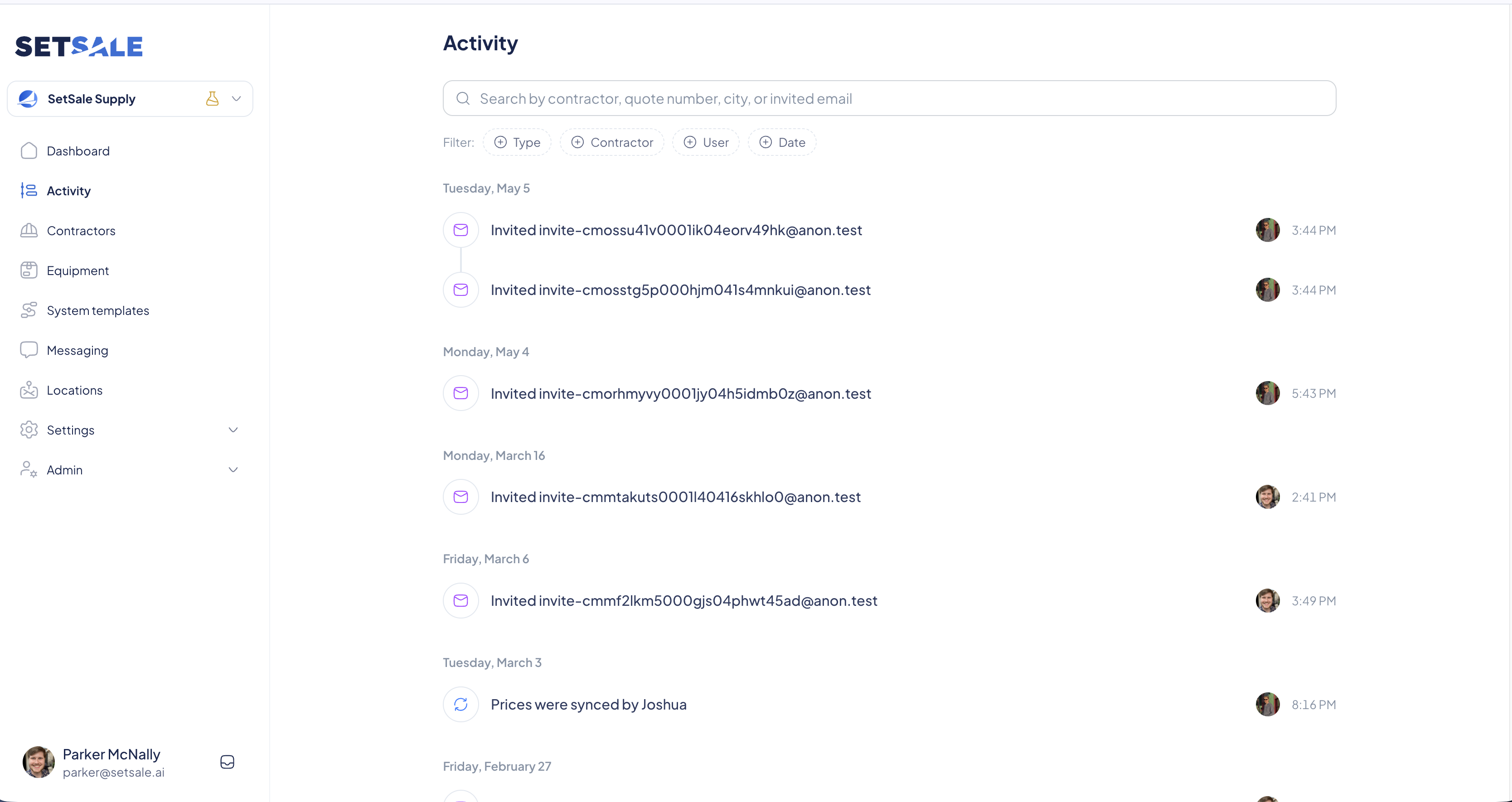
Activity
The Activity page is a running timeline of what's happening in your portal — contractor invitations, price syncs, and more.
- Search by contractor, quote number, city, or invited email.
- Filter by Type, Contractor, User, or Date.
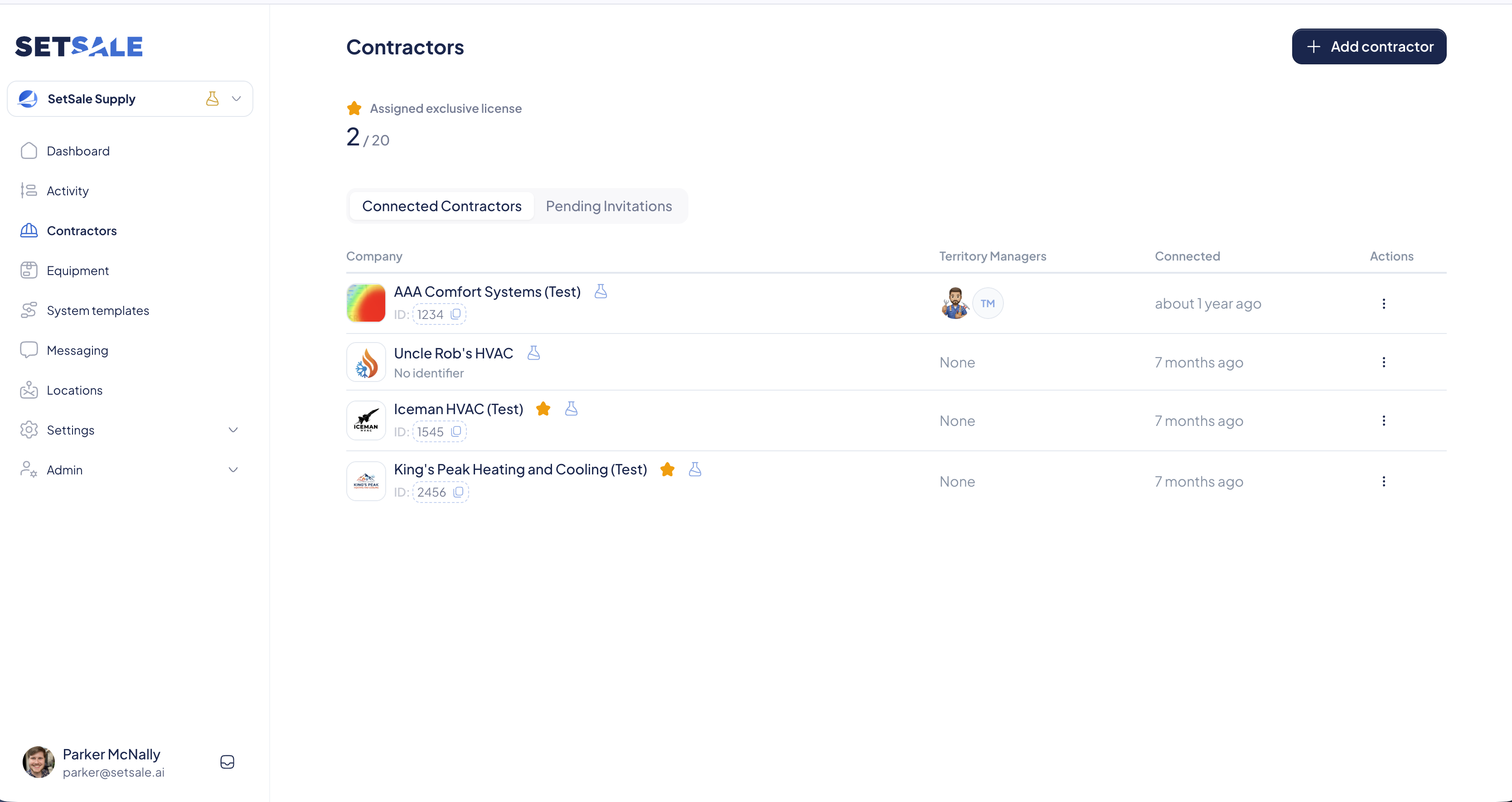
Contractors
Invite contractors to connect with you and manage your connected network.
Invite a contractor
- Go to Contractors.
- Click Add contractor in the top right.
- Enter the contractor's email address and send the invitation.
Once the contractor accepts, they'll have a regular SetSale Pro account — and you'll be able to see their sales data and equipment information.
Manage your contractors
- Connected Contractors tab: Everyone who's accepted your invite, with their assigned Territory Managers and when they connected.
- Pending Invitations tab: Invites that haven't been accepted yet.
- Assigned exclusive license: The counter at the top shows how many of your exclusive licenses are in use. Contractors with an exclusive license are marked with a ⭐.
- Actions (⋮): Click the three-dot menu on any row to manage that contractor.
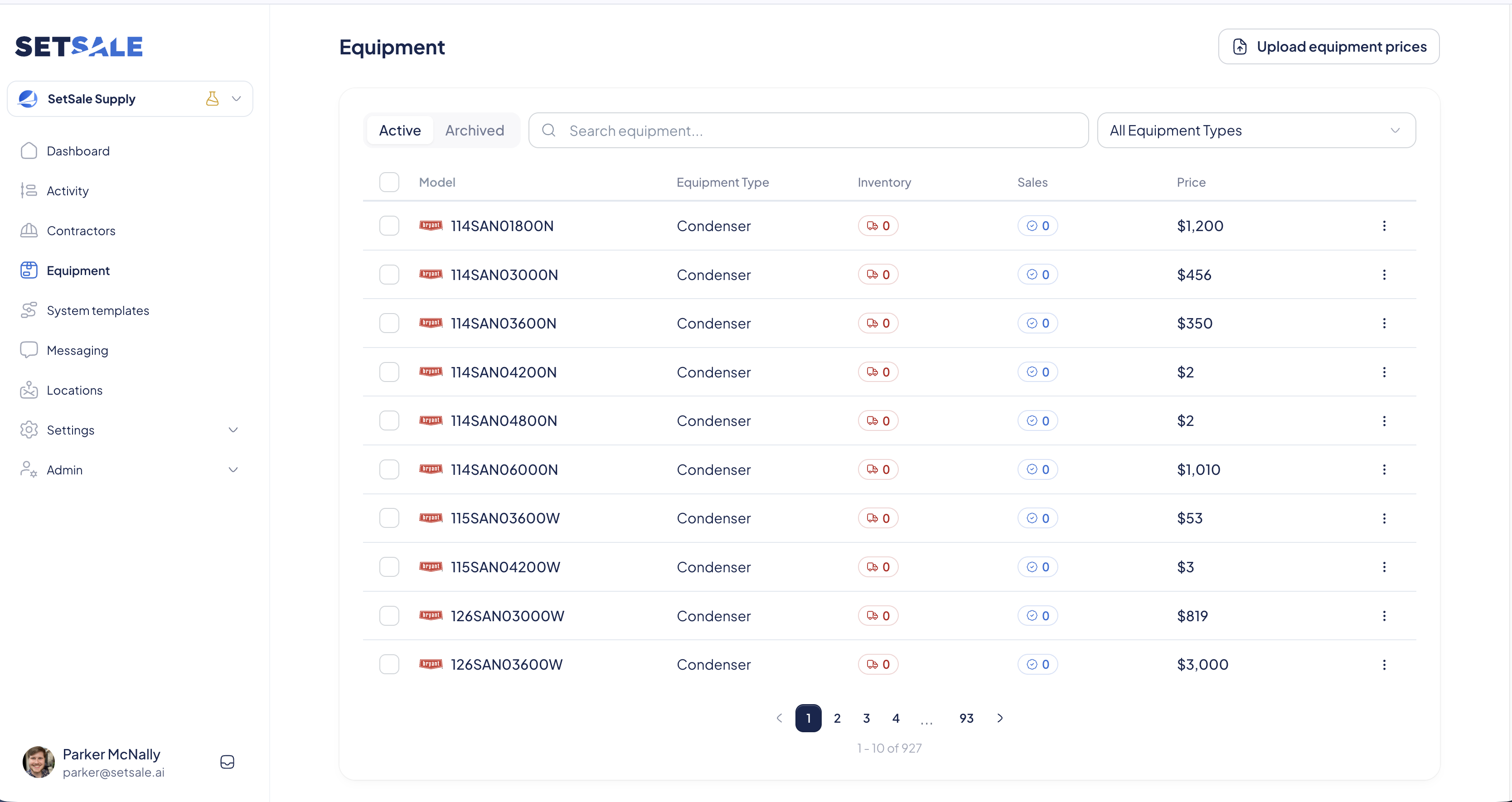
Equipment
The Equipment page gives you a high-level view of your inventory and pricing.
- Active / Archived tabs: Switch between current and archived equipment.
- Search and filter: Search by model, or narrow the list with the All Equipment Types dropdown.
- Inventory: How many units are in stock at your locations.
- Sales: How many units have sold through SetSale.
- Price: Your price for each piece of equipment.
- Upload equipment prices: Click the button in the top right to upload pricing in bulk.
Boost equipment
Boosting tells SetSale's AI to prefer a specific piece of equipment when your connected contractors build quotes.
- Click the ⋮ menu next to any item.
- Select Boost.
To stop boosting, click the ⋮ menu again and select Un-boost.
💡 Tip: For a deeper walkthrough, see Equipment in the Distributor Portal.
System Templates
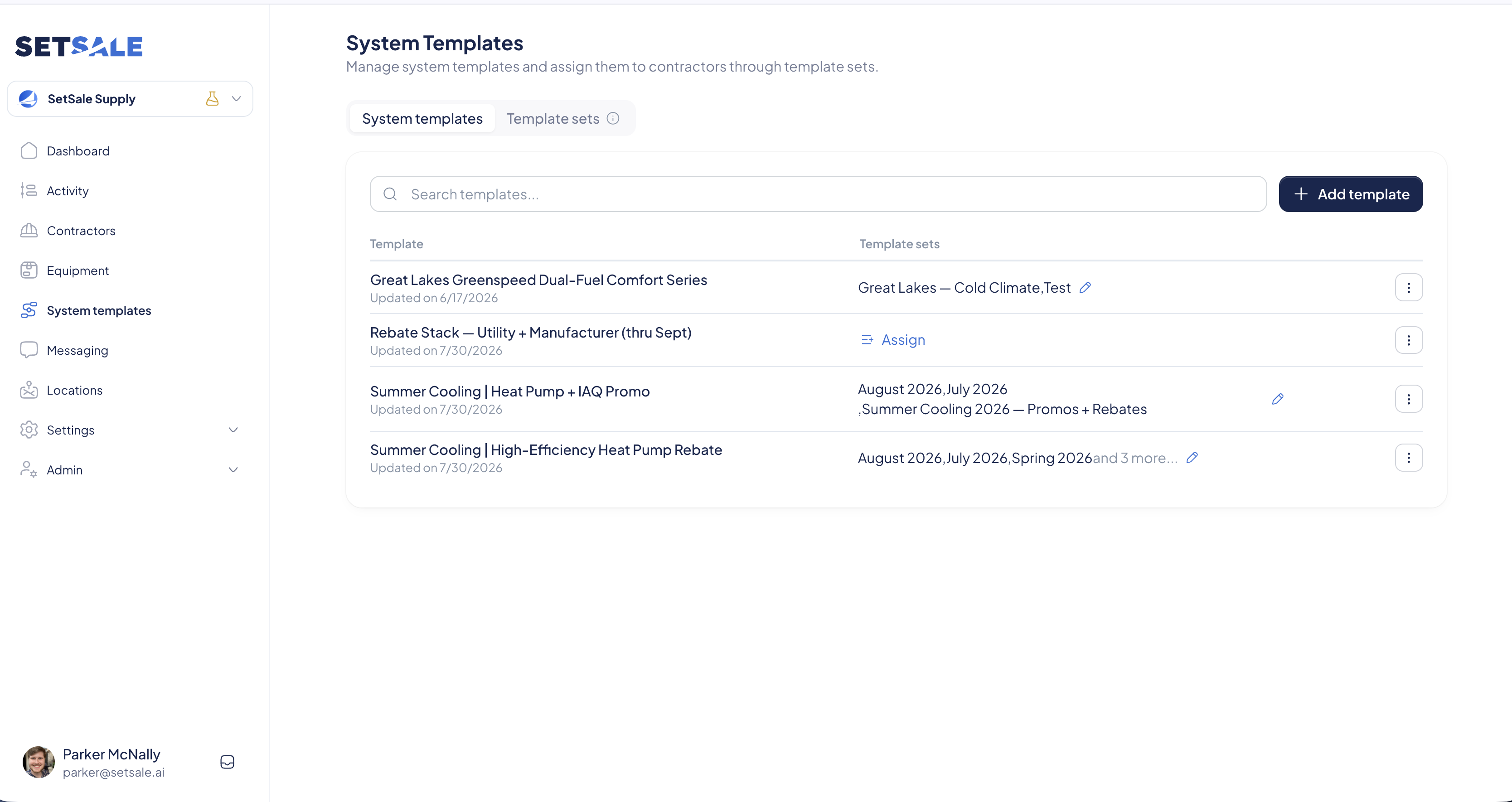
Build system templates and push them to your contractors through template sets.
- System templates tab: Create templates with Add template, search existing ones, and see which template sets each template belongs to.
- Template sets tab: Group templates into sets (for example, seasonal promos or regional lineups) and assign them to contractors.
To add a template to a set, click Assign next to it — or click the ✏️ icon to edit its current sets.
Messaging
Send outbound messages to your connected contractors and track how they perform.
- Go to Messaging.
- Click New message in the top right.
- Compose your message and choose your recipients.
Each sent message shows who sent it, when, how many contractors received it, and what percentage read it. Click Show more to expand any message.
Locations
Manage your warehouse and facility locations — these power the inventory counts your contractors see.
- Locations tab: Click Add Location to add a branch. Use the ✏️ and 🗑️ icons to edit or delete one.
- Districts tab: Group locations into districts. Click Assign next to any location to add it to a district.
Settings
Click Settings in the left menu to expand these pages:
- General: Update your company logo, name, email, phone, and website. Click Save when you're done.
- Members: Click Invite to add teammates, and use the role dropdown to set their access (for example, Admin or TM).
- API & Webhooks: Connect your systems to SetSale (see below).
- Audit log: A timeline of who did what in your portal, including sign-ins and invitations.
API & Webhooks
Most data management runs through a one-time API integration, which keeps your inventory and pricing flowing into SetSale automatically.
- Go to Settings → API & Webhooks.
- Click Generate API Key.
- Click Documentation in the top right and share it with your developer to set up the connection.
The primary API functions are Import Contractor Prices and Import Inventory Records.
To receive event notifications in your own systems, click Add endpoint under Webhook endpoints and register an HTTPS URL.
How Contractors Benefit
When a contractor quotes equipment from your connected inventory, they'll see an inventory badge on it. The badge breaks down how many units are available at each of your locations, so they can confirm availability before closing the sale.