Getting Started with the HouseCall Pro Integration
Connect your HouseCall Pro account to SetSale so you can sync job data and streamline your quoting workflow
Steps to Connect HouseCall Pro to SetSale Integration
- Log in to your SetSale account
Visit https://app.setsale.ai/auth/login and sign in as usual.
- Go to Settings on the left side of the screen
From your dashboard, click the Settings dropdown in the left menu
- Select Settings and navigate to the **Integrations **page
- Select the "Connect" button on the HouseCall Pro Box
Within the HouseCall Pro Box, click "Connect"
- Type or Paste the API Key from HouseCall Pro to Link with SetSale
- Click “Save” When you're finished, click the Save button
How to Create an API Key in HouseCall Pro
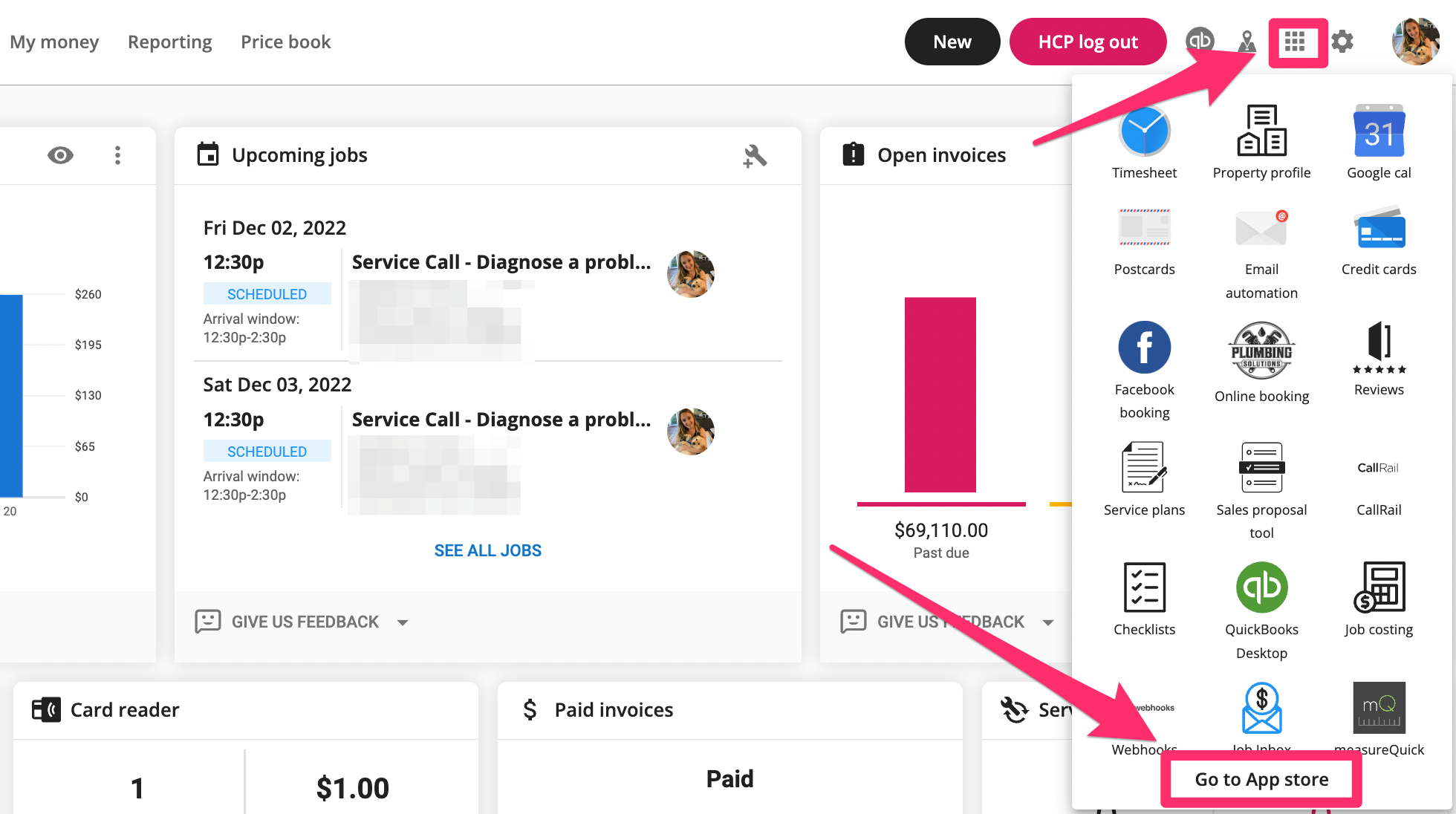
To start generating an API key, sign into your Housecall Pro account and go to your app store. Keep in mind that only Admin users can generate API Keys. Because an API key can expose sensitive data from your account, office staff do not have access to generating API keys.
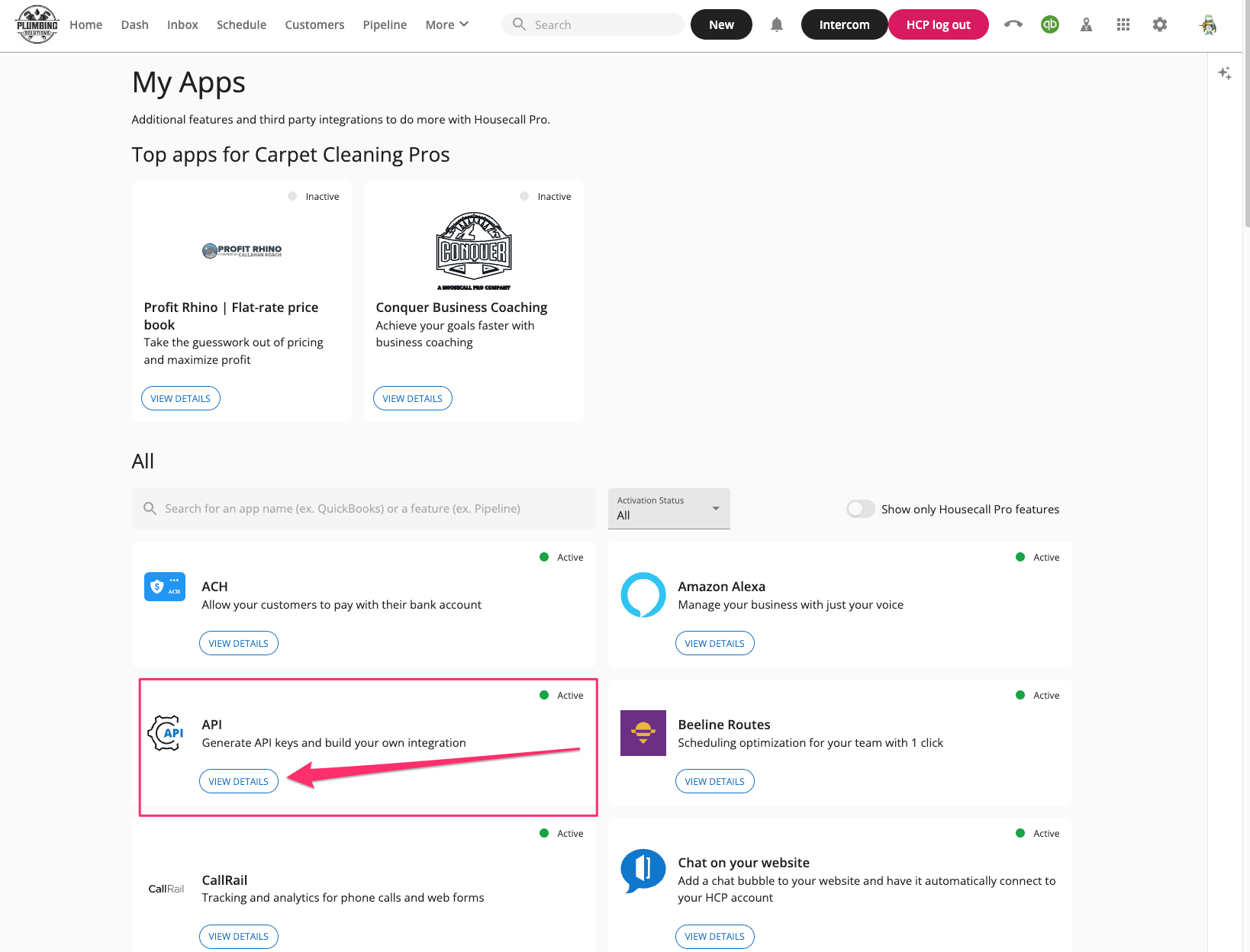
 - Find the API app card, and click** View Details**.
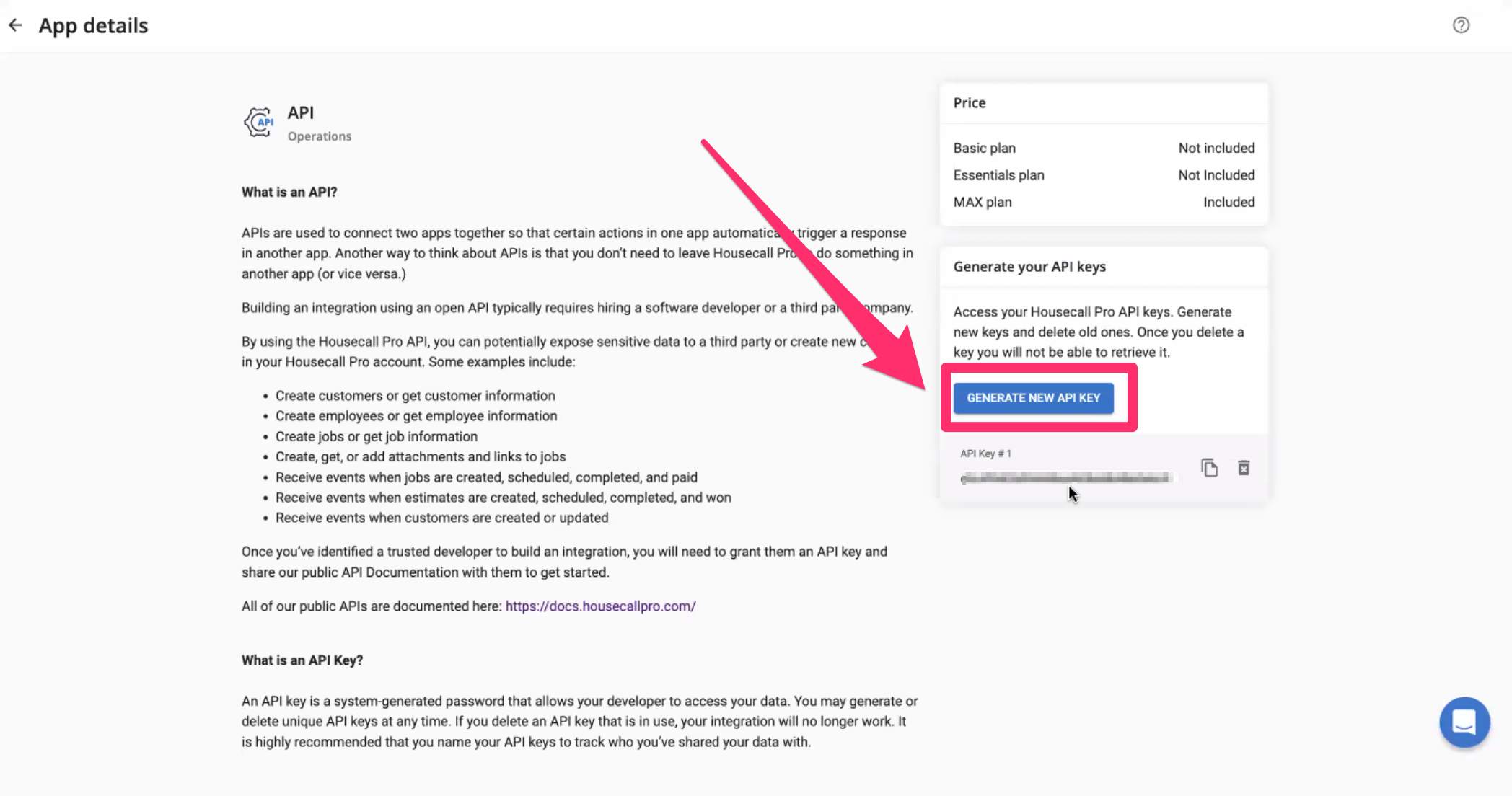
- On the right-hand side, click Generate API Key.
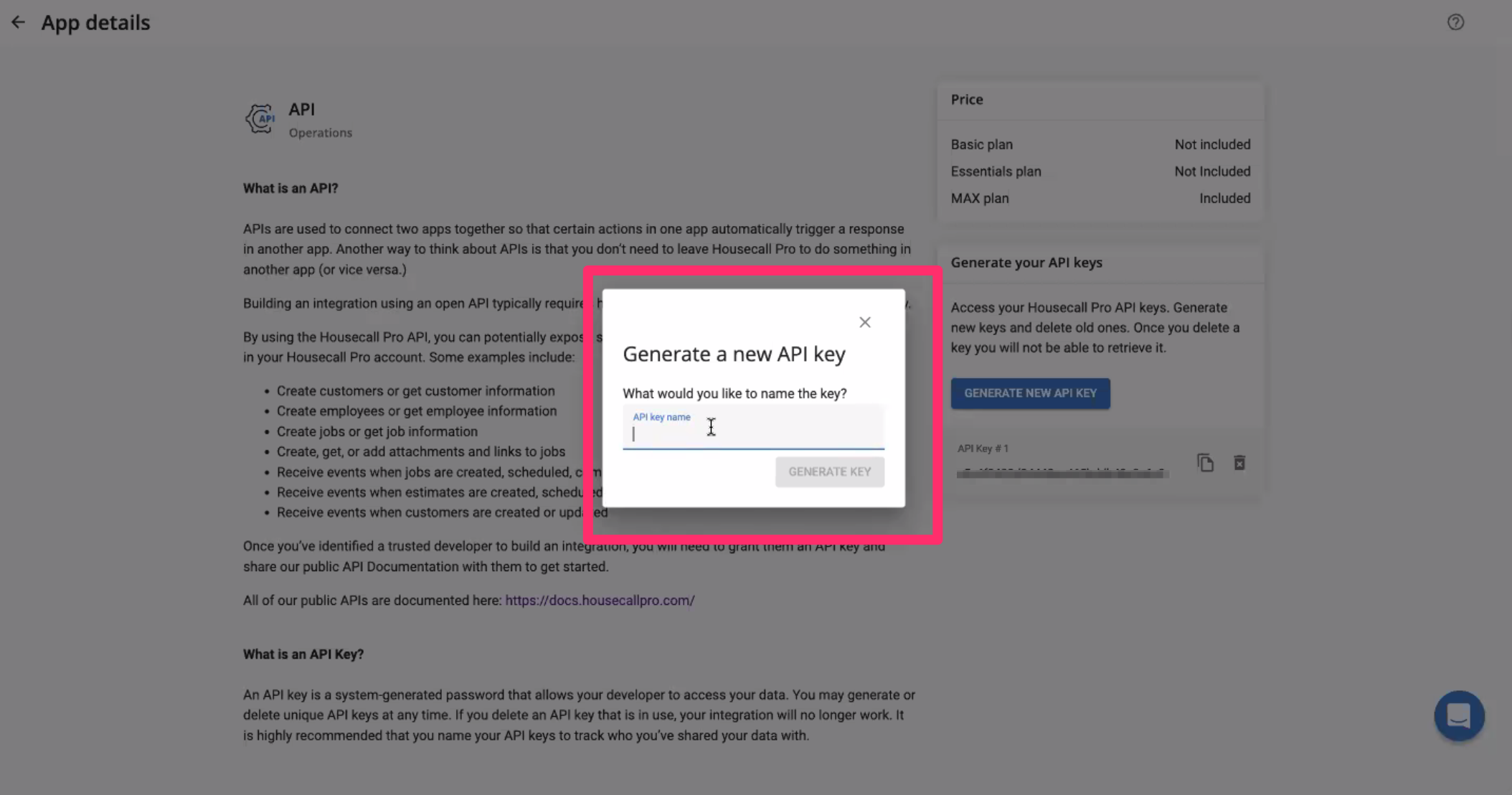
 - Name your API Key. This way, you can keep track of what project you are working on or who you are granting this API key to.
 - Copy the API key and Enter it in SetSale
💬 Need Help?
- Chat with us: Use the chat icon in the lower-right corner
- Email us: support@setsale.ai