How to Map Services, Supplies, Upgrades, and Discounts to ServiceTitan
Map your SetSale services, supplies, upgrades, and discounts to ServiceTitan items so quotes sync with the correct codes and GL accounts
SetSale's ServiceTitan integration now maps more than just equipment. You can connect your services, install supplies, upgrades, and discounts to the matching items in your ServiceTitan pricebook.
Mapping these items tells SetSale which ServiceTitan codes to use when a quote syncs over. That keeps your estimates tied to the right GL accounts and stops SetSale from creating duplicate codes in ServiceTitan.
Before You Begin
Make sure:
- Your ServiceTitan integration is connected in SetSale.
- Your ServiceTitan pricebook is linked (see below).
For help connecting the integration, see Getting Started with the ServiceTitan Integration.
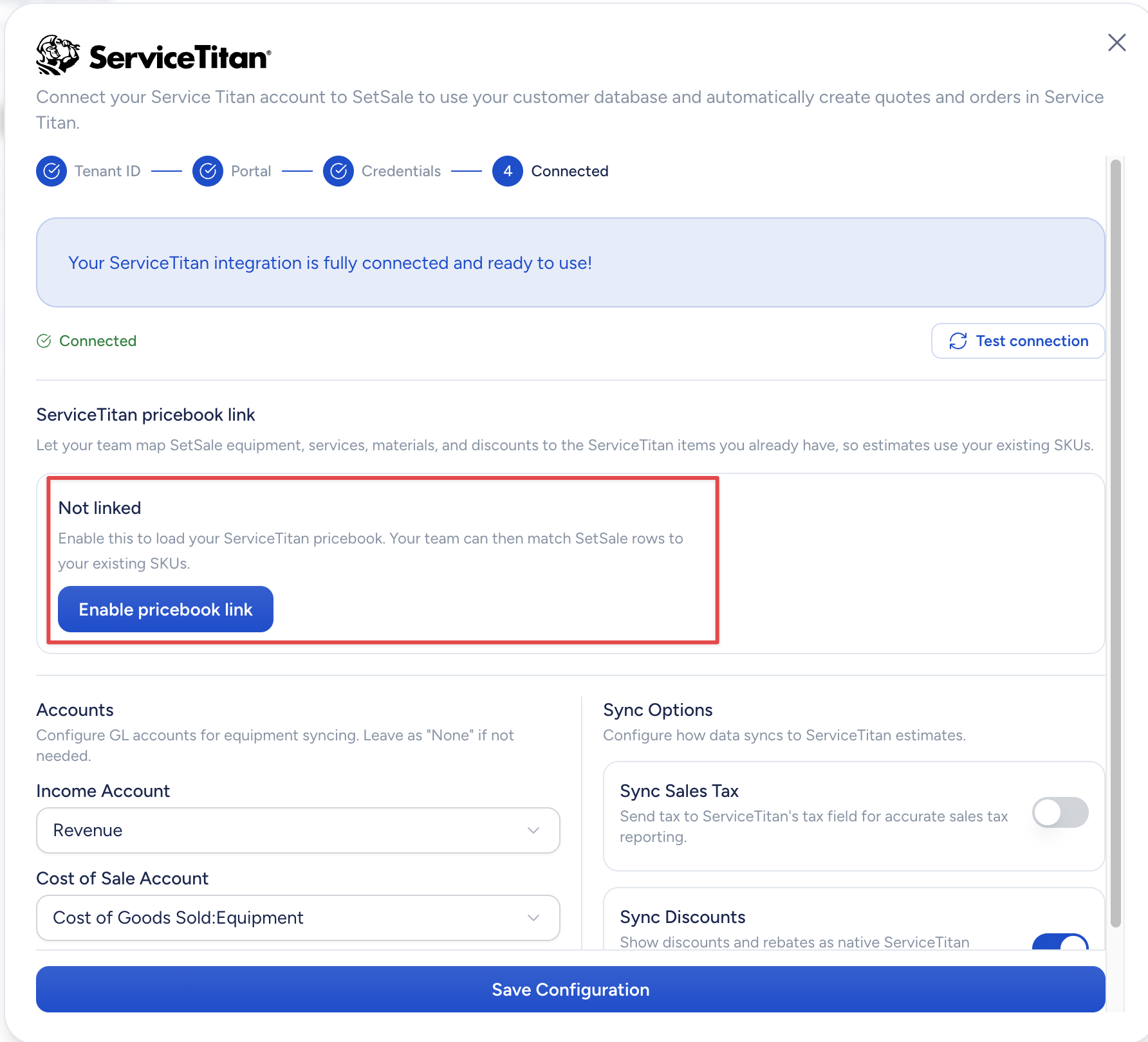
Link Your ServiceTitan Pricebook
Before you can map anything, SetSale needs to read your ServiceTitan pricebook.
- Open your ServiceTitan integration settings.
- Select Scan Pricebook.
This lets SetSale read your ServiceTitan items so it can match them to your SetSale items. It does not change anything inside your ServiceTitan pricebook.
Choose Whether SetSale Updates Mapped Values
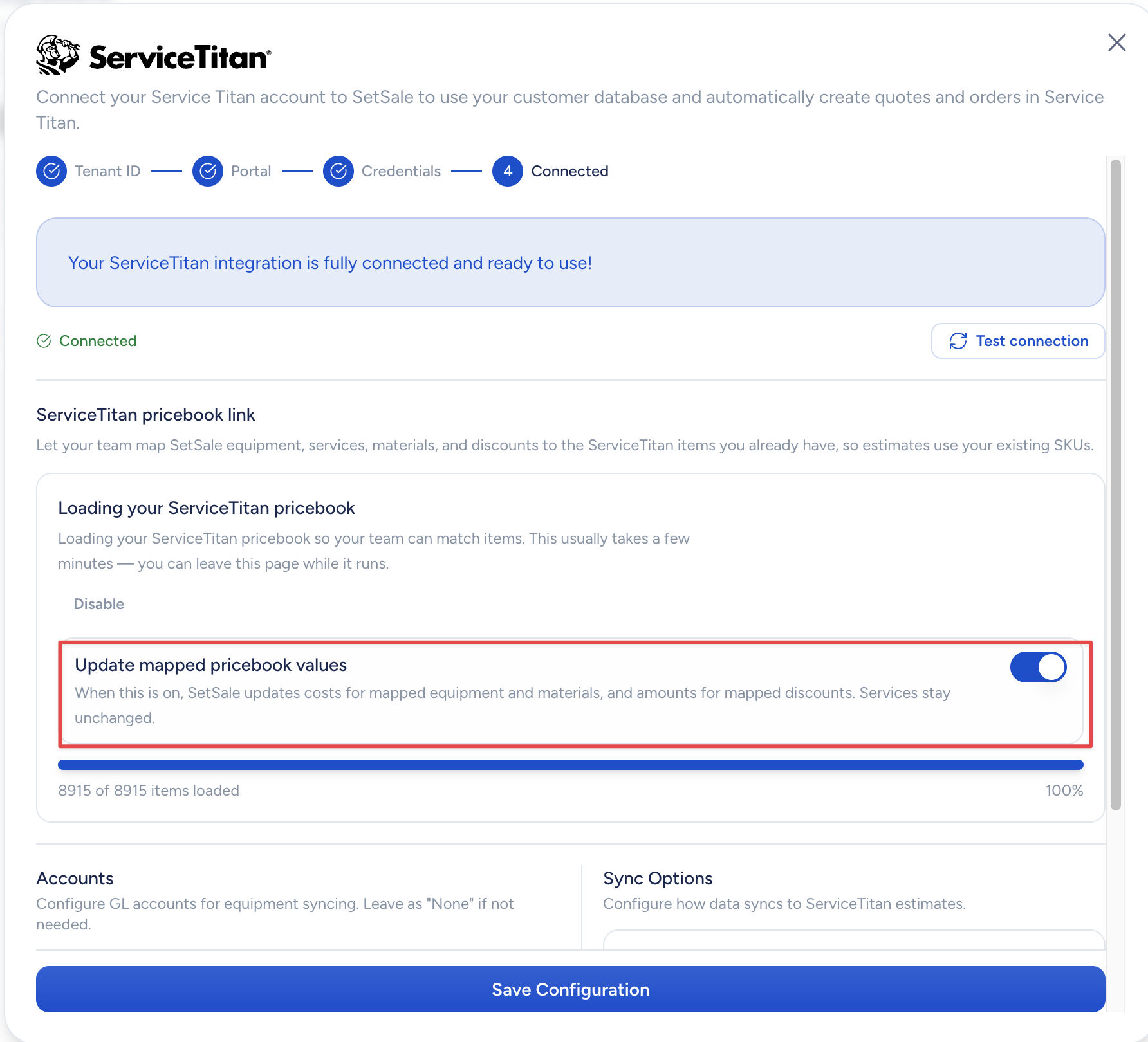
You'll also see an Update Mapped Pricebook Values option.
- Toggle on: SetSale updates the cost on mapped equipment and materials, and the amount on mapped services, inside your ServiceTitan pricebook.
- Toggle off: Those values stay exactly as they are in ServiceTitan.
Leave it on if you want SetSale to manage and update that pricing for you. Leave it off if your team maintains those values directly in ServiceTitan.
The rest of your integration settings still apply, including:
- Default Income Account and Cost of Sale Account
- Sync Sales Tax
- Sync Discounts (syncs discounts as separate line items)
Map Your Equipment
Equipment matching happens on the Equipment page and works the same as before.
For full steps, see How to Match SetSale Equipment to ServiceTitan.
Map Upgrades, Services, and Supplies
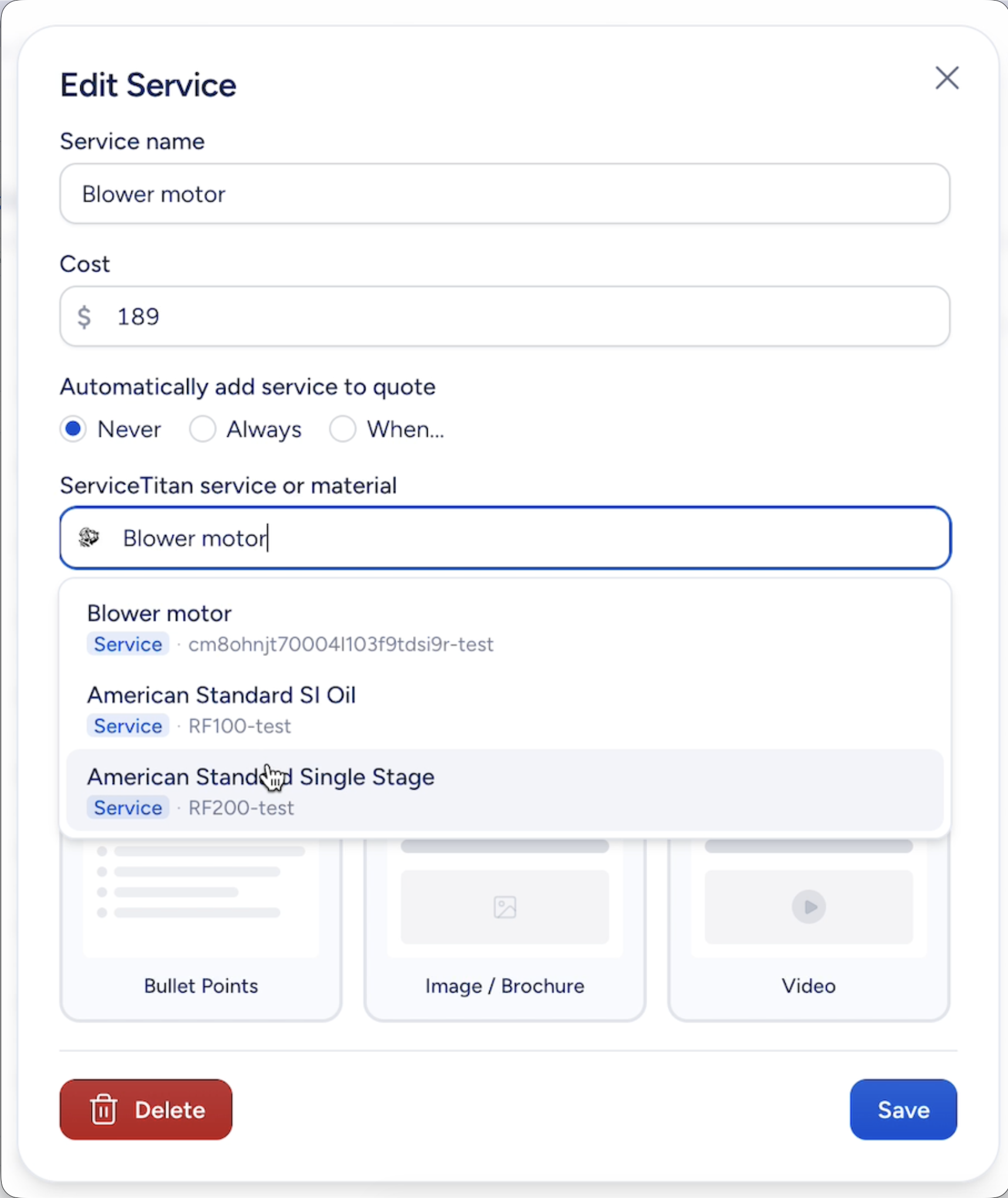
Each of these items now has a ServiceTitan mapping field. The steps are the same for all three.
- Go to the item under Quoting (Upgrades, Services, or Supplies).
- Open the individual item you want to map.
- In the ServiceTitan field, search your pricebook.
- Select the matching ServiceTitan item, then save.
A few item-specific notes:
- Upgrades can map to a ServiceTitan Service or Material.
- Services map to the matching ServiceTitan Service.
- Supplies map to the matching ServiceTitan Material.
Map Discounts
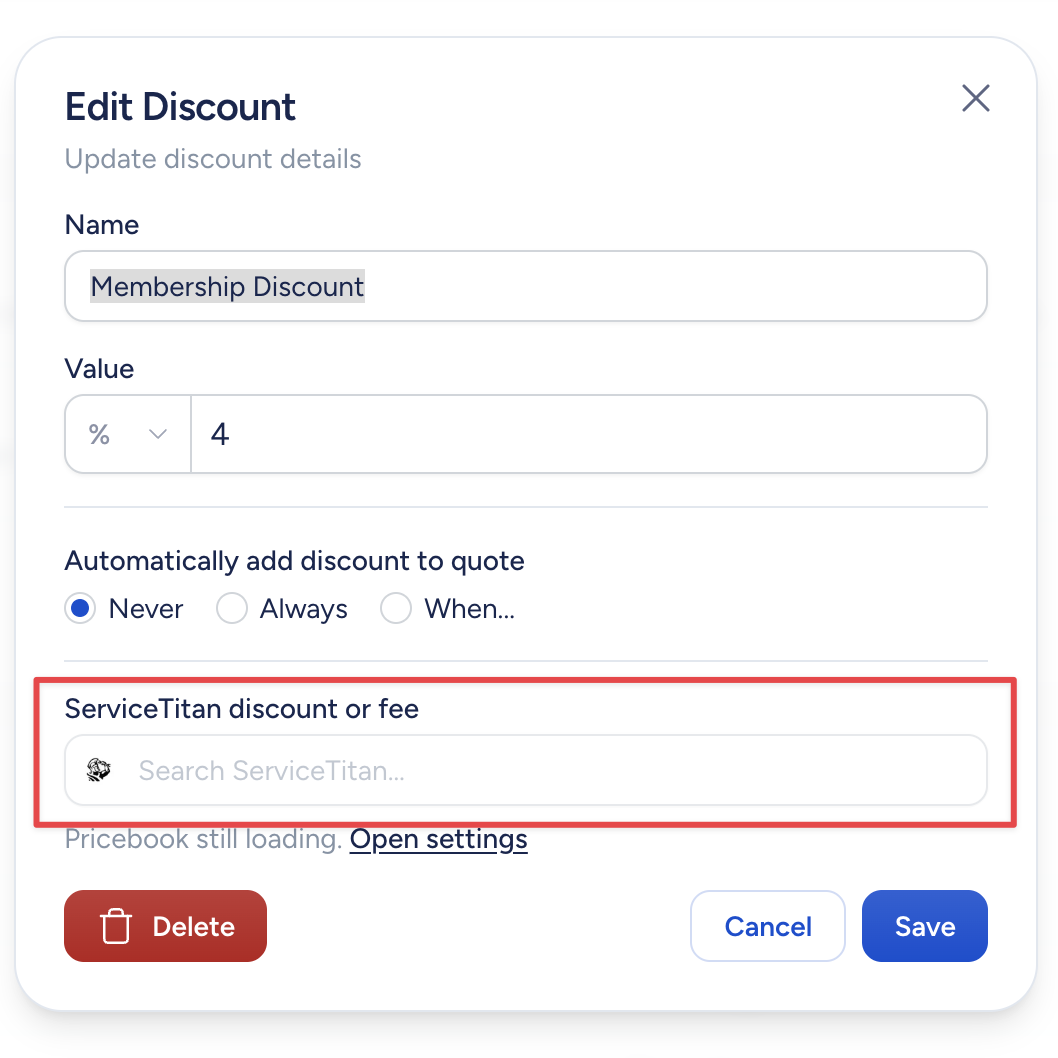
Discounts can sync too. Map each discount to a ServiceTitan Service-type discount or fee.
- Open the discount you want to map.
- In the ServiceTitan field, select the matching discount or fee.
- Save the discount.
Why Mapping Matters
When an item is mapped, SetSale uses the ServiceTitan code you chose instead of creating a new one. That gives you two things:
- No duplicate entries when quotes build in ServiceTitan.
- Accurate GL accounts, so your synced items land in the right place and your accounting reconciles cleanly.
Related Articles
- Getting Started with the ServiceTitan Integration
- How to Match SetSale Equipment to ServiceTitan
- Why Is My ServiceTitan Sync Failing?
Still Need Help?
Reach out to our team at support@setsale.ai and we'll be happy to help.