How to Register a JB Warranty
Complete JB warranty registration after a sale with the installation date and equipment serial numbers, then verify the agreement with JB.
After a customer accepts a quote that includes a JB warranty, complete the registration with the actual installation date and equipment serial numbers. This article walks you through the post-sale process in SetSale.
Still setting up your account or choosing warranty plans? Start with Getting Started with the JB Warranties Integration.
Why Registration Matters
Including a warranty on a sold quote is only part of the process. Registration gives JB the installation and equipment details needed to create the warranty agreement for the customer's system. Complete this step so the coverage you sold can be matched to the equipment you installed.
JB's agreement determines coverage, eligibility, deadlines, and claims requirements. Do not treat a sold quote alone as confirmation that registration is complete.
Before You Begin
- Confirm the accepted quote includes the JB warranty the customer purchased.
- Have the actual installation date and the serial number for every covered piece of equipment ready. Use the installed equipment labels or your installation records.
- Confirm your JB Warranties integration is connected in Settings → Integrations. See the setup article above if needed.
Wait until you have the final installation details. The form may already show a date—replace it with the actual installation date. A model number identifies a product; a serial number identifies the individual unit. You need the serial numbers.
1. Open the Registration Task
From the Quotes dashboard, find Next tasks to complete and click Register JB warranty for the correct quote. Check the quote number before opening it.
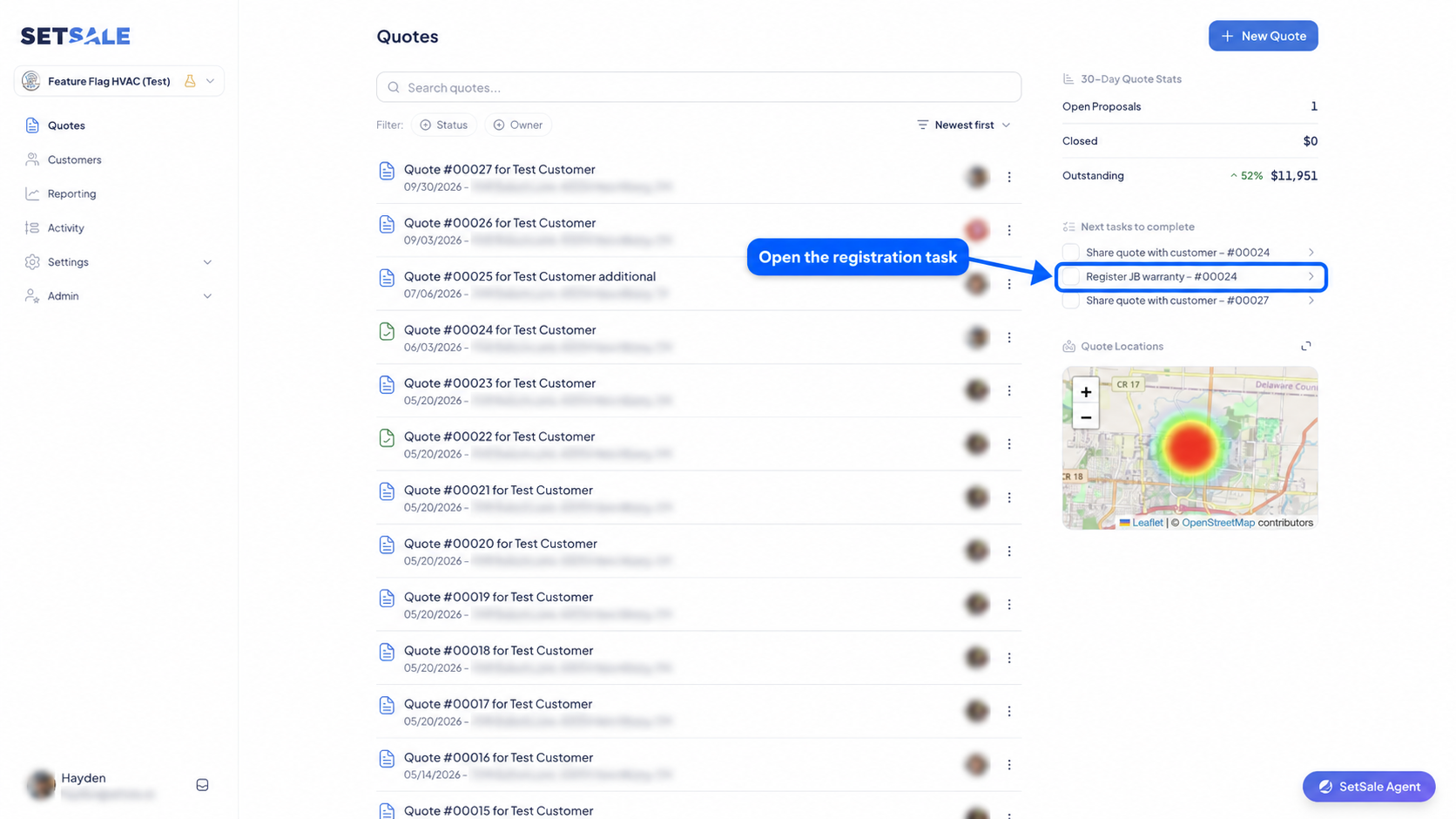
Open Register JB warranty under Next tasks to complete for the correct quote.
You can also open the sold quote and click Register JB warranty in its Tasks section. The registration form opens directly from the task.
2. Enter the Installation Details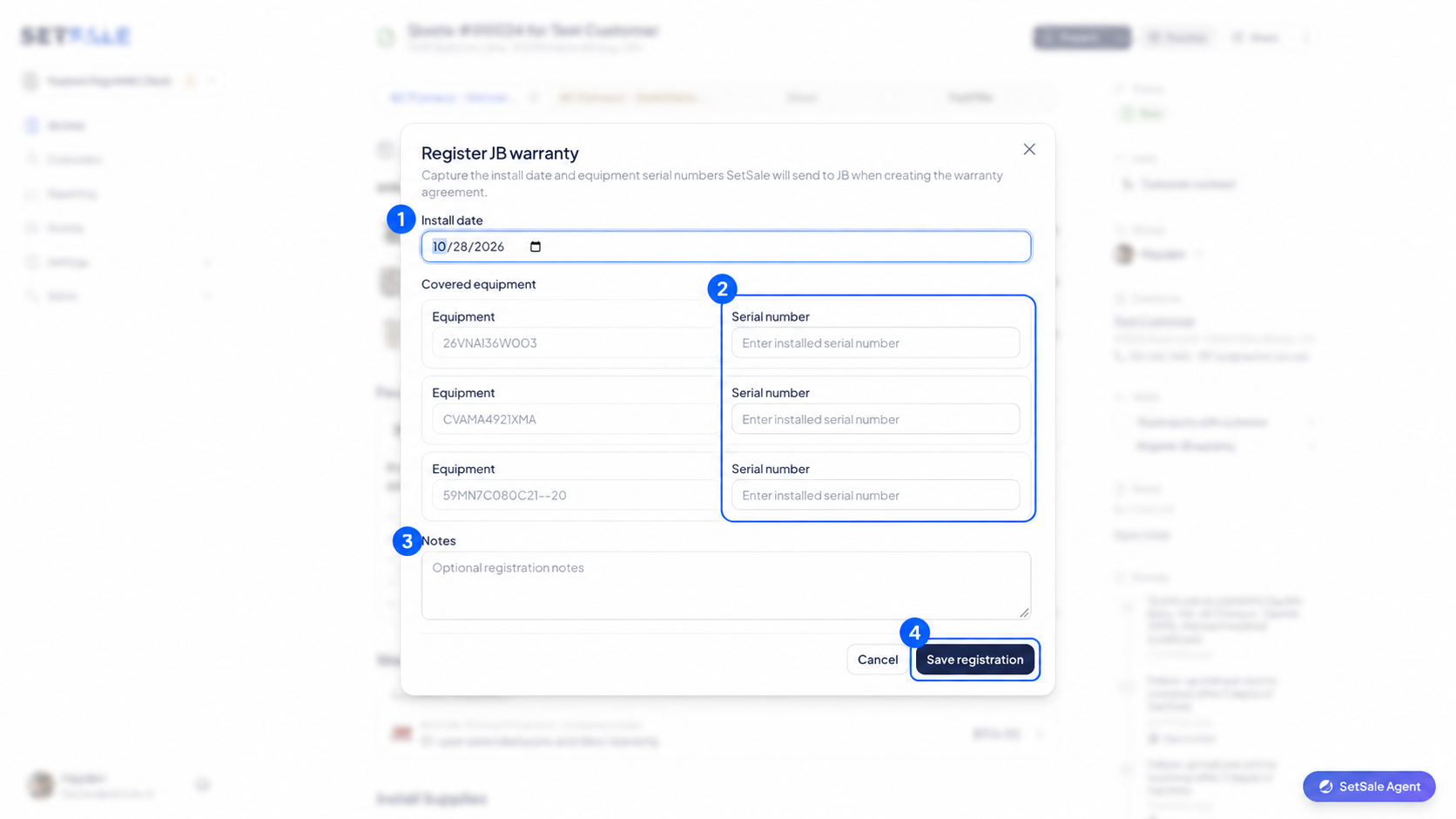
- Install date: Enter the date the equipment was installed.
- Covered equipment: Review the listed models, then enter the installed serial number beside each one. Match each serial number to the correct model.
- Notes: Add optional registration notes if needed.
Check every character against the equipment label, especially similar-looking letters and numbers. If the equipment list does not match the installation, stop and contact SetSale support before submitting.
3. Review and Save
Double-check the quote, installation date, and all serial numbers. Click Save registration. SetSale uses these details when creating the warranty agreement with JB.
Wait for the result and address any error shown. If the outcome is unclear, verify the registration with JB or contact SetSale support before trying again so you can avoid duplicate registrations.
After Registration
- Confirm the warranty agreement is recorded with JB and that its customer, equipment, and installation details are correct.
- Keep the agreement or confirmation with your job records and share the applicable warranty documentation with the homeowner.
- For quotes covering multiple systems, review all covered equipment and make sure each system's warranty registration is accounted for.
- Follow JB's plan-specific registration deadlines and coverage requirements. Contact JB for the terms that apply to the purchased plan.
Common Questions
Is the warranty registered automatically when a quote is sold?
The post-sale registration task still needs the installation date and serial numbers. Complete registration rather than assuming the sale registered the installed equipment.
What if I do not have an active JB integration?
Complete registration directly through your JB Warranties portal. SetSale cannot register the warranty on your behalf without an active integration. Follow the companion setup article to connect your account for future registrations.
What if I cannot find the task or registration fails?
Check that you opened the correct sold quote and that it includes a JB warranty. For a missing task, an incorrect equipment list, or a SetSale error, use the SetSale Agent chat or email support@setsale.ai. Include the quote number and the error message.
What if I need to correct a registration or start a claim?
Contact JB Warranties for agreement corrections, coverage questions, and claims instructions. Avoid submitting another registration simply to correct an existing agreement. JB manages warranty terms and claims; SetSale support can help with the registration flow in SetSale.