How to Automatically Add Rebates to Your Quotes
Learning how to automatically add rebates to your quotes can meaningfully improve the HVAC experience for techs and homeowners alike
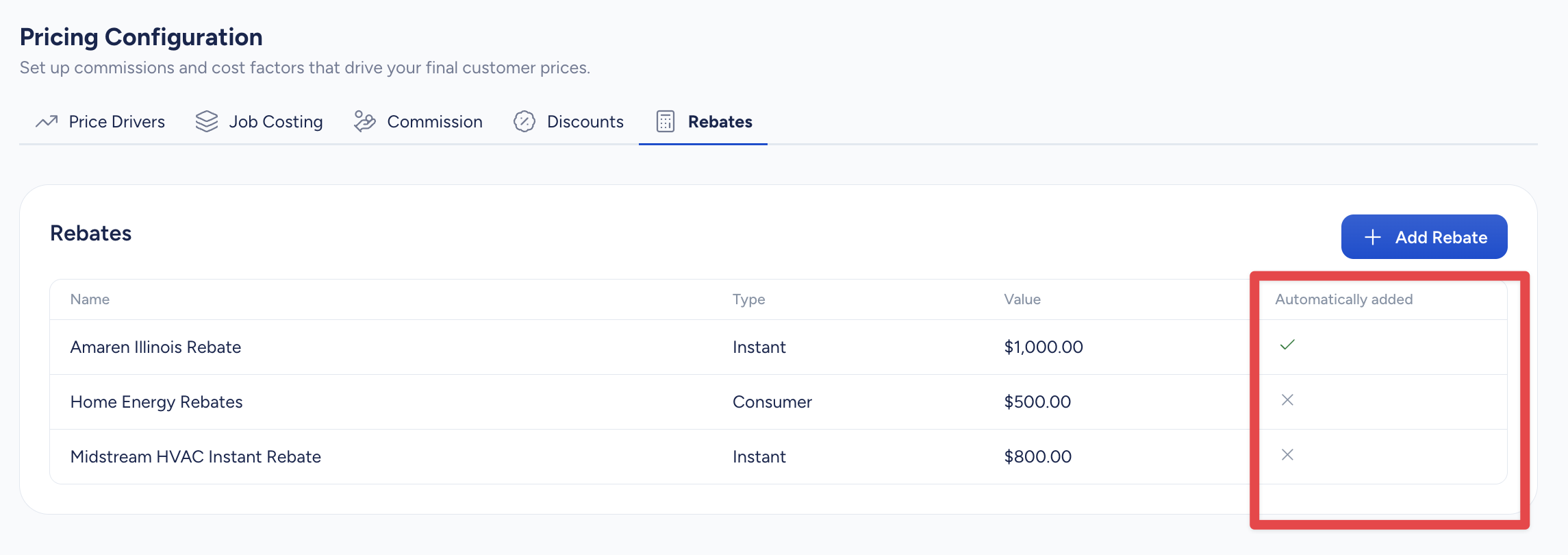
Instead of relying on technicians to remember which rebates belong on which quotes, you can configure SetSale to add them automatically. The Automatically Added column in your upgrade settings lets you define exactly when each upgrade should appear — on every quote, only under certain conditions, or never.
Where to Find This Setting
-
Go to Settings > Pricing > Rebates.
-
Look for the Automatically Added column next to each rebate in your list.
Auto-Add Options
Never
The rebate won't be added to quotes automatically. Technicians can still add it manually while building a quote.
Always
The rebate is added to every quote, on every tier — no exceptions. Use this for rebates you want included on every single proposal your team sends out.
When
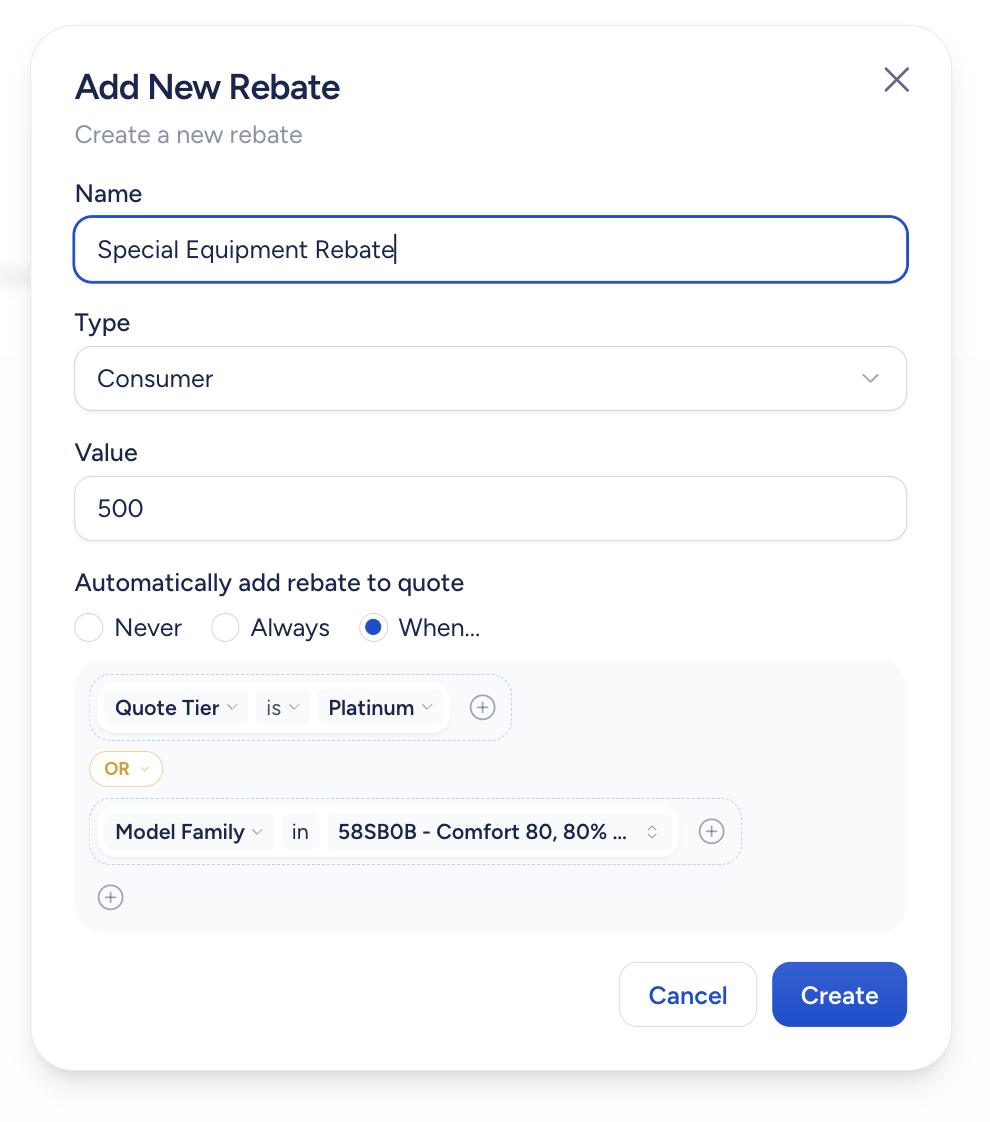
The rebate is added only when certain conditions are met. This is where things get flexible. You can set conditions based on:
-
Quote Tier — Add the rebate only to a specific tier (e.g., Platinum, Gold, Silver, or your custom tier names).
-
System Type — Add the rebate when the quote includes a particular system type (e.g., Heat Pump, Dual Fuel, AC & Furnace).
-
Price Is More Than / Price Is Less Than — Add the rebate when the ticket price is above or below a dollar amount you set.
-
Model Family — Add the rebate when a specific model family is used on a tier.
Combining Conditions
You're not limited to a single condition. You can combine multiple conditions using AND/OR logic to get specific about when a rebate should appear.
For example, you might set a rebate to auto-add when the system type is "Ductless AC Pump" and the quote tier is "Silver." Or you could set it to appear when the system type is "Furnace" or the price is more than $10,000.
Within the "When" option, click Add Condition to add individual rules, or use condition groups to build out more complex logic.
Example
Say you have a special manufacturer rebate that you want included on every for every piece of equipment in a specific model family. You could set the auto-add rule to When > Model Family is X. Now every time a technician builds a quote, that rebate shows up on quotes containing that model family without anyone having to remember to add it.
Tips
-
Start with your most commonly included rebates and set those to Always or When first. You can always adjust later.
-
Use the Automatically Added column as a quick visual check to see which rebates are automated and which aren't.
-
Technicians can still remove auto-added rebates from individual quotes if they don't apply to a particular job.