How to Create Template Sets and Assign Them to Your Contractors
Build system templates once and push them to your contractor network so they quote from your approved equipment without extra setup
How to Use Template Sets to Share System Templates With Your Contractor
Template Sets let you build system templates once and push them out to the contractors in your network. Every contractor quotes from the equipment, tiers, matchups, and add-on equipment you've approved.
This article covers how to build a distributor-managed system template, group templates into a set, and assign that set to your contractors.
Why Use Template Sets
Getting contractors set up with the right equipment used to mean walking each one through their own template build, or hoping they got it right on their own. Template Sets put that control in your hands.
- You choose the equipment. Decide which model lines, tiers, and matchups contractors start with.
- You include the extras. Add heat kits, thermostats, and other accessories so they're already on the quote.
- You stay in control. Templates remain managed by you, and contractors can start quoting right away.
How It Works
- You build system templates from your equipment, including any additional equipment like heat kits or thermostats.
- You group one or more templates into a Template Set.
- You assign the set to one contractor, a group, or your whole network.
- The templates appear in each contractor's account as read-only managed templates they can quote from immediately.
Step-by-Step Instructions
1. Open System Templates
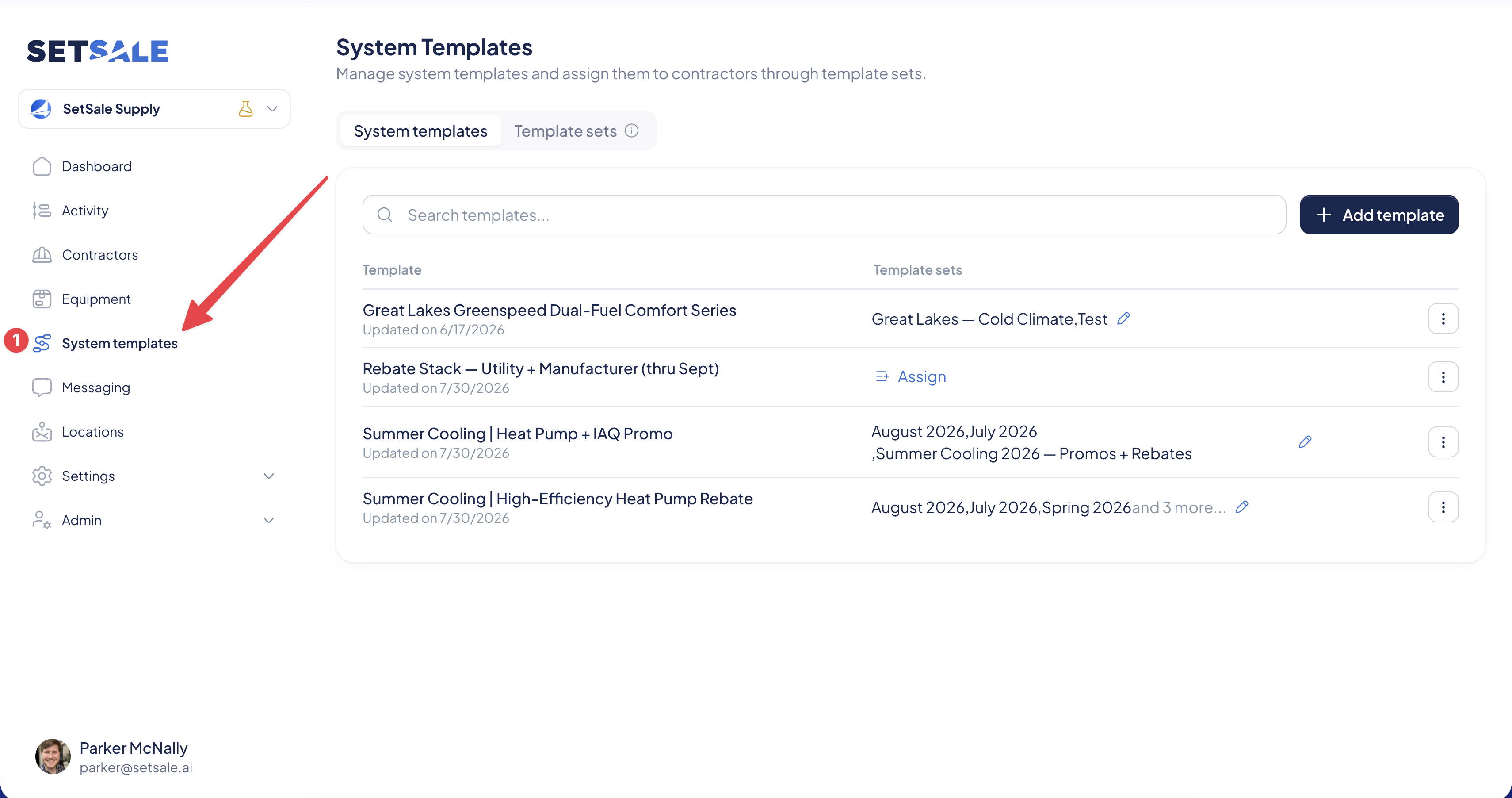
- In the SetSale Connect left navigation, click System Templates.
- The System Templates page lists your distributor-owned templates, including a summary of each template's configuration, which sets it belongs to, and how many contractors it's assigned to.
2. Build a System Template
If you don't have a template yet, build one first. Distributor templates use the same builder contractors use, so the layout will feel familiar.
- Create a new template and name it for the system it covers (for example, "Heat Pump System" or "AC + Furnace Split").
- Set the equipment, tiers, and matchups for each tier.
- Enable only the matchups you want contractors to quote. Disabled matchups won't pull into their quotes.
- Use the Coverage Checker to confirm no tier is missing matching equipment.
For a full walkthrough of the template builder, see How to Configure Equipment Rules and Templates.
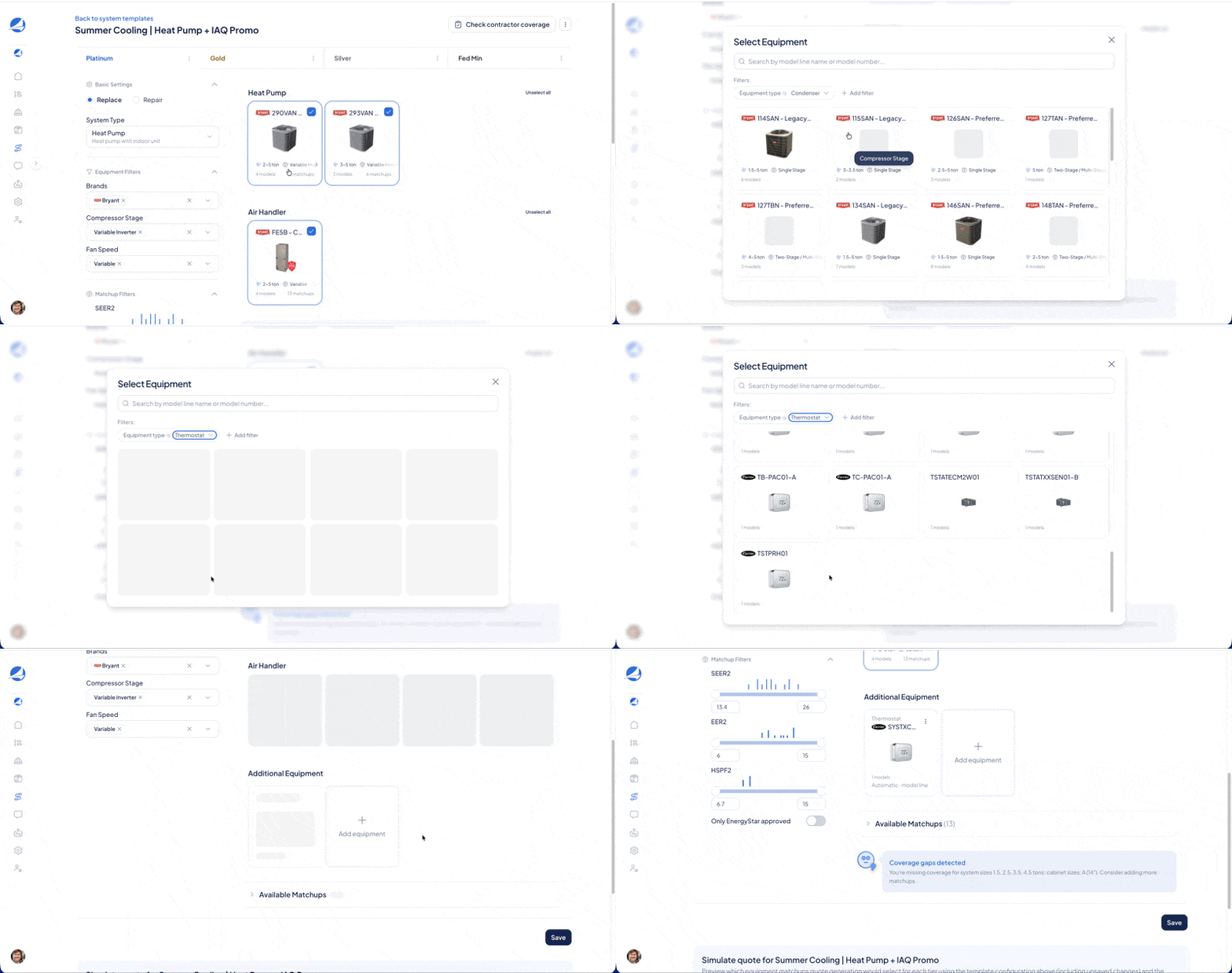
3. Add Additional Equipment (Heat Kits, Thermostats, Accessories)
Beyond the core matchup, you can include additional equipment in your templates so contractors don't have to add it on every quote.
- In the template, scroll to the Additional Equipment section.
- Add the equipment you want included, such as heat kits, thermostats, or other accessories.
- Repeat for each tier that needs it.
4. Create a Template Set
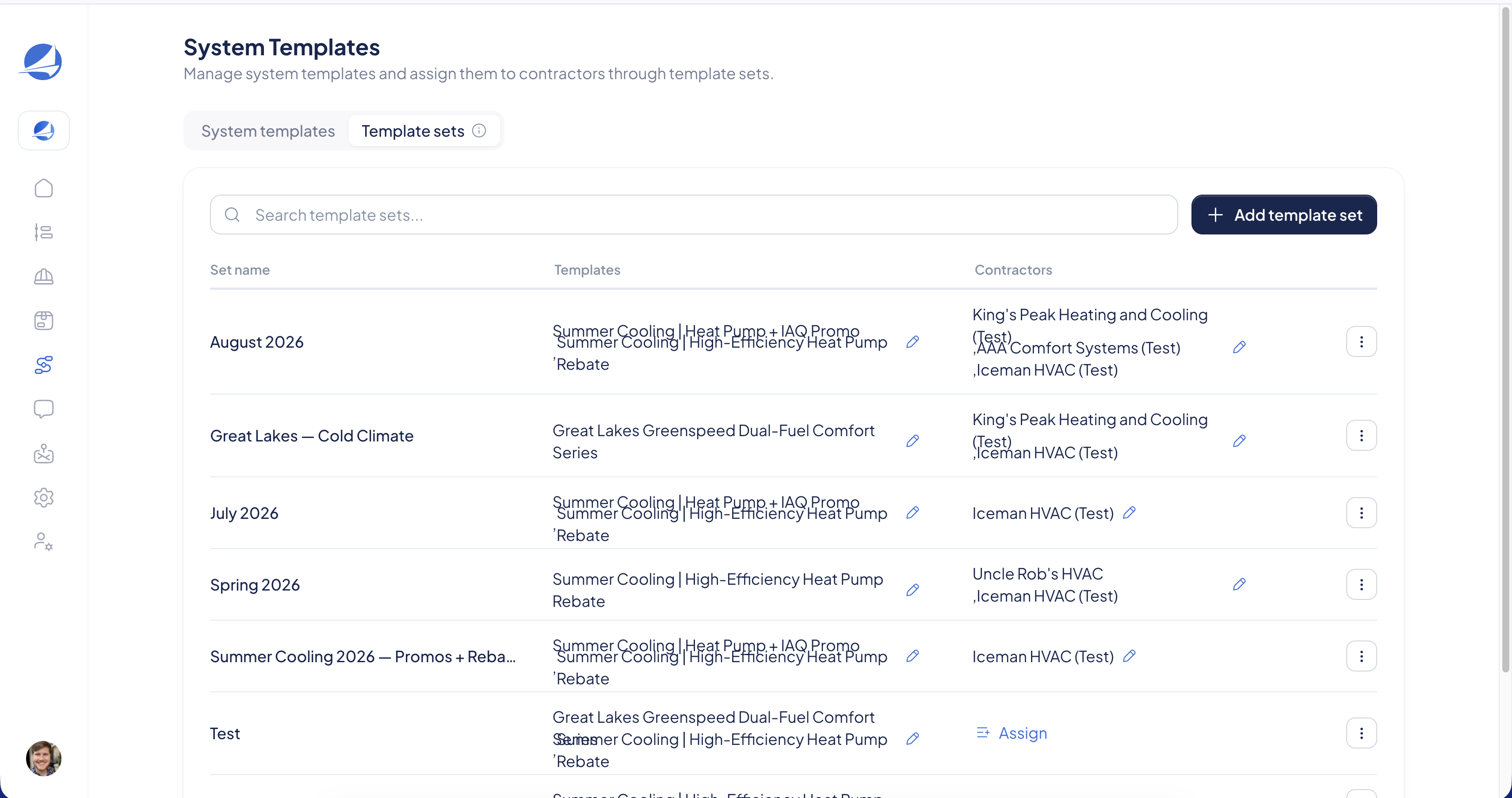
- Open the Template Sets tab.
- Click Create Set, give the set a name, and confirm. Set names must be unique.
5. Add Templates to the Set
- Open the set to view its detail page.
- Add the system templates you want to include.
A set can hold multiple templates, and the same template can belong to more than one set.
6. Assign Contractors to the Set
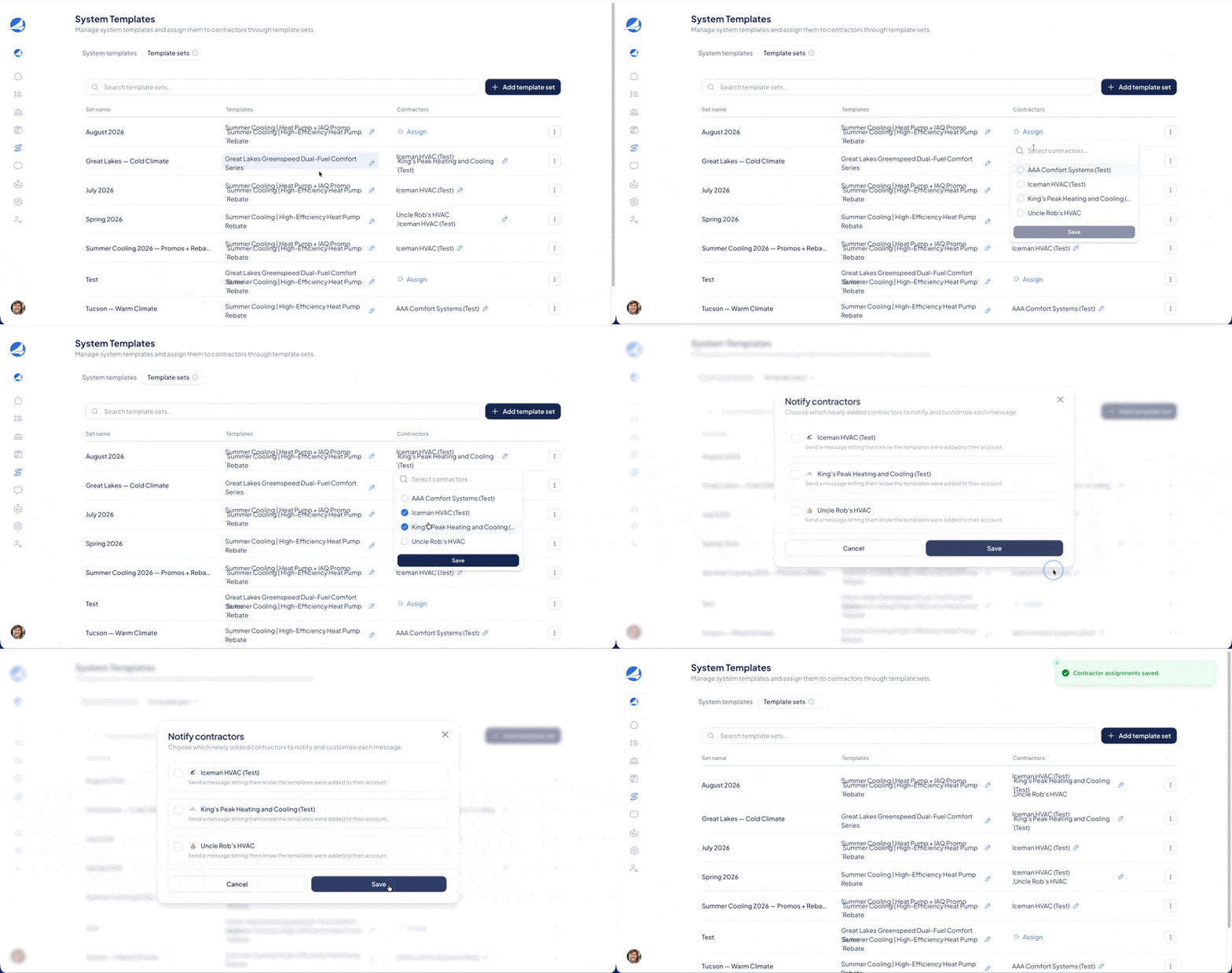
- On the set detail page, click Assign Contractors.
- Search for contractors and multi-select the ones you want. You can assign a single contractor, a group, or your full network in one action.
- Click Save. The templates in the set appear in each assigned contractor's account.
What Your Contractors See
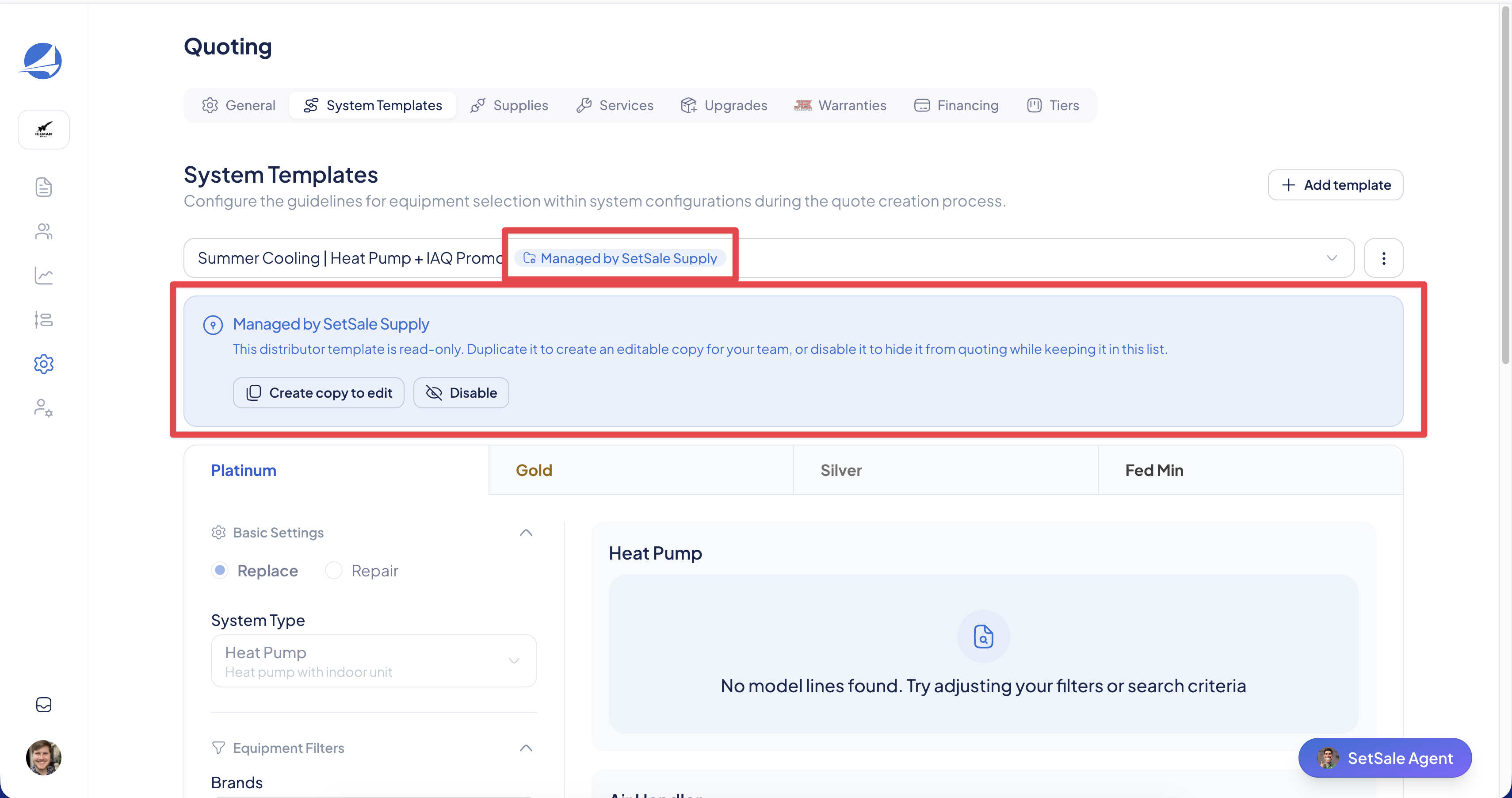
Once a set is assigned, the templates appear in each contractor's System Templates as managed templates, labeled with your company as the source.
- Read-only by default. Contractors can quote from your templates but can't edit or delete them. Managed templates appear in their quote template dropdown alongside their own, in one sorted list.
- Additional equipment comes with it. Any heat kits, thermostats, or accessories you added pull into their quotes automatically.
- Create a copy to edit. If a contractor wants to tweak a managed template, they can duplicate it. The copy becomes their own editable template and leaves your original untouched.
- Disable. A contractor can hide a managed template that doesn't apply to them. This only affects their account, not the set or other contractors.
Managing Template Sets
- Rename or delete a set from its detail page. Deleting a set removes it from every contractor it was assigned to.
- Reuse templates across sets. Because one template can live in multiple sets, you can maintain a single source template and roll it out to different contractor groups.
- Deleting a template in active use. If you delete a template contractors are actively quoting from, SetSale will warn you before you confirm.
A Note for Territory Managers
Territory managers can build templates and manage assignments for the contractors in their scope, with a couple of guardrails:
- TMs can't delete templates.
- TMs can't unassign a set from a contractor outside their assigned territory.
Tips for Success
- Start narrow, then expand. Assign a set to one or two contractors first, confirm the templates land the way you expect, then roll out to the rest of your network.
- Group sets by contractor type. Build separate sets for different kinds of contractors (for example, residential vs. light commercial) instead of one set for everyone.
- Check coverage before you assign. Run the Coverage Checker on each template so contractors don't open a managed template with empty tiers.
- Don't forget the extras. Review the Additional Equipment section before assigning so contractors aren't missing heat kits or thermostats on their quotes.