How to Assign a Presentation to a Quote
Choose which presentation deck to attach to your quote so you can present the right version to each homeowner
Overview
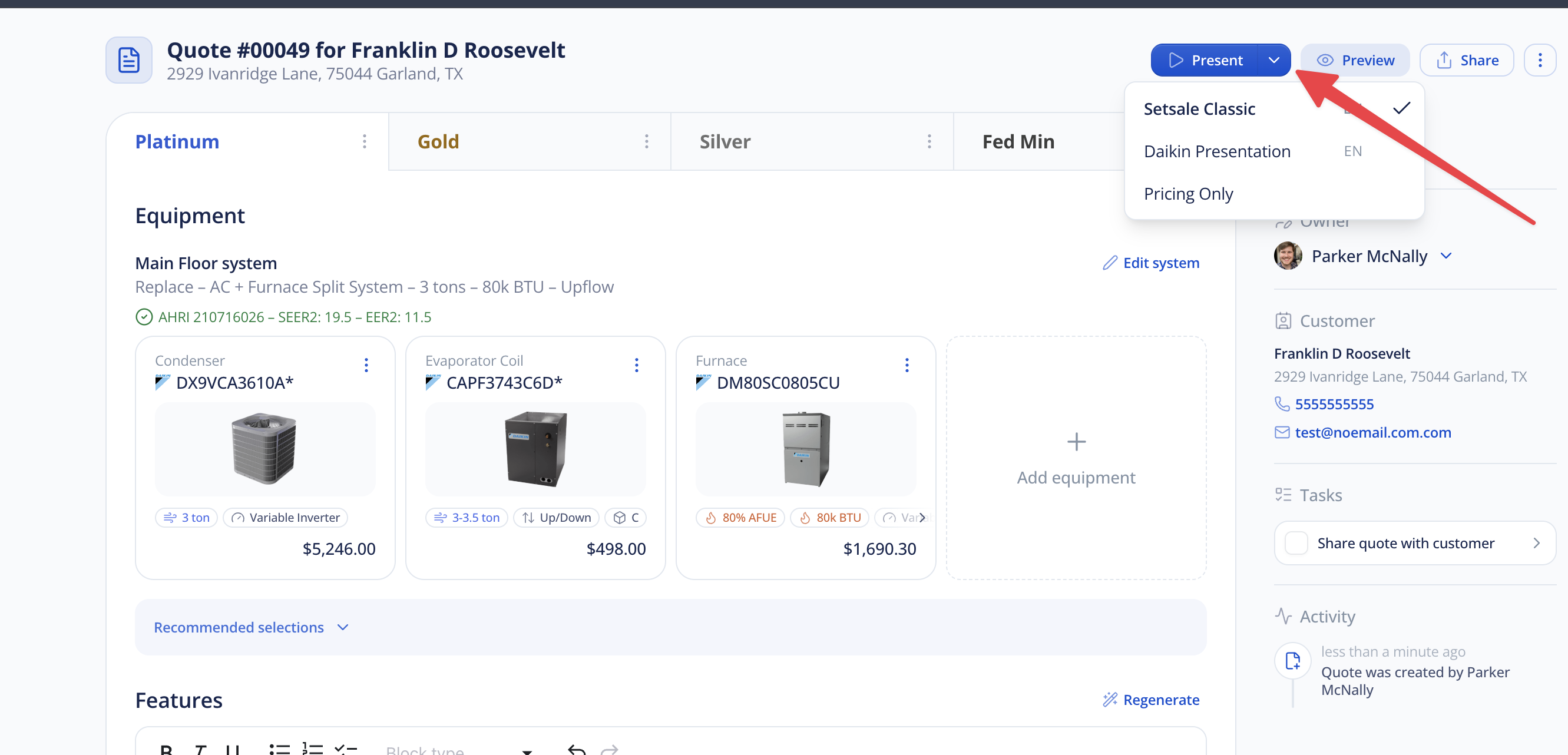
When you build a quote in SetSale, you'll now choose which presentation to attach to it. Instead of the old English/Spanish toggle, you'll see a dropdown with all the presentations your team has created — whether that's language variations, brand-specific decks, or different sales approaches.
Assigning a Presentation
-
Open or create a quote.
-
In the quote settings, find the Presentation dropdown.
-
Select the presentation you want to use for this quote.
After migration, SetSale Classic will be selected by default.
-
Any other presentations your team has created will also appear in the list.
-
Continue building your quote as usual.
Presenting to the Homeowner
Once you've selected a presentation and your quote is ready:
-
Click Present on the quote.
-
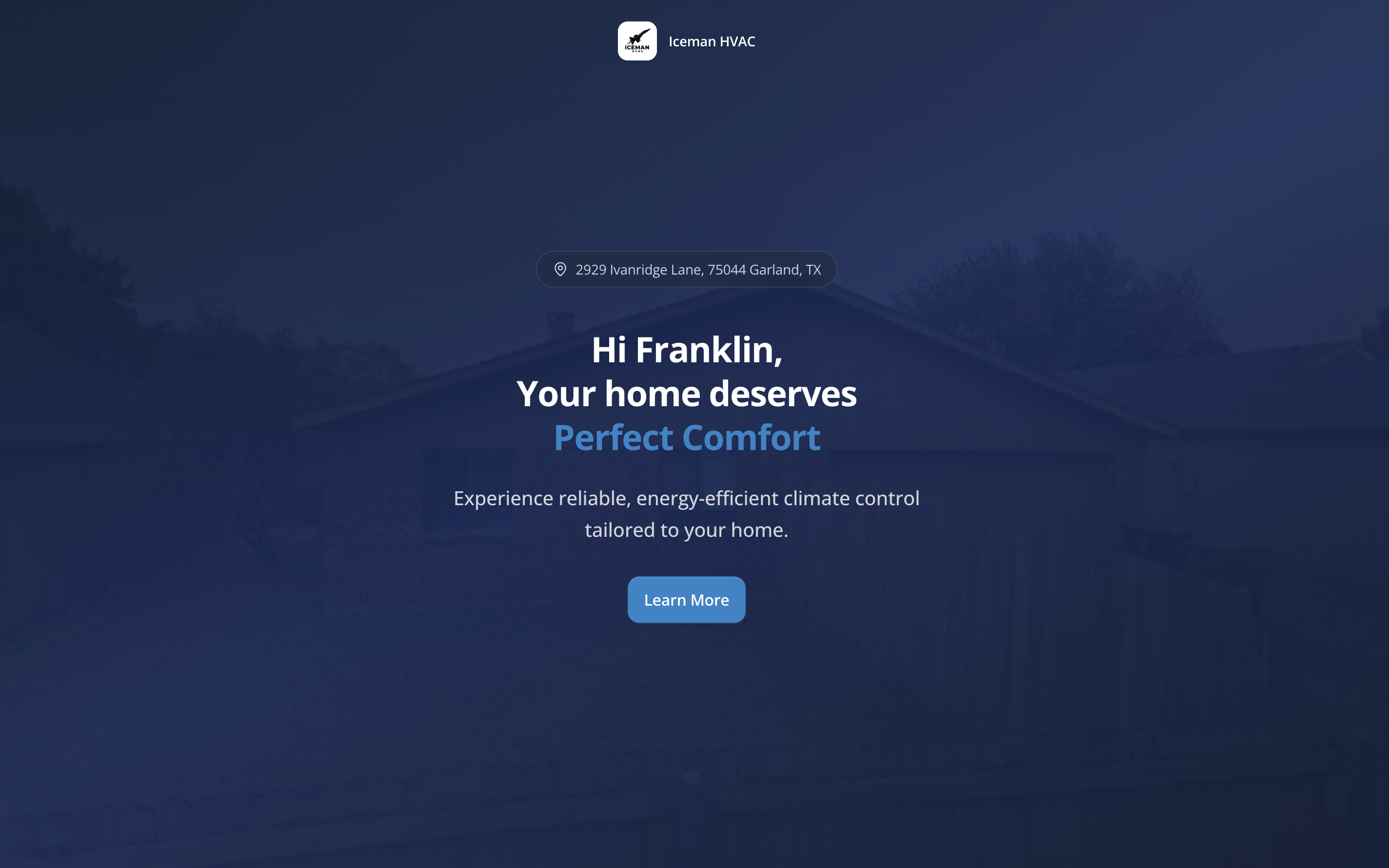
The presentation will open in a new tab.
-
Depending on the presentation's mode:
Slide mode: Click through slides one at a time. Narration will play when you press the play button.
- Scroll mode: The homeowner scrolls through the content like a web page. No narration in this mode.
The presentation is responsive, so it will adjust to look good on desktops, iPads, and mobile phones.
How Narration Behaves
-
When the sales rep is presenting (in-person or on a call): Narration is opt-in. You press play to trigger the voiceover on each slide.
-
When the homeowner opens the presentation on their own device (e.g., from a shared link): Narration will autoplay so the homeowner gets the full guided experience.
Choosing the Right Presentation
Here are some common ways teams organize their presentations:
-
By language: An English presentation and a Spanish presentation. Pick the one that matches your homeowner.
-
By brand or equipment: A Carrier-focused deck vs. a Daikin-focused deck, each with the appropriate warranty details and equipment images.
-
By sales style: A detailed educational presentation vs. a streamlined pricing-focused deck.
-
Pricing only: If your reps prefer to skip the full presentation, create a short presentation with just the pricing slide(s). Select it on quotes where you want to go straight to the numbers.
Tips
-
All users on your team can see and select any presentation. There's no per-user restriction.
-
You can change the assigned presentation on a quote at any time before presenting.
-
If you're not sure which presentation to use, check the Presentations home page to preview what's available.