How to Set Up Promotional Financing Rules
Choose promotional loans by quote tier, price, and equipment brand, prioritize matching rules, and set a no-promo or promotional-loan fallback.
Promotional financing rules choose which promotional loan appears for each quote tier. Use them to offer a promotion for a particular tier, a price threshold, or an equipment brand, and choose what happens when nothing matches.
Before you begin
Add the promotional loans you want to offer before building rules. See How to Add Financing Plans to SetSale for entering loan terms, fees, and limits.
For standard installment plans and monthly payments, use How to Set Up Installment Financing Rules.
Open the promotional rule settings
- Go to Settings → Quoting → Financing.
- Scroll to Financing Rules, below Financing Providers.
- Turn Automated Financing Rules off.
- Find Manual promo financing rules, below the installment rule section.
Create a promotional financing rule
- Under Manual promo financing rules, select Add Rule.
- Choose Quoting Tier, Price, or Brand, then set the comparison and value.
- Use Add condition to narrow the rule. Conditions in the same rule are joined by AND: all must match.
- Select the promotional loan to use, or choose No promotional loan.
- Add more rules as needed. Drag the most specific rules above broader ones. Newly added rules appear at the top, so check the order after each addition.
- Set the Default rule (applies if no other rules match) to a fallback promotional loan or No promotional loan.
- Select Save.
The first matching promo rule wins. SetSale checks the rules from top to bottom and uses the default only when none match.
Example: combine tier, price, and brand
This example uses plans available in a test company. Replace the sample loans and tier names with your own lender-approved offerings.
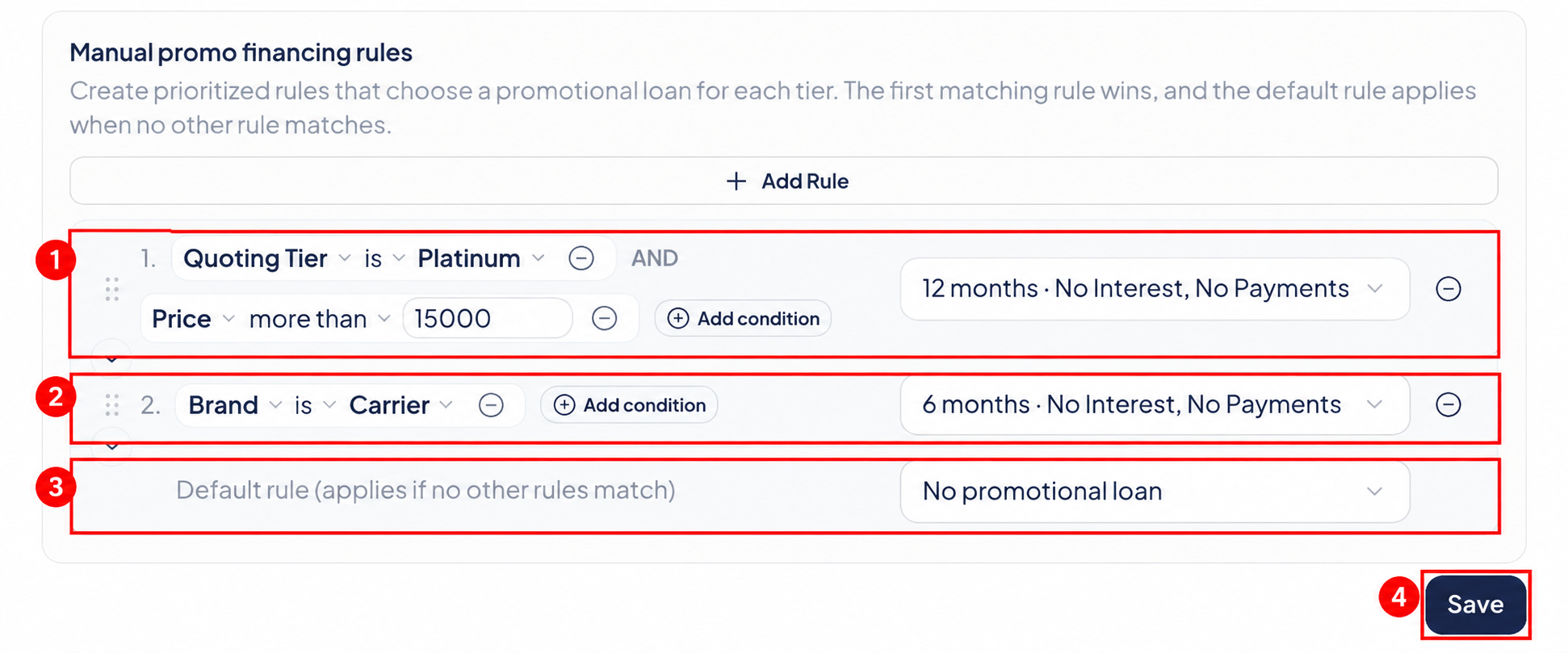
- Rule 1 — Platinum AND price more than $15,000: Use 12 months · No Interest, No Payments. Both conditions must match.
- Rule 2 — Brand is Carrier: Use 6 months · No Interest, No Payments. This is checked only if rule 1 does not match.
- Default — No promotional loan: Select no promotion when neither rule matches.
- Save: Apply the completed setup.
Which promotion is selected?
| Example tier | Result | Why |
|---|---|---|
| Platinum, $18,000, Carrier | 12-month promotion | Rule 1 wins, even though rule 2 also matches. |
| Platinum, $14,000, Carrier | 6-month promotion | The price condition fails; rule 2 matches. |
| Gold, $12,000, Goodman | No promotional loan | Neither rule matches; the default applies. |
Check the boundary: Exactly $15,000 is not more than $15,000. In this example, a Carrier tier at that price falls through to rule 2.
Review your setup
After saving, create a test quote and check a tier that should match each rule, plus one that should use the default. Review the financing in the homeowner presentation before sharing the quote.
If the wrong promotion appears, check the condition values, whether all conditions match, and whether a higher-priority rule matches first.
Frequently asked questions
Can I use promo rules with automated financing on?
No. Manual promo rules apply when Automated Financing Rules is off. Automatic financing behavior is unchanged.
Can I choose not to offer a promotional loan?
Yes. Select No promotional loan in a rule or in the default rule.
Will the new feature replace my existing promotional choices automatically?
No. Existing promotional loan choices stay as they are until your team configures new rules.
Why can’t I delete a promotional loan?
A loan referenced by a rule cannot be deleted until you remove it from that rule. Check the default rule too, save your changes, then delete the loan from your financing configuration.
Do these rules also choose my standard installment plan?
No. Configure standard installment selections separately under Manual installment financing rules. See How to Set Up Installment Financing Rules.