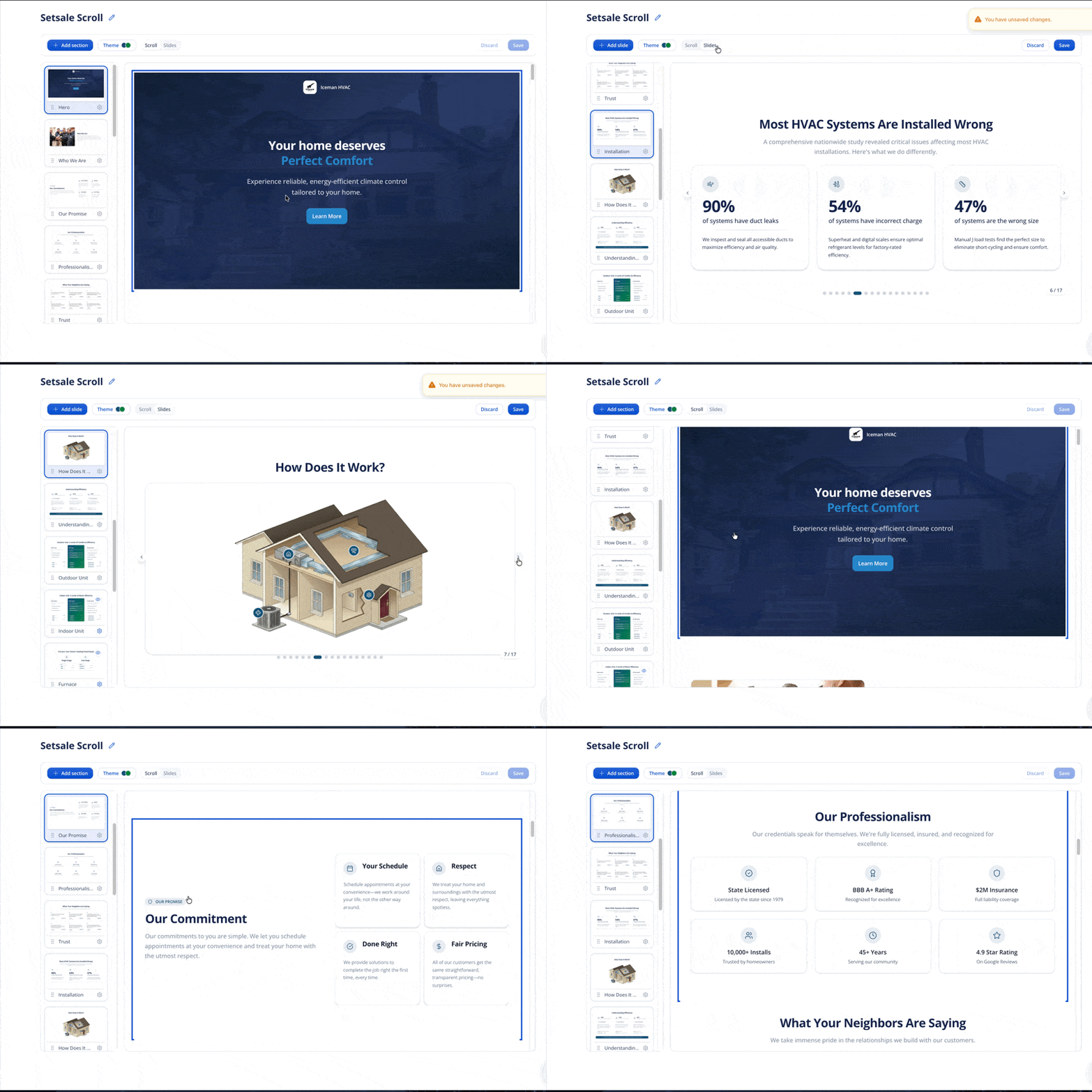
How to Customize Slides in Your Presentation
Customize every aspect of your sales presentation including text, images, backgrounds, colors, and slide order to match your brand and sales process
Overview
Presentations in SetSale gives you full control over the content and look of your slides. You can add new slides, rearrange existing ones, edit text, swap images, change backgrounds, and adjust your brand colors — all from within SetSale.
This article covers everything you can do to make your presentation your own.
Editing Slide Content
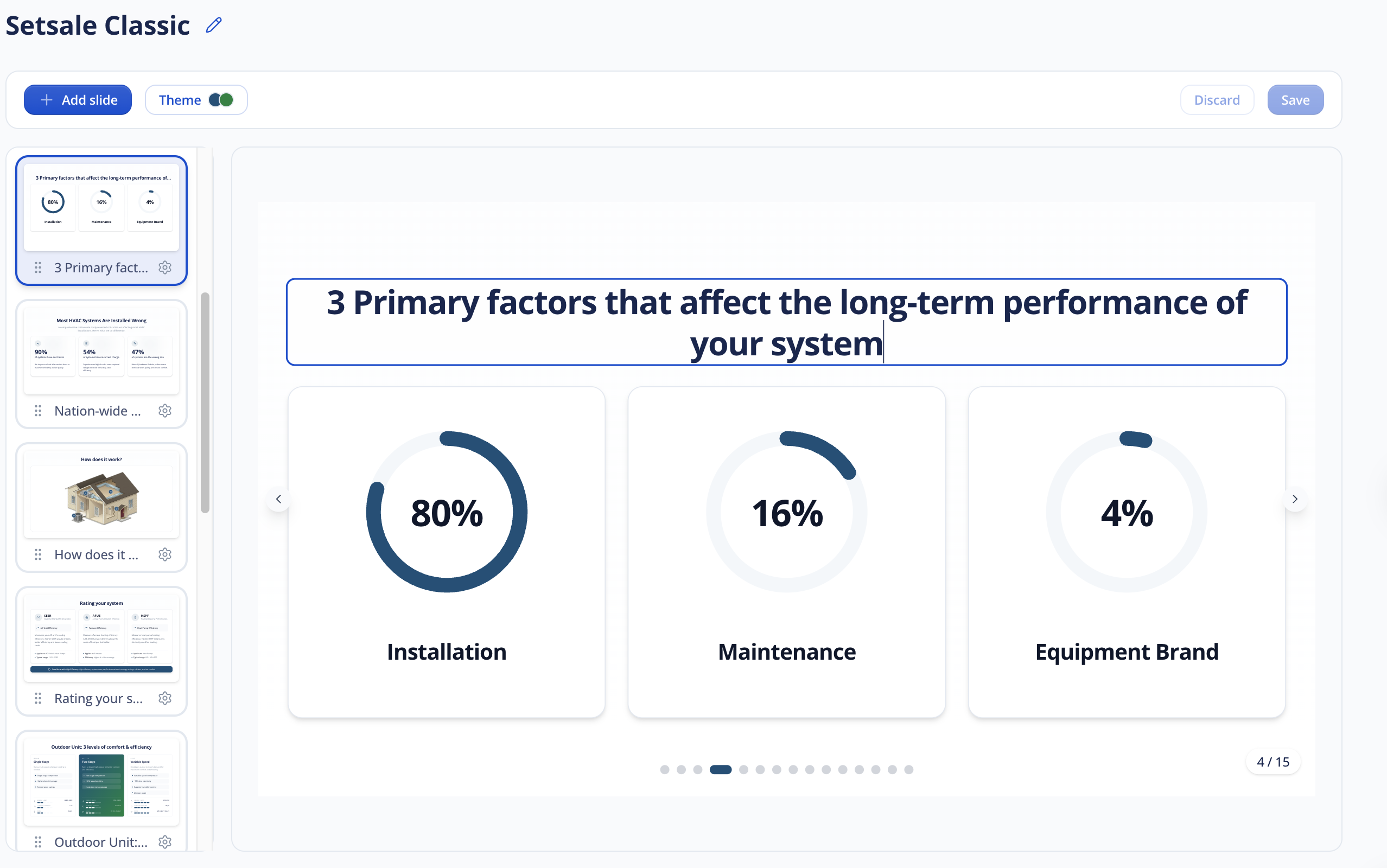
Almost all text you see on a slide is editable. Click into any text area to update the wording, change numbers, or rewrite content to match your business.
For example, if the default warranty slide says "12-Year Coverage" but you offer a 10-year warranty, just click the text and change it.
Adding New Slides
- Open your presentation.
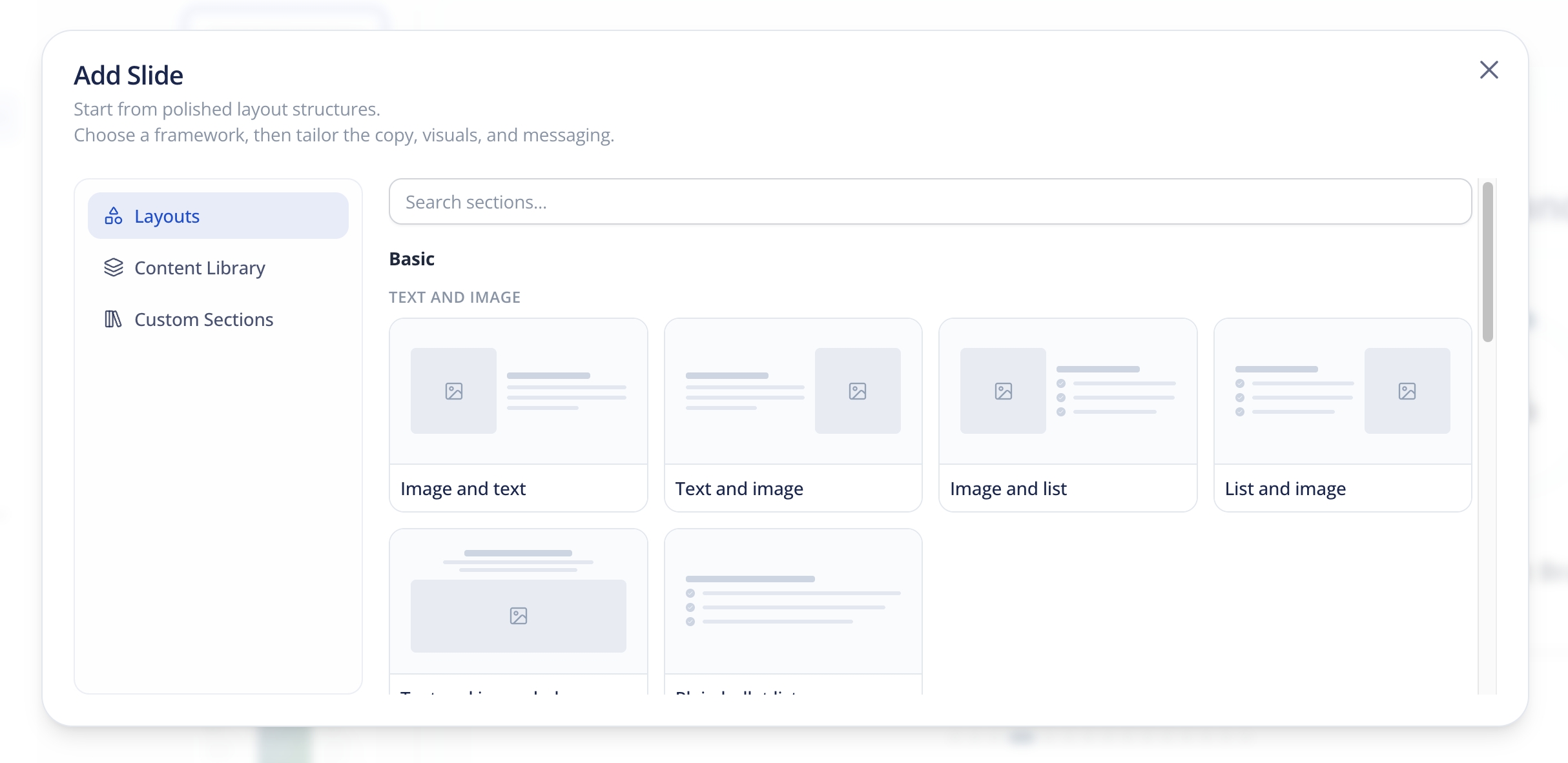
- Click Add Section (or the "+" button) where you want the new slide.
- Choose from the available options:
Layouts
These are blank slide templates with different content arrangements. Pick the structure that fits what you want to say:
- Text layouts — for written content, bullet points, or descriptions.
- Image layouts — for photos, equipment images, or visual content.
- Image + Text — combine a photo with a description side by side.
- Card layouts — for grouped items like features, benefits, or service tiers.
- Graph layouts — for data-driven visuals like efficiency comparisons.
- Video layouts — for videos
Content Library
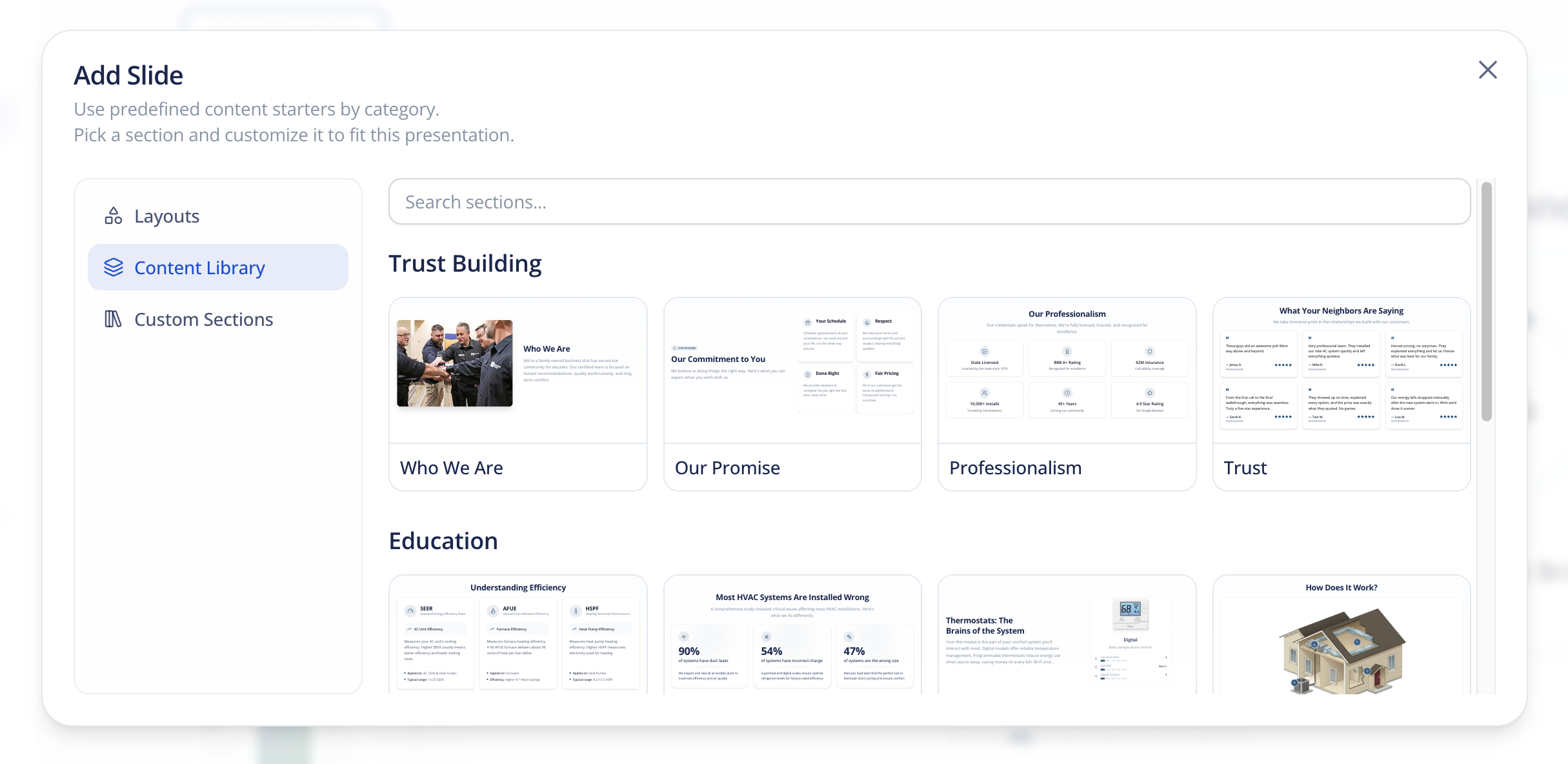
These are pre-built slides with content already filled in. SetSale provides a default library of sections that cover common HVAC presentation topics. You can drop these in and customize the text as needed.
Your team can also save custom slides to the content library (see below) so they're available across all your presentations.
Reordering Slides
Drag and drop slides in the left sidebar to rearrange them. Put your most impactful content where it matters most for your sales flow.
Duplicating a Slide
If you want a variation of an existing slide (for example, a warranty slide for a different brand), click the gear icon or the slide menu and select Duplicate. This creates a copy you can edit independently.
Deleting a Slide
Don't need a slide? Open the slide menu and select Delete. The slide will be removed from that presentation only — it won't affect other presentations.
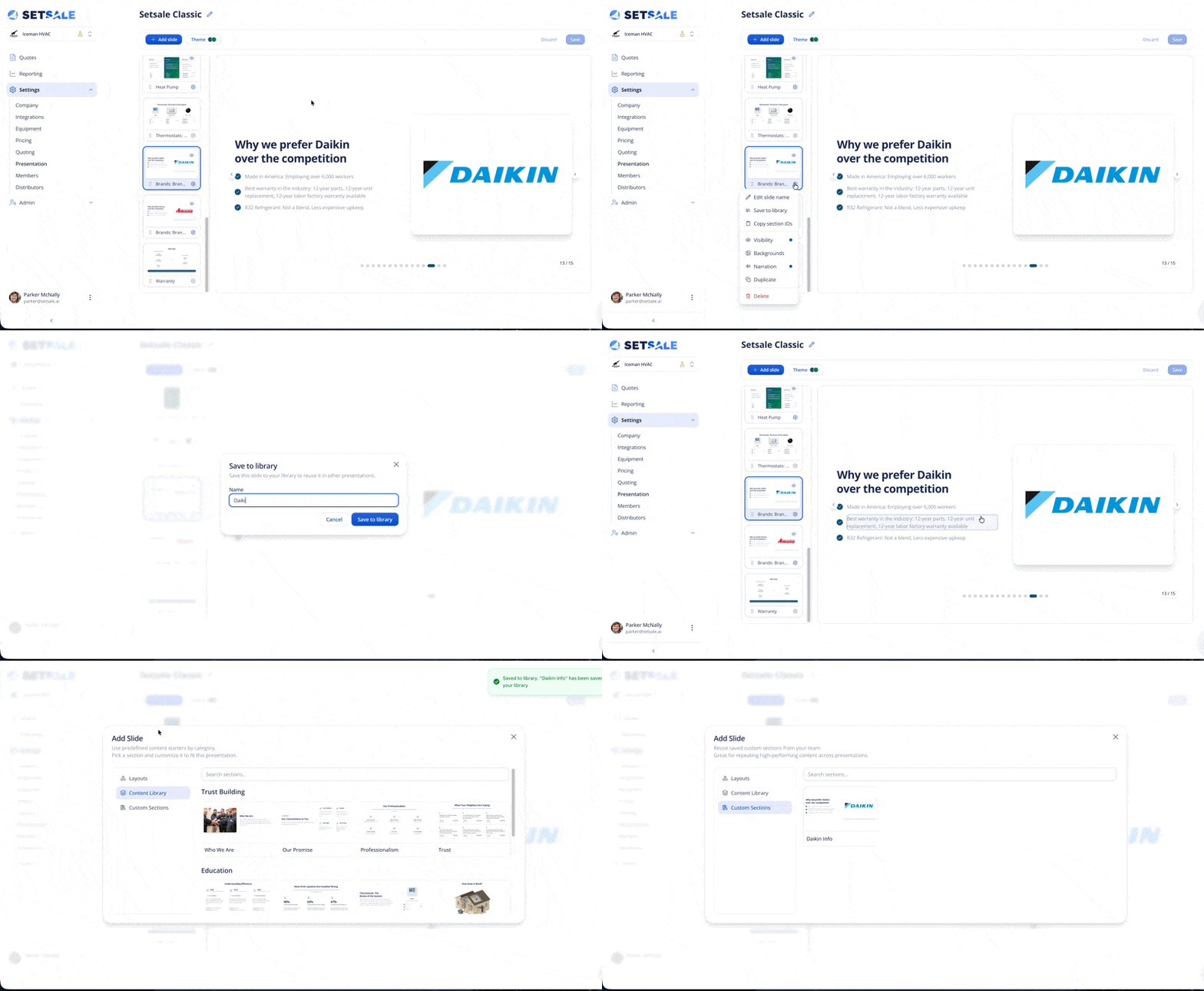
Saving Slides to Your Content Library
Created a slide you're proud of? Save it so you can reuse it across other presentations.
- Open the slide you want to save.
- Click the gear icon on the slide.
- Select Save to Library.
- Give it a name and save.
The slide will now appear under Custom Sections in the content library and can be added to any other presentation your team creates.
Changing Images
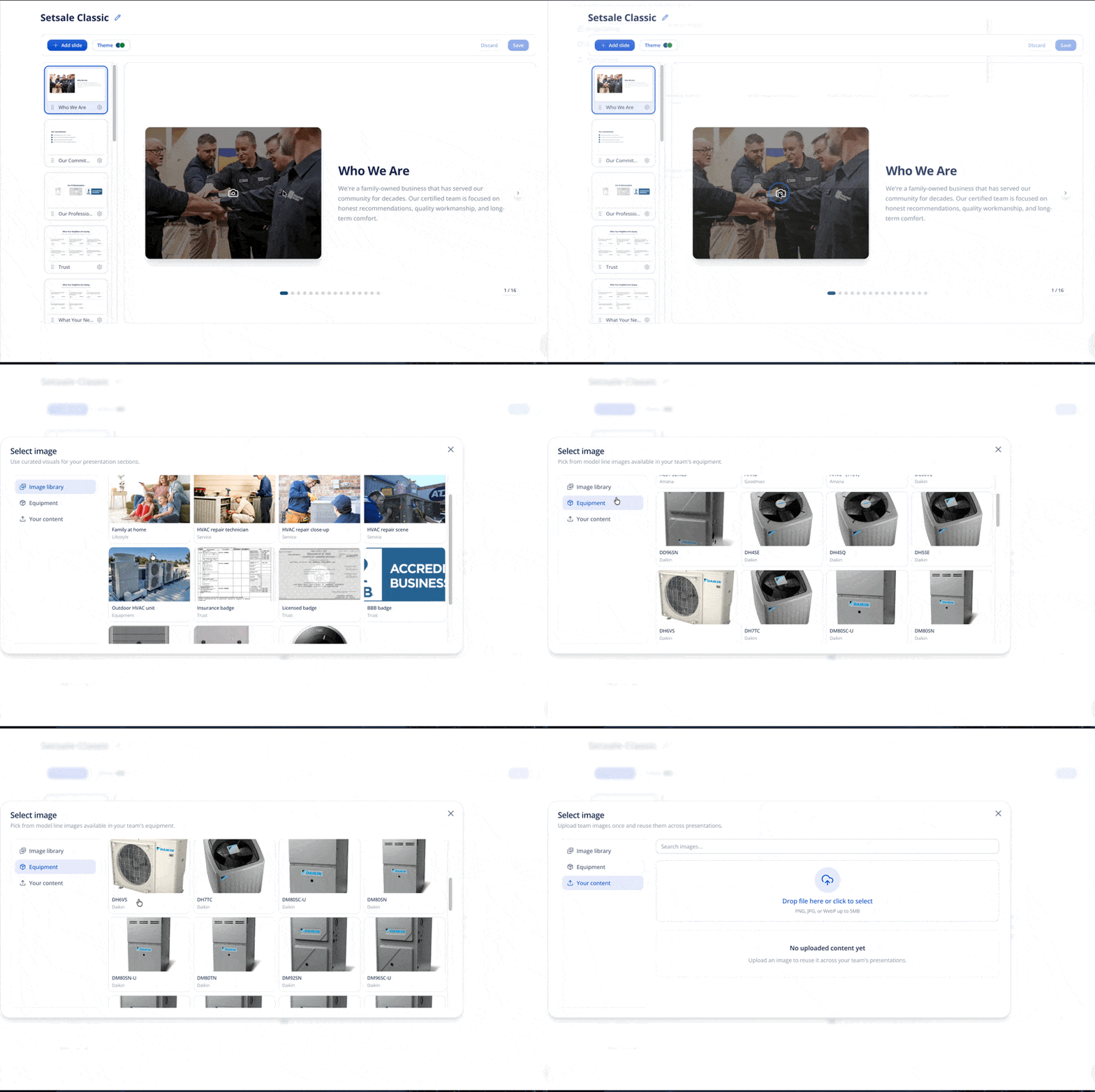
Many slides include images that you can swap out:
- Click on the image area of a slide.
- The Image Library will open with several options:
Stock images — a default set of images included with SetSale.
- Equipment images — photos sourced from manufacturer model lines.
- Custom uploads — upload your own photos (team photos, job site images, company branding, etc.). Uploaded images are available to your entire team.
Changing Backgrounds
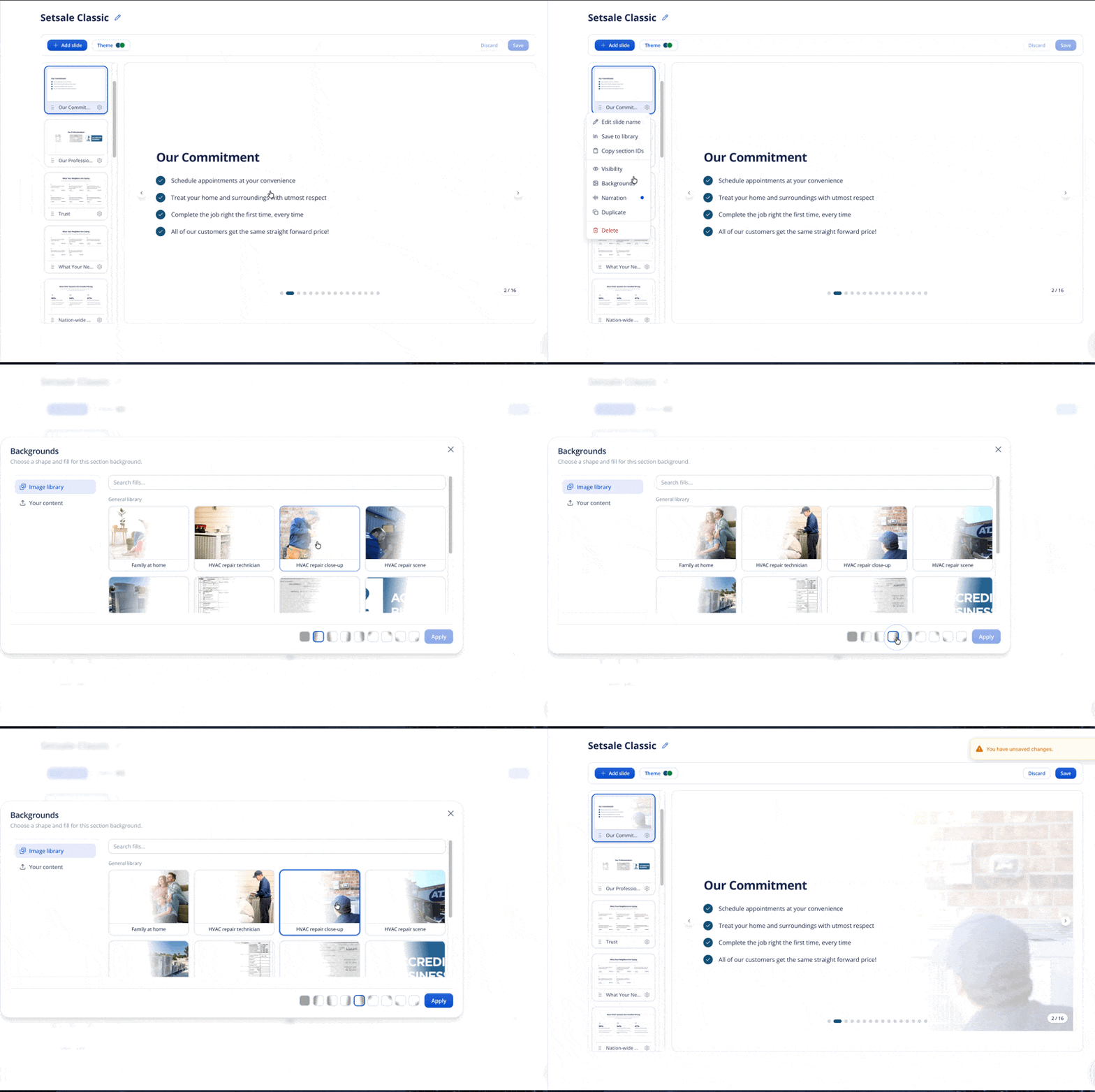
You can add visual flair to individual slides with background options:
- Open a slide.
- Click the Background option.
- Choose from:
Gradient backgrounds — pre-built color gradients.
- Custom image backgrounds — upload your own background image.
- Full bleed — stretch the background to fill the entire slide.
- To remove a background, select Remove.
Adjusting Theme Colors
Customize your presentation's color scheme to match your company branding:
- Open your presentation.
- Click the Theme option (palette icon).
- Adjust the Primary Color and Secondary Color.
- Changes preview in real time so you can see how they'll look before saving.
Additional color controls (background color, card color, etc.) will be added in future updates.
Working with Narration (Slide Mode Only)
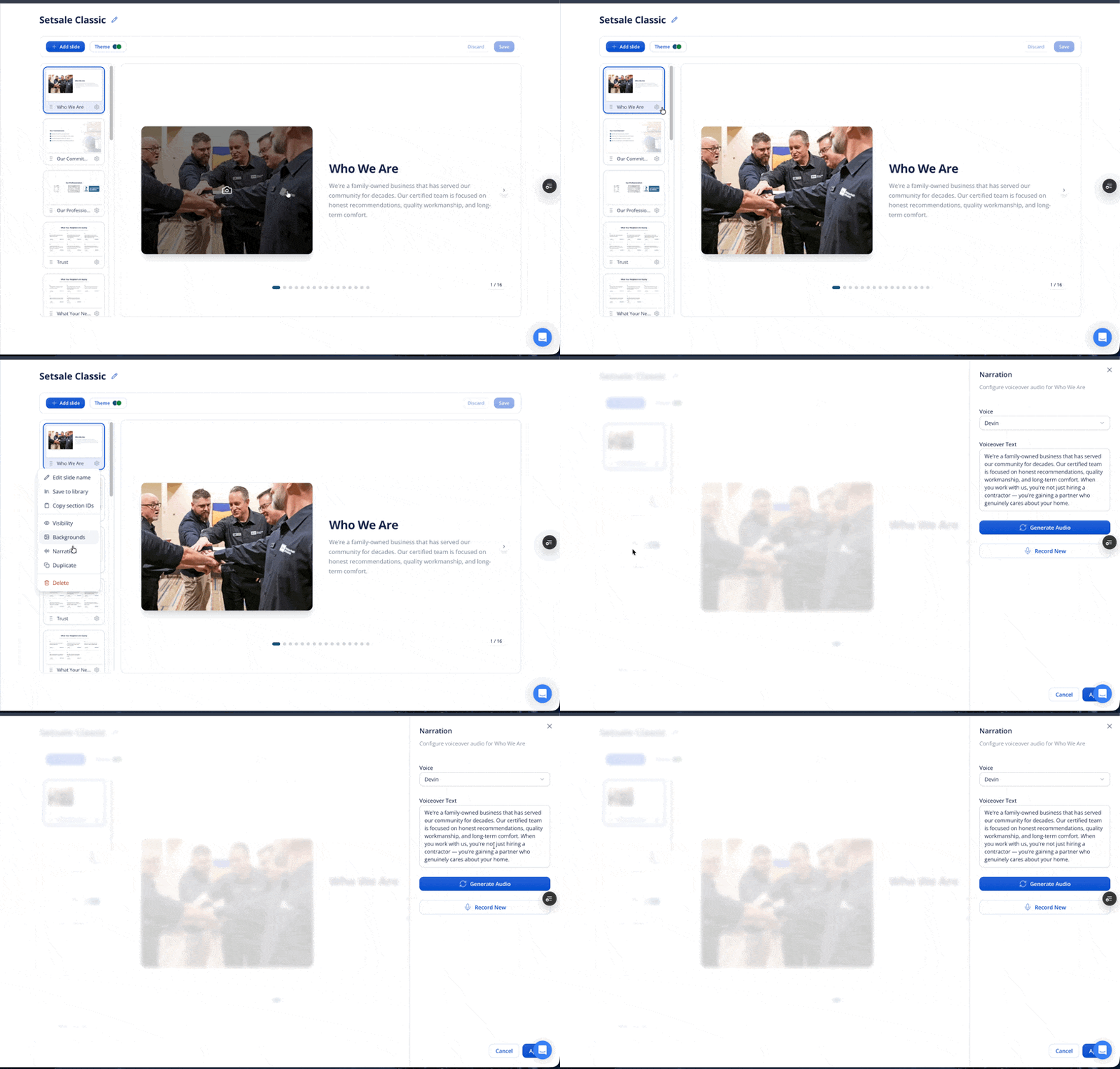
In slide mode, each slide can have a voiceover narration. When you add or edit a slide, you may need to update the narration to match your new content.
To edit narration:
- Click the gear icon on the slide.
- Select Narration.
- You can:
Edit the transcript text.
- Generate new audio from the updated transcript.
- Record your own custom voiceover.
Note: If you duplicate a slide and change its content, the narration won't automatically update. You'll need to manually edit the narration script to reflect your changes.
Narration is not available in scroll mode — it only applies to the click-through slide format.
Choosing a Presentation Mode
Each presentation can be set to one of two display modes:
| Slide Mode | Scroll Mode |
|---|---|
| Click-through, one slide at a time | Scrollable web page format |
| Supports narration/voiceover | No narration |
| Traditional presentation feel | Modern, mobile-friendly experience |
| Good for in-person presenting | Great for homeowners viewing on their own device |
Scroll mode is optimized for phones and tablets, so content will look clean regardless of screen size.