How to Use the SetSale Agent
Ask questions, troubleshoot quotes and settings, and jump directly to the next step with help that understands the page you’re viewing.
SetSale Agent is your in-app assistant for navigating SetSale, understanding your account, and deciding what to do next. It can use the page you are viewing as context, so you can ask for help without leaving your work.
What SetSale Agent Can Help With
- Navigating SetSale: Find settings, pages, quotes, and customer records.
- Understanding what is on the screen: Ask what a field, price, margin, status, or option means.
- Reviewing quotes: Provide a quote number and the agent can compare tiers, pricing, equipment, discounts, rebates, and other quote details.
- Spotting issues: Flag unusual pricing, missing information, inconsistent options, or items that may not belong on a customer-facing quote.
- Pointing out the next step: When available, the agent can highlight the relevant control or item directly on the page.
- Providing useful actions: The agent may offer buttons such as opening a quote or continuing in a support conversation.
- Connecting you with support: When an issue needs a person, the agent can create or link you to a support conversation with the relevant context.
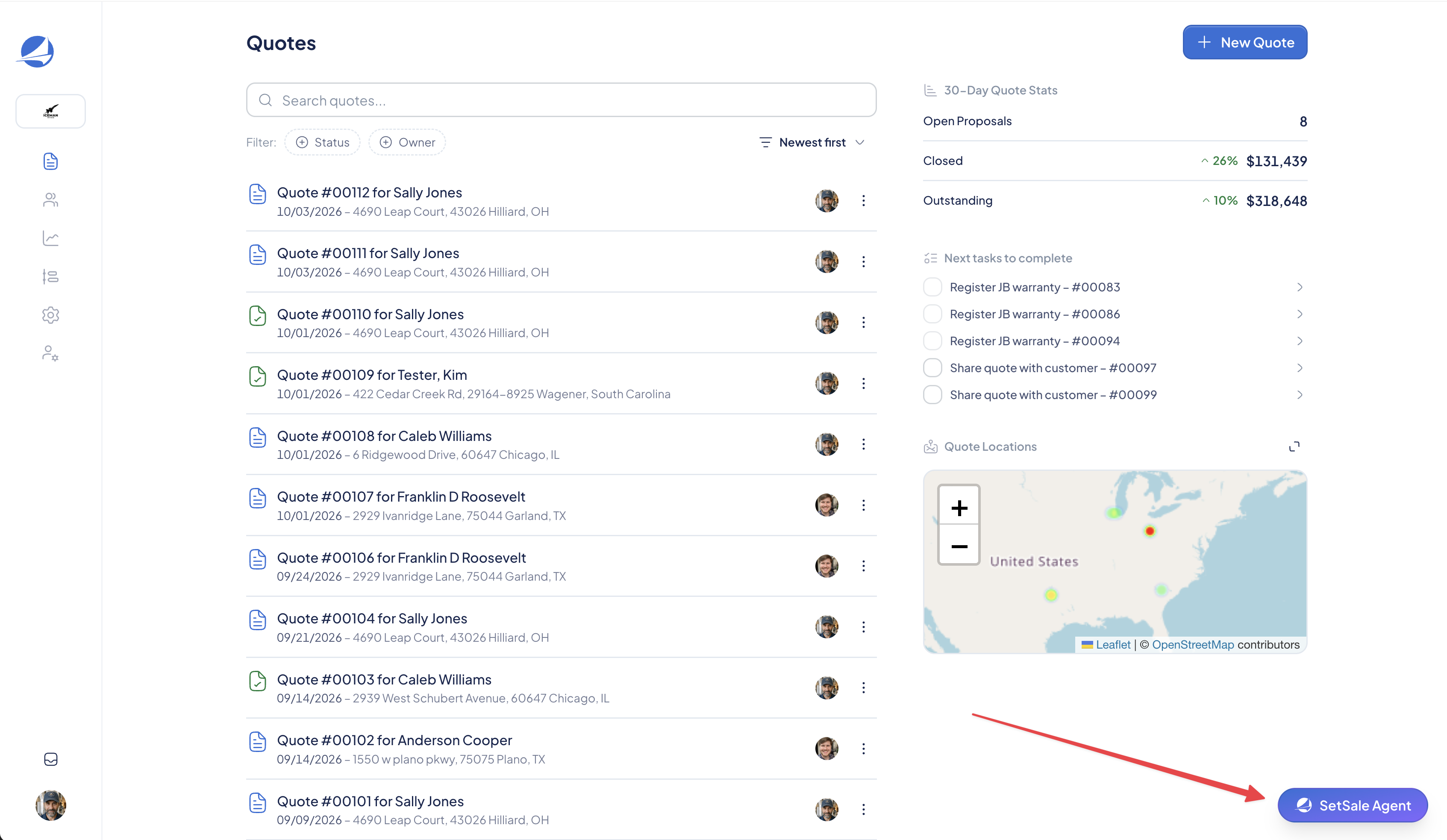
How to Use SetSale Agent
- Click SetSale Agent in the lower-right corner of SetSale.
- Ask your question in everyday language.
- Include useful context, such as a quote number, pricing tier, customer, or the decision you are trying to make.
- Review the explanation, highlighted item, or suggested action.
- Confirm the details before changing pricing, equipment, discounts, or customer-facing information.
Example Workflow
Analyzing a Quote
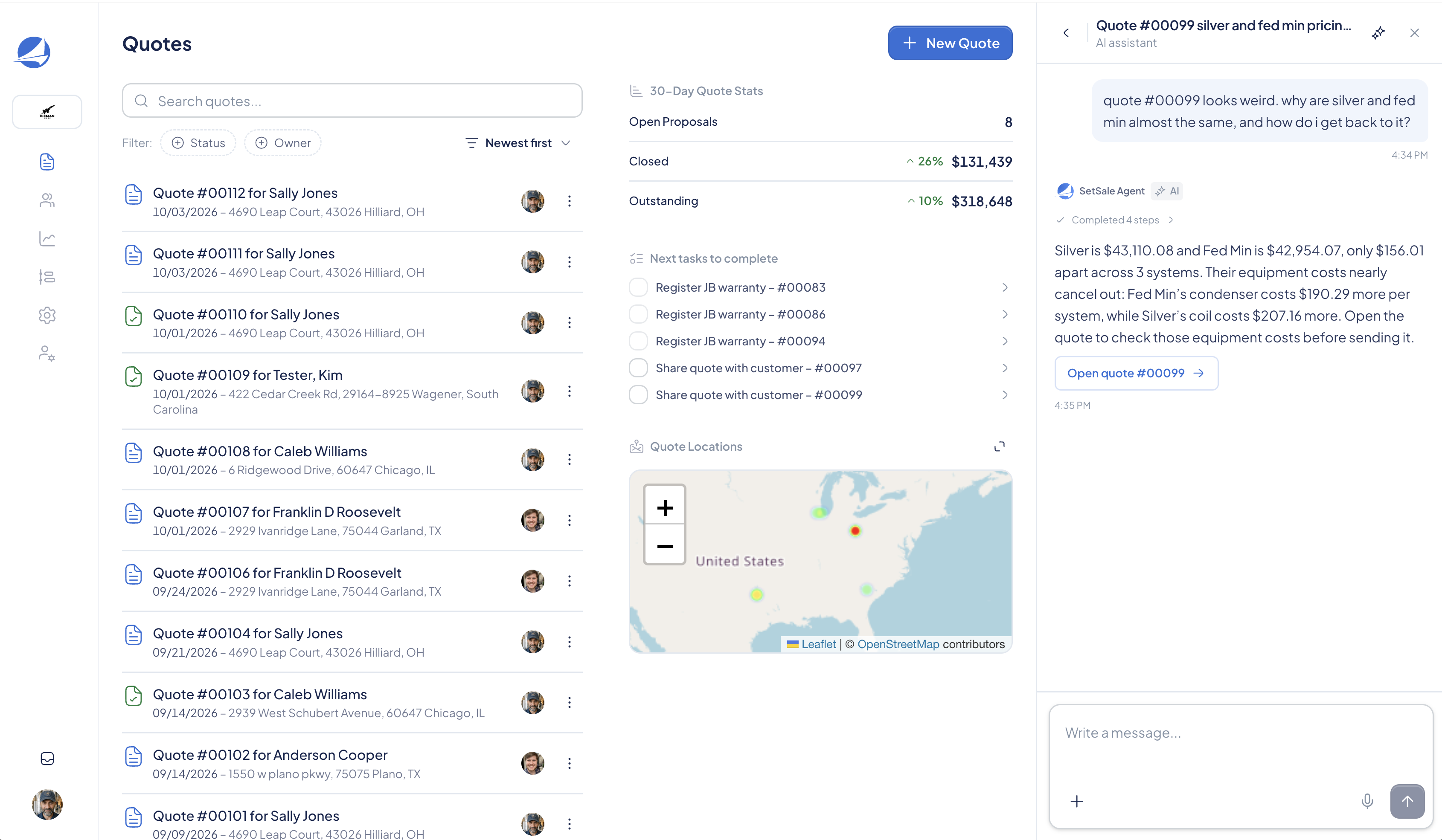
Start with a broad question, then give the quote number when the agent asks. The agent can review the current quote, call out specific differences, and recommend what to check before sharing it.
In the screenshot below, the agent compares quote tiers, explains the pricing difference, and recommends what to inspect next.
Offering the Next Action
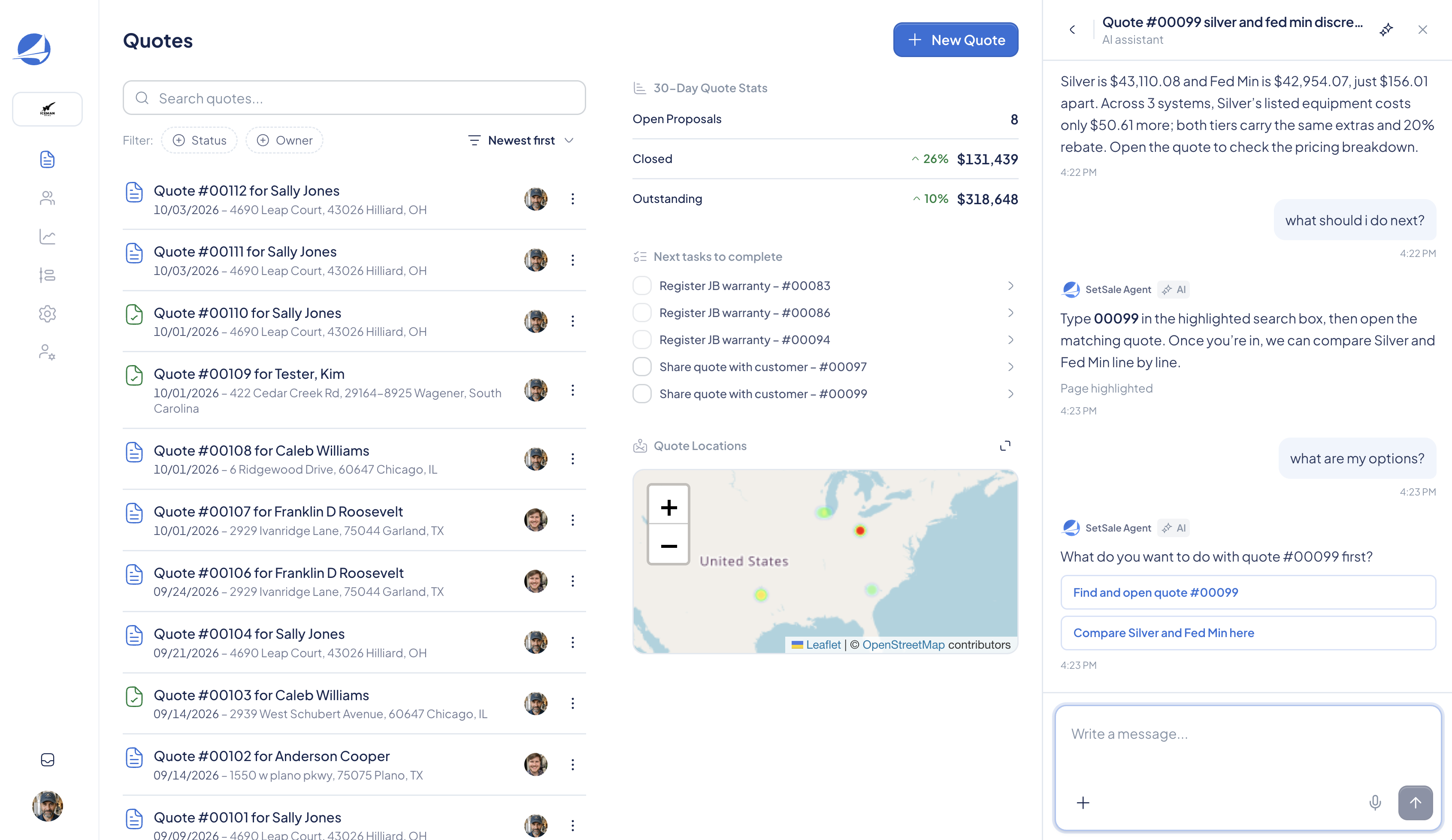
Some responses include a button that lets you move directly to the next step, such as opening a quote or continuing with support. Read the explanation first, then use the action if it matches what you want to do.
The screenshot below shows how the agent can explain an issue and offer options such as Find and open the quote or Compare Silver and Fed Min here
Pointing Out Something On the Page
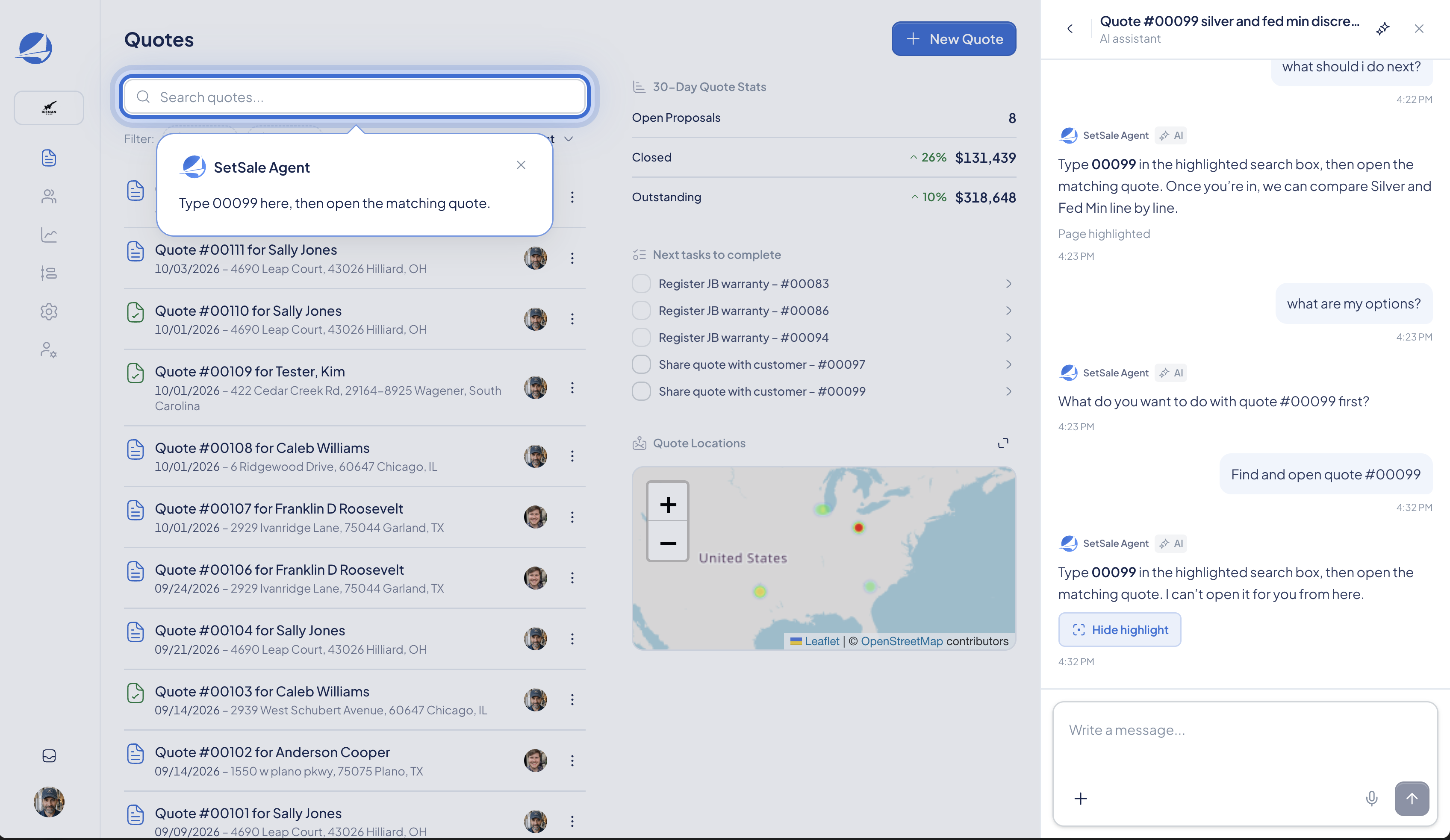
The agent excels at turning a broad request into a concrete next step. In the screenshot below, after the user chooses to open the quote, it highlights the search field and supplies the exact quote number so the underlying pricing can be verified.
If you ask where to make a change, the agent can explain the recommendation and highlight the relevant control or item when that page supports highlighting.
Interrogating a Quote
The agent notices that Silver and Fed Min use the same furnace across all three systems. It therefore focuses the comparison on the parts that differ—the condensers and coils—and highlights Silver as the first pricing tier to inspect.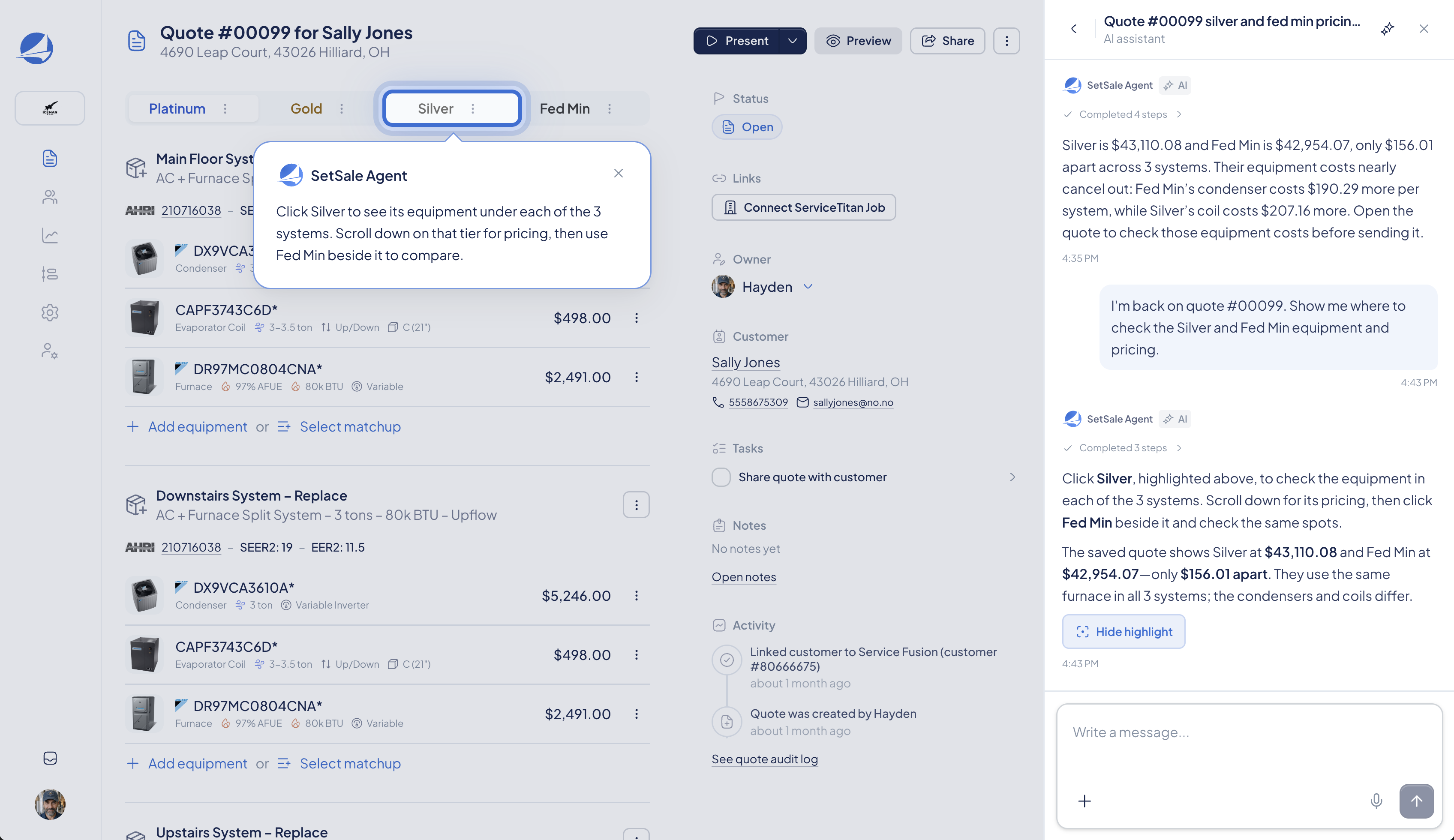
Explaining a Recommendation
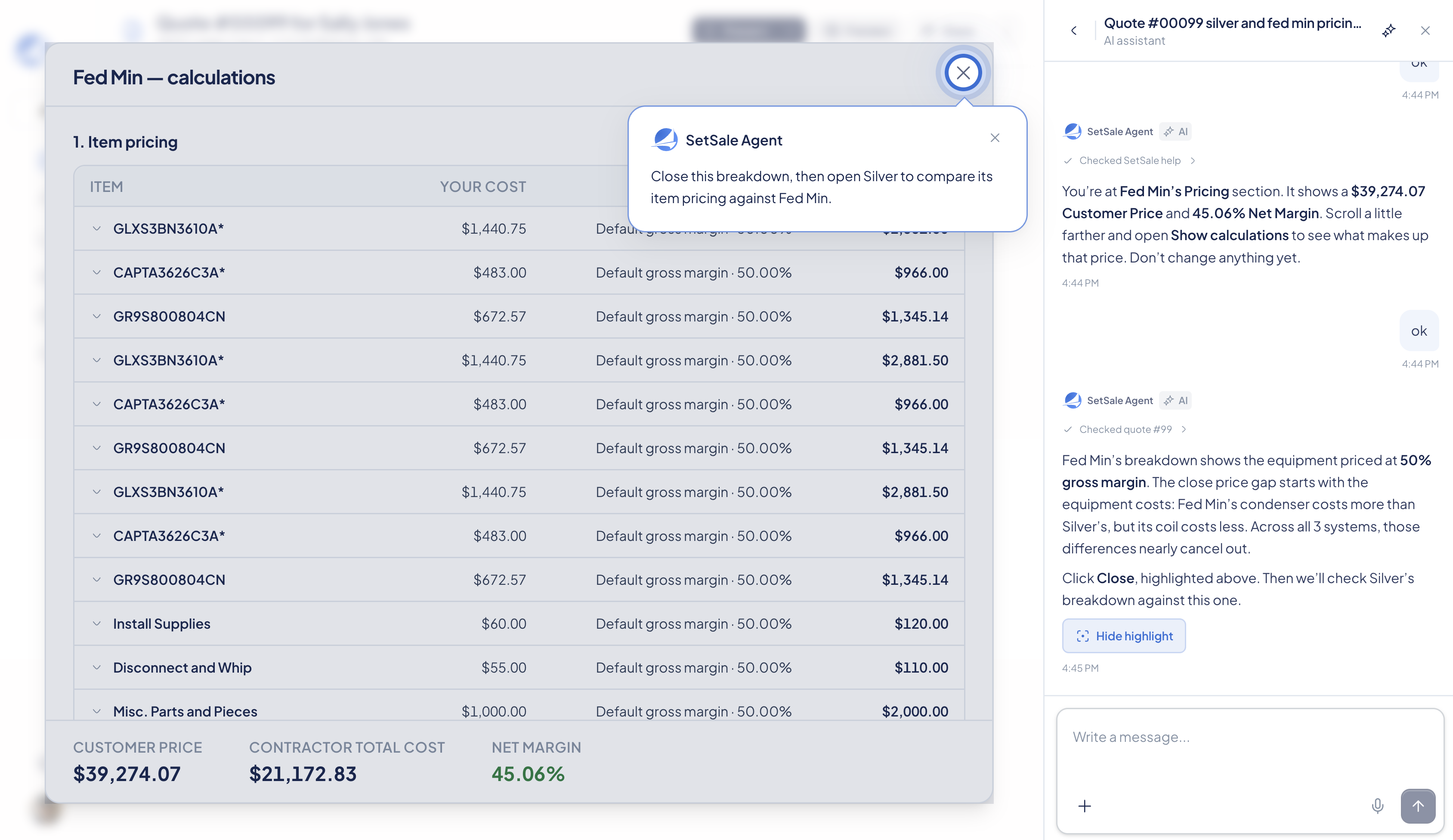
The agent confirms that Fed Min’s equipment uses the expected 50% gross margin. This rules out the margin setting as the cause and shows that the condenser and coil cost differences nearly cancel each other out.
Coming to a Conclusion
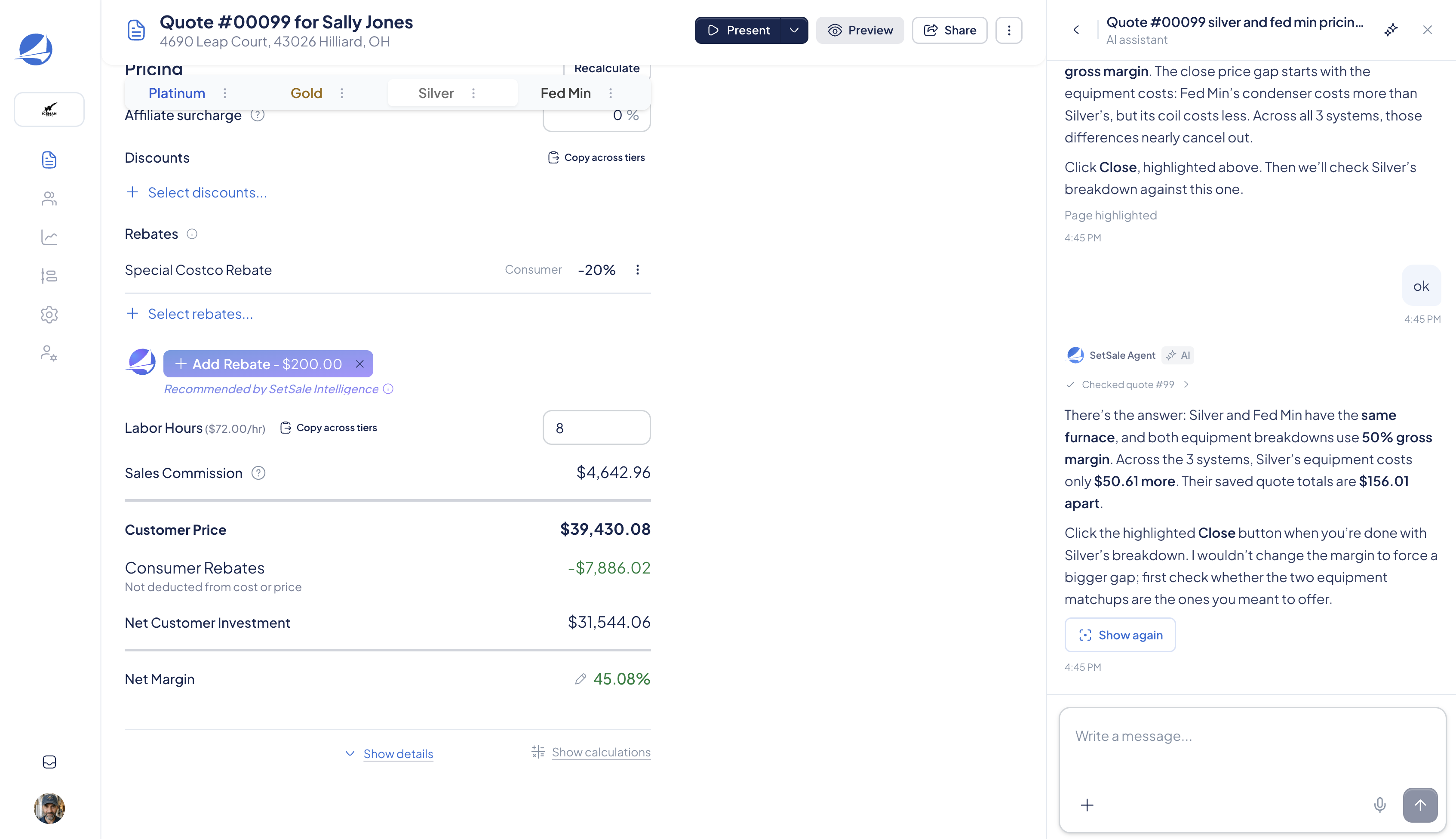
After comparing both tiers, the agent concludes that Silver’s equipment costs only $50.61 more across all three systems, producing a $156.01 difference in the saved totals. Instead of forcing a larger gap by changing the margin, it recommends confirming that the two equipment matchups are the ones the contractor intended to offer.
Tips for Better Answers
- Ask about one goal at a time.
- Include the quote number when discussing a specific job.
- Tell the agent what you are deciding: equipment, price, presentation, settings, or next steps.
- Ask “show me where” if you want help finding something on the current page.
- If the answer is too broad, follow up with the exact option, tier, or setting you are looking at.