How to View and Track Sent Quote Activity in SetSale
Track sent quotes and customer engagement with the Quote Activity Feed and dedicated Activity page, including search, filters, and date ranges.
SetSale helps you track sent quotes, review customer engagement, and follow up with confidence. Use the Quote Activity Feed for the history of an individual quote, or open the dedicated Activity page to search and filter your team's quote activity by type, user, and date range.
View activity for a specific quote
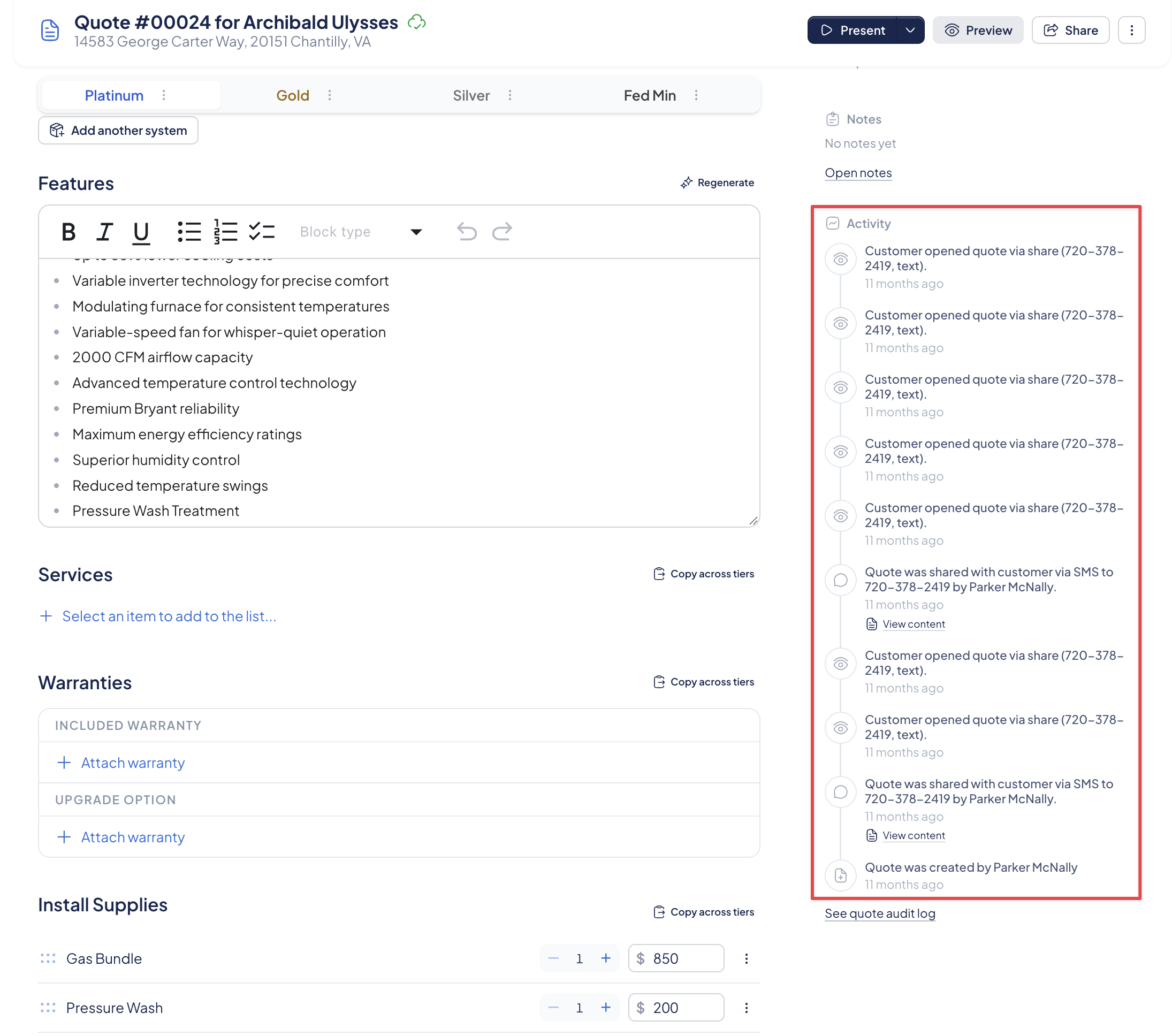
Open the quote and review its Quote Activity Feed. This is where you can check:
- Sharing: When the quote was shared and whether it was sent by email or text message.
- Message content: The message sent from SetSale to your customer.
- Viewing/opening: Whether the customer has opened the quote, helping you understand engagement before following up.
Open the dedicated Activity page
Select Activity in the main navigation to review your entire team's quote activity in one place. Entries are grouped by date and include links to the associated quotes. Select a quote link to open its details.
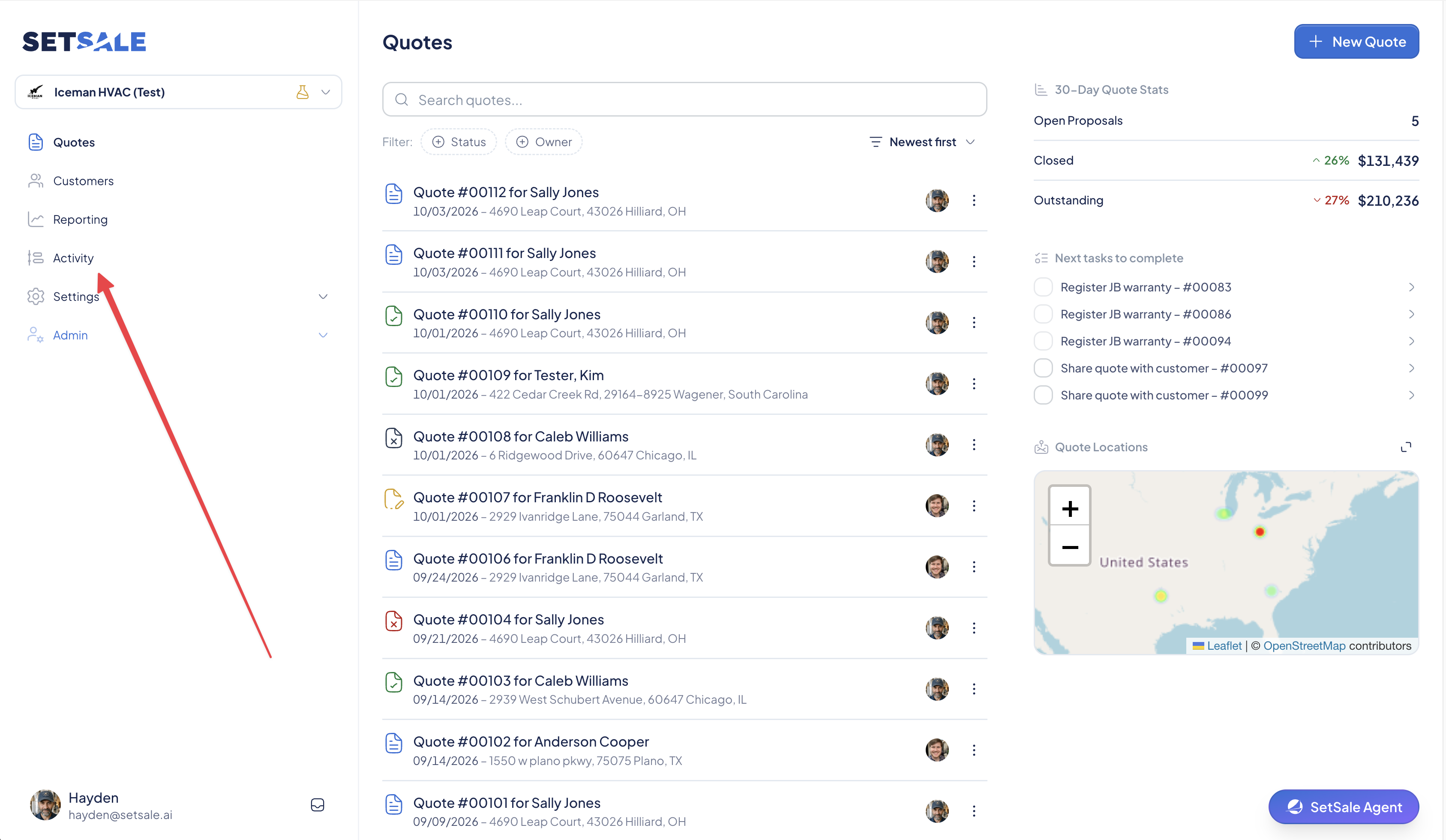 From there, use the search bar and the Type, User, and Date filters at the top of the page to find the activity you need.
Search for quote activity
Enter a customer name, quote number, address, or recipient in the search bar. The activity list narrows to matching results, making it easier to locate a specific customer's quote or a message you sent.
For example, search for a quote number to find activity associated with that quote. Clear the search text to broaden your results again.
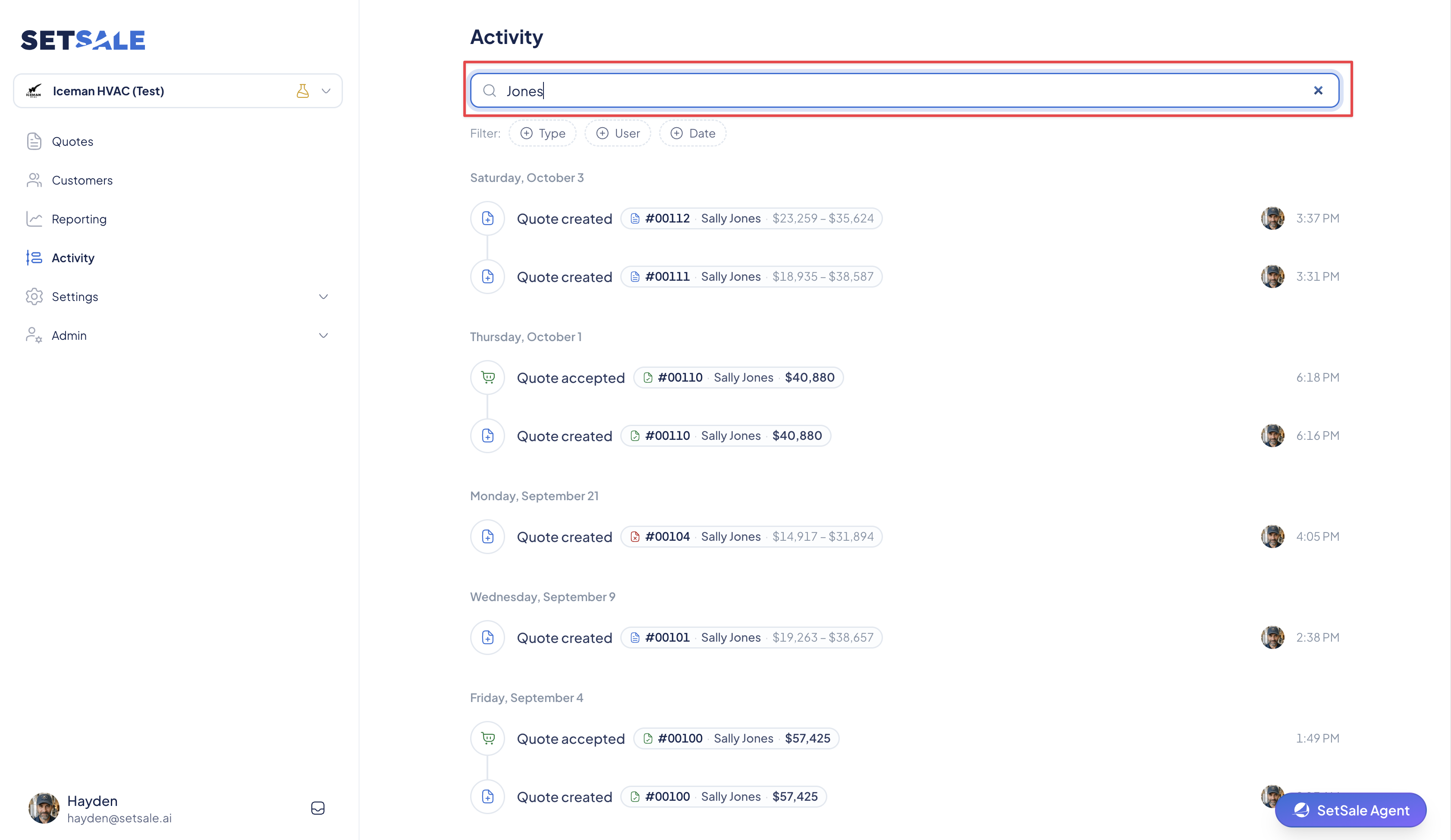
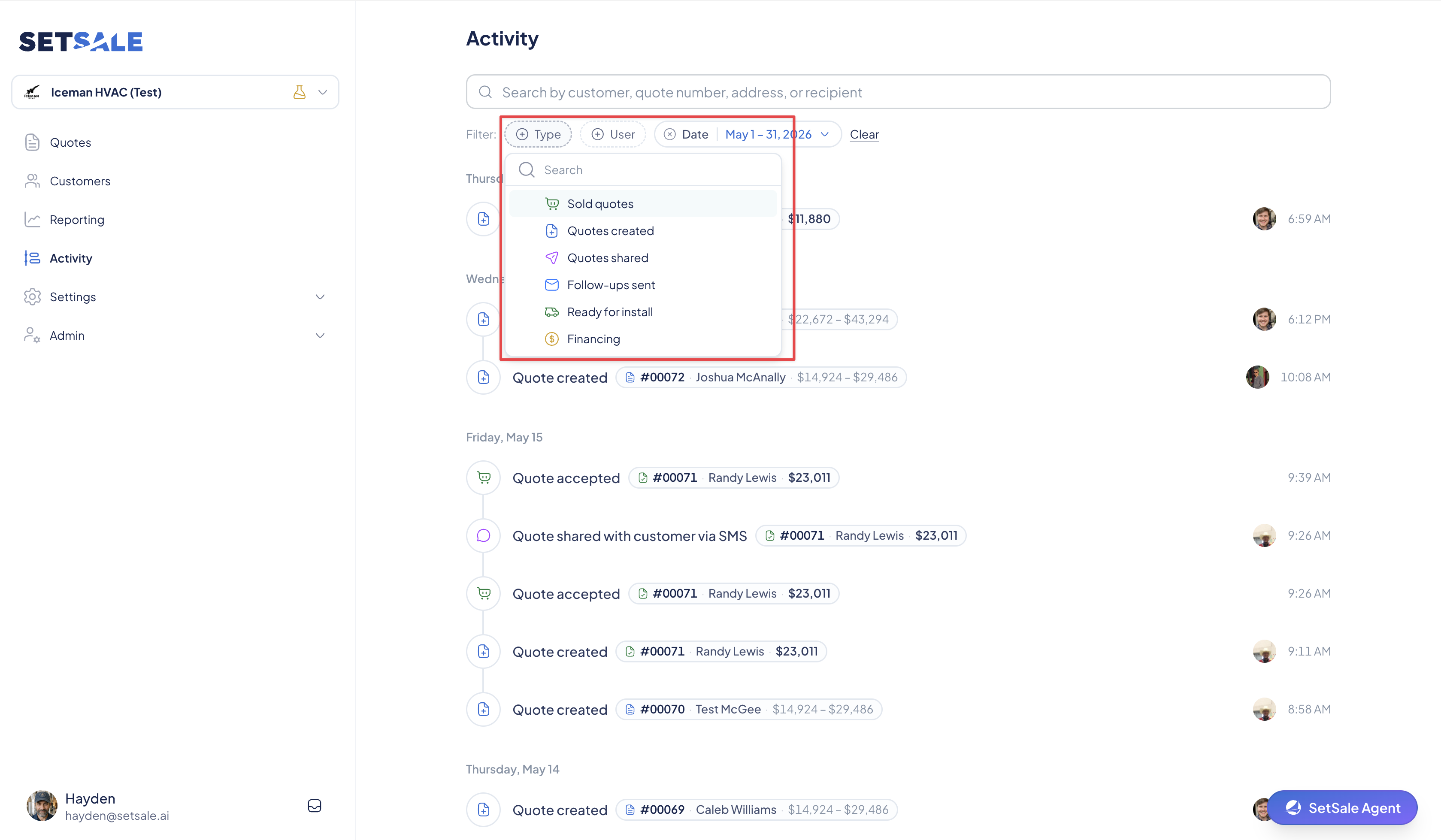
Filter activity by type or user
- Type: Choose the activity categories you want to review: Sold quotes, Quotes created, Quotes shared, Follow-ups sent, Ready for install, or Financing. To review sent quote activity, choose Quotes shared.
- User: Select a team member to narrow the list to activity associated with that user.
You can combine search with filters to focus your review. For example, search for a customer and select Quotes shared to find when their quote was sent.
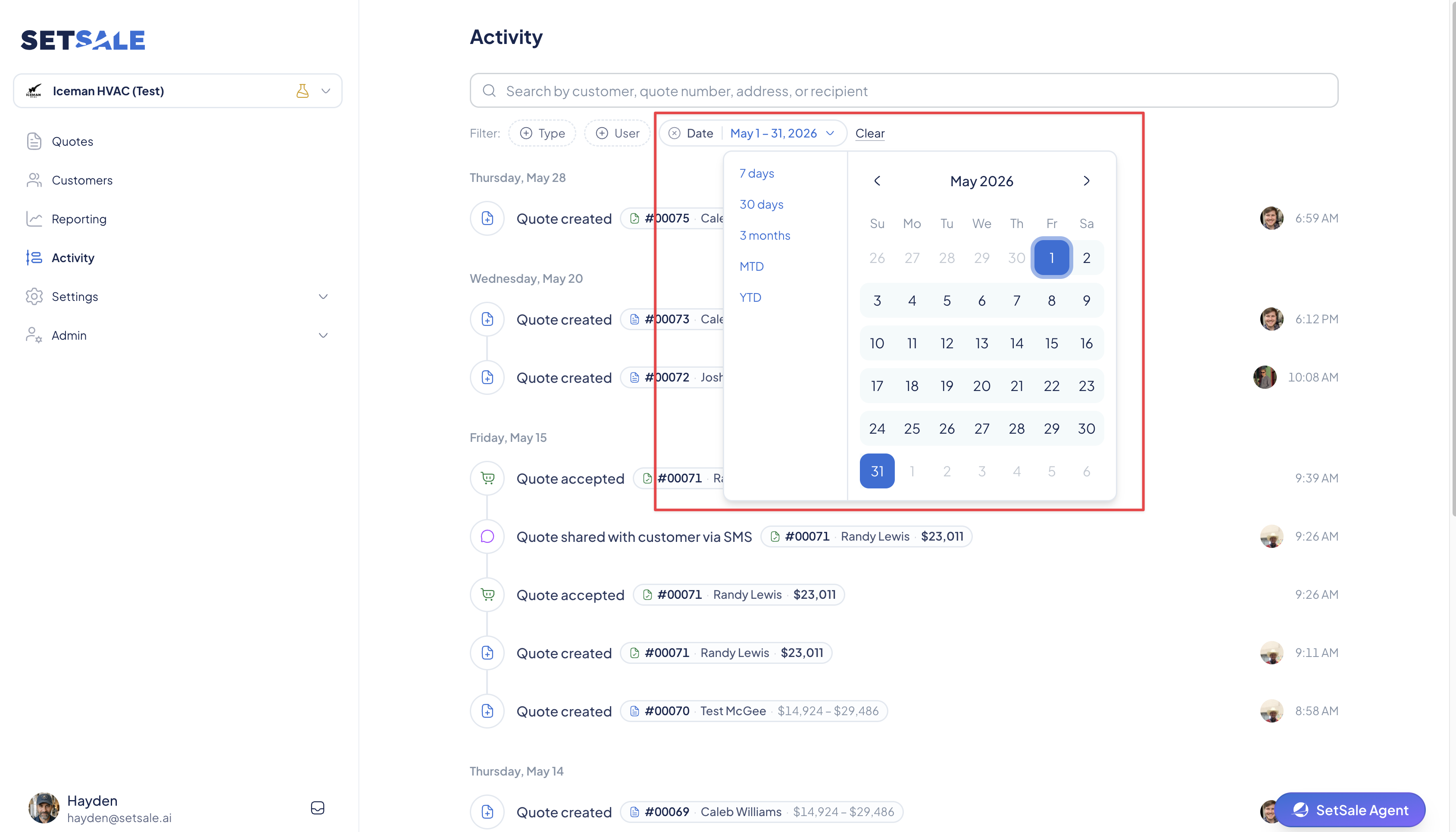
Choose a date range
Select Date to limit activity to a specific period. Choose a preset—7 days, 30 days, 3 months, MTD (month to date), or YTD (year to date)—or select a start and end date in the calendar for a custom range.
Combine the date range with search, Type, and User filters to review a specific period, such as quotes shared by a team member during the past 30 days.
Use activity to guide your follow-up
Find sent quotes on the Activity page, then open an individual quote to review its sharing details and customer opening activity before contacting the customer. If you cannot find an expected entry, broaden your search or adjust the selected filters and date range.