Guaranteeing Profit with Gross Margin Pricing
Guaranteeing Profit with Gross Margin Pricing
Stop hoping you'll hit your profit goal and start guaranteeing it. This article walks you through SetSale's Gross Margin Pricing model, which makes sure you earn a consistent profit percentage on every quote. It also covers Margin Rules, which let you set different margins for specific tiers or items.
What Is Gross Margin Pricing?
Most pricing starts with your cost and adds a markup on top. Gross Margin Pricing works the other way around:
- You set an exact Target Gross Margin (e.g., 55%).
- SetSale works backward to find the selling price needed to hit that margin. It factors in your costs, overhead, sales commissions, and financing fees along the way.
How to Turn On Gross Margin Pricing
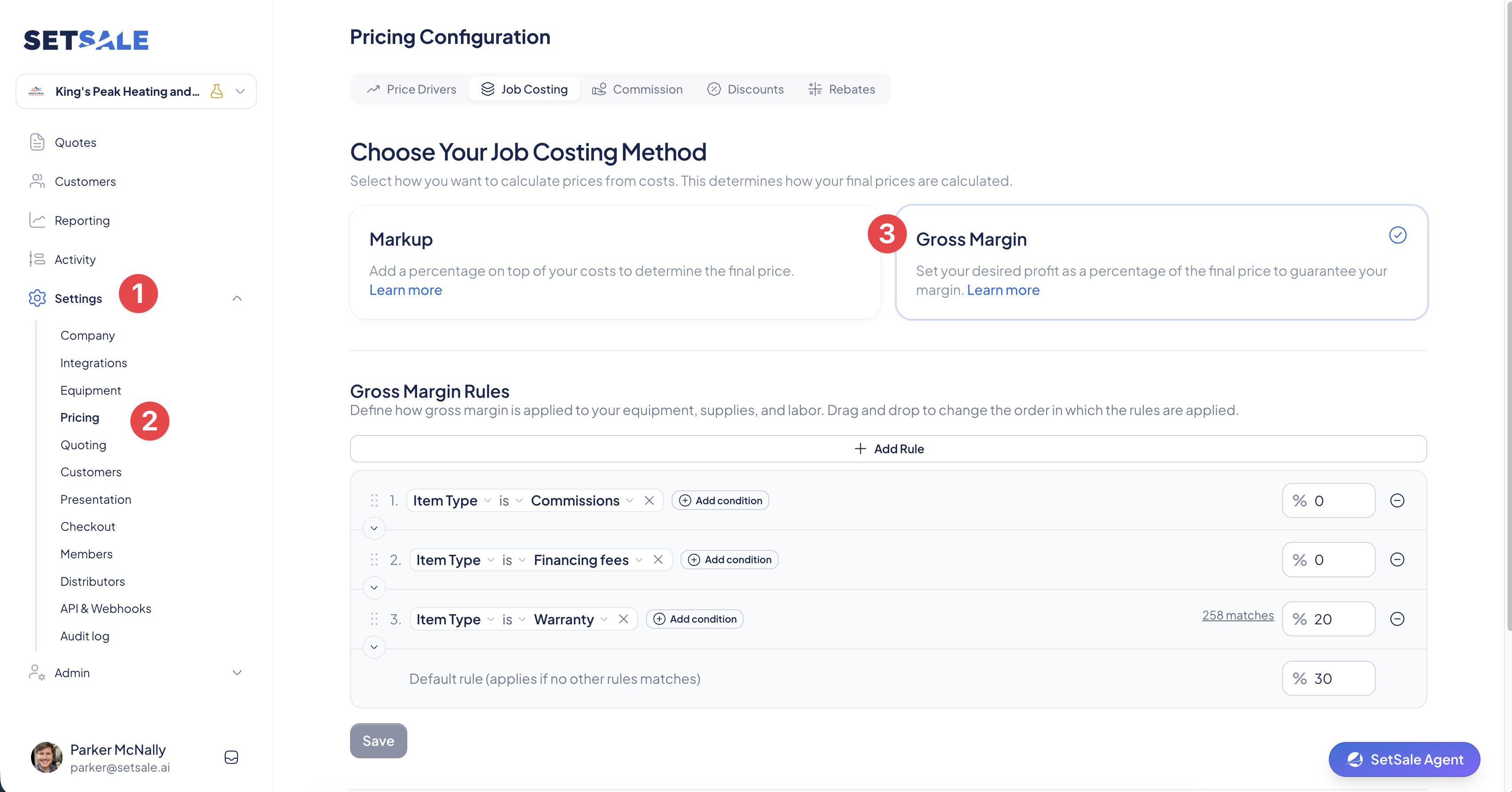
- Go to Settings in the main menu.
- Select Pricing, then Job Costing.
- Under pricing model, choose Gross Margin.
- Enter your Target Gross Margin percentage. This is your default margin for every quote.
- Click Save.
Adding Margin Rules
Your default margin covers most quotes. Margin Rules let you handle the exceptions, so specific tiers or items get their own margin automatically.
Common examples:
- Different margins per tier: Best at 55%, Better at 50%, Good at 45%, Budget at 40%.
- Lower margin on thermostats: Thermostats have high retail visibility, so a standard margin can make them look overpriced.
- 0% margin on pass-through costs: Permits and similar fees can pass straight to the customer at cost.
How to Add a Margin Rule
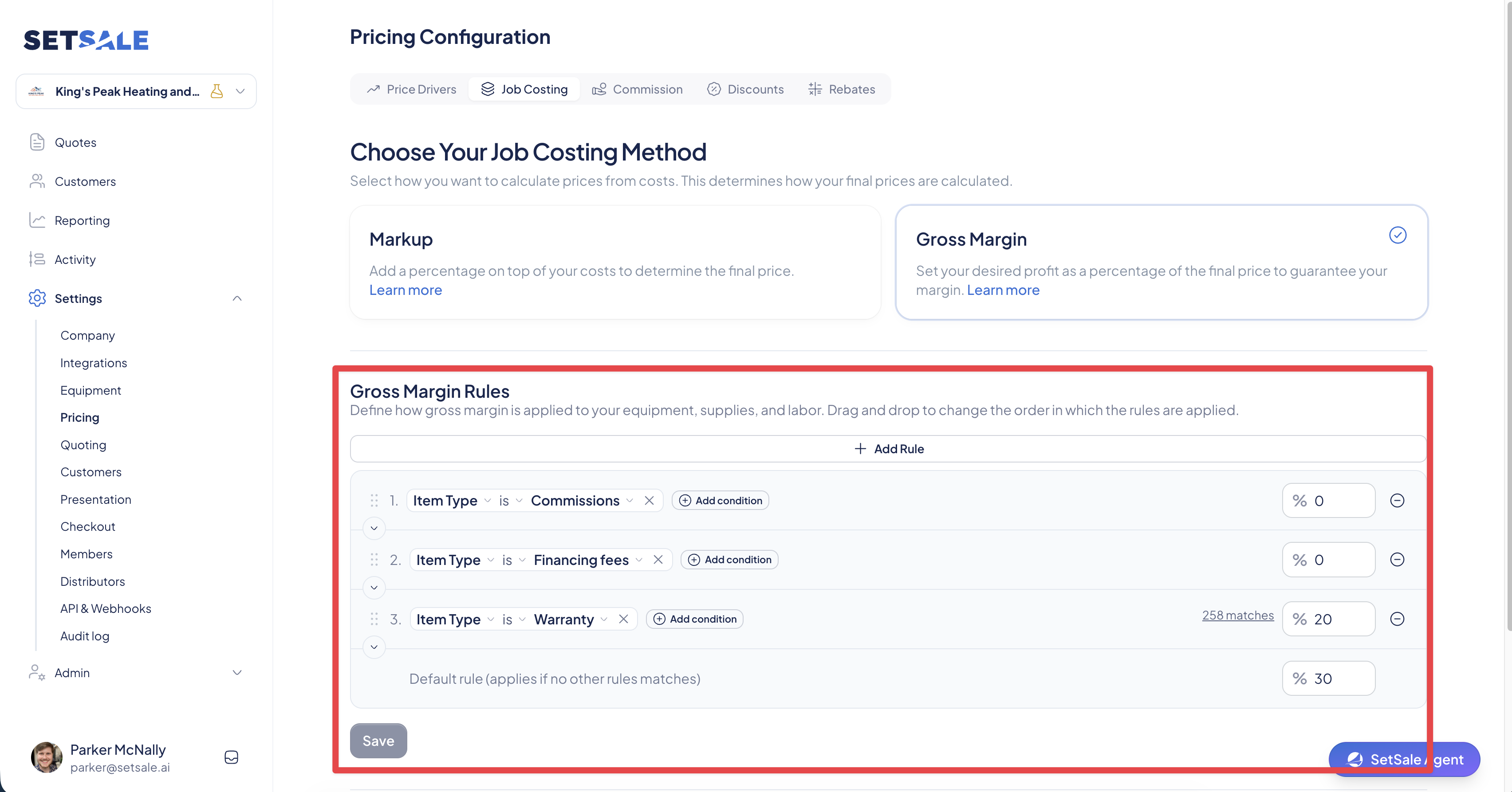
- Go to Settings → Pricing → Job Costing.
- Click Add Rule.
- Set the conditions that decide when the rule applies, such as a specific tier or item.
- Enter the margin percentage for items that match.
- Click Save.
How Rules Are Applied
- Rules are checked from top to bottom, and the first matching rule wins. Put your most specific rules at the top and broader rules below them.
- Anything that doesn't match a rule uses your default Target Gross Margin.
- Rules apply when a quote is created. Existing quotes keep their original pricing, which protects quotes you've already sent. To see updated pricing, build a new quote.
How SetSale Calculates the Price
When a new quote is built, SetSale does three things:
- Adds up your base cost. It starts with your Direct Costs (equipment and labor), then adds your Overhead Percentage.
- Applies your margin. It uses your default Target Gross Margin, or a Margin Rule if one matches.
- Solves for the price. It calculates the pre-discount price needed to hit that margin, with Financing Fees and Sales Commissions already built in.
Real-Time Margin Tracking
Gross Margin Pricing really pays off when your team applies a discount:
- When a technician adds a discount or rebate, the quote screen instantly updates to show the new Net Profit Margin.
- If the margin drops below your Target Net Profit Health Threshold, the number turns red as a warning.
- Your team sees the financial impact of every discount before they commit to it, which helps prevent over-discounting in the home.
Troubleshooting
My prices seem too high. Check whether Overhead is set above 0% while your margin already includes overhead. Also check whether a Margin Rule is matching items you didn't intend it to.
A Margin Rule isn't applying. A broader rule higher in the list may be matching first. Move the more specific rule above it, then build a new quote to test. Existing quotes won't update.
I changed my margin, but my quote didn't change. Pricing is locked in when a quote is created. Build a new quote to see your updated settings.