Setting Up Your Company's Pricing Rules
Configure your company's pricing rules once to automatically protect margins on every quote your team creates
Setting Up Your Company's Pricing Rules
Your pricing rules tell SetSale what a job actually costs you — taxes, overhead, labor, commission — so every quote your team builds is priced to protect your margin. You'll set these up once in Pricing Configuration, and they'll apply to every new quote automatically.
This article walks through each tab: Price Drivers, Job Costing, Commission, Discounts, and Rebates.
Where to Find Your Pricing Settings
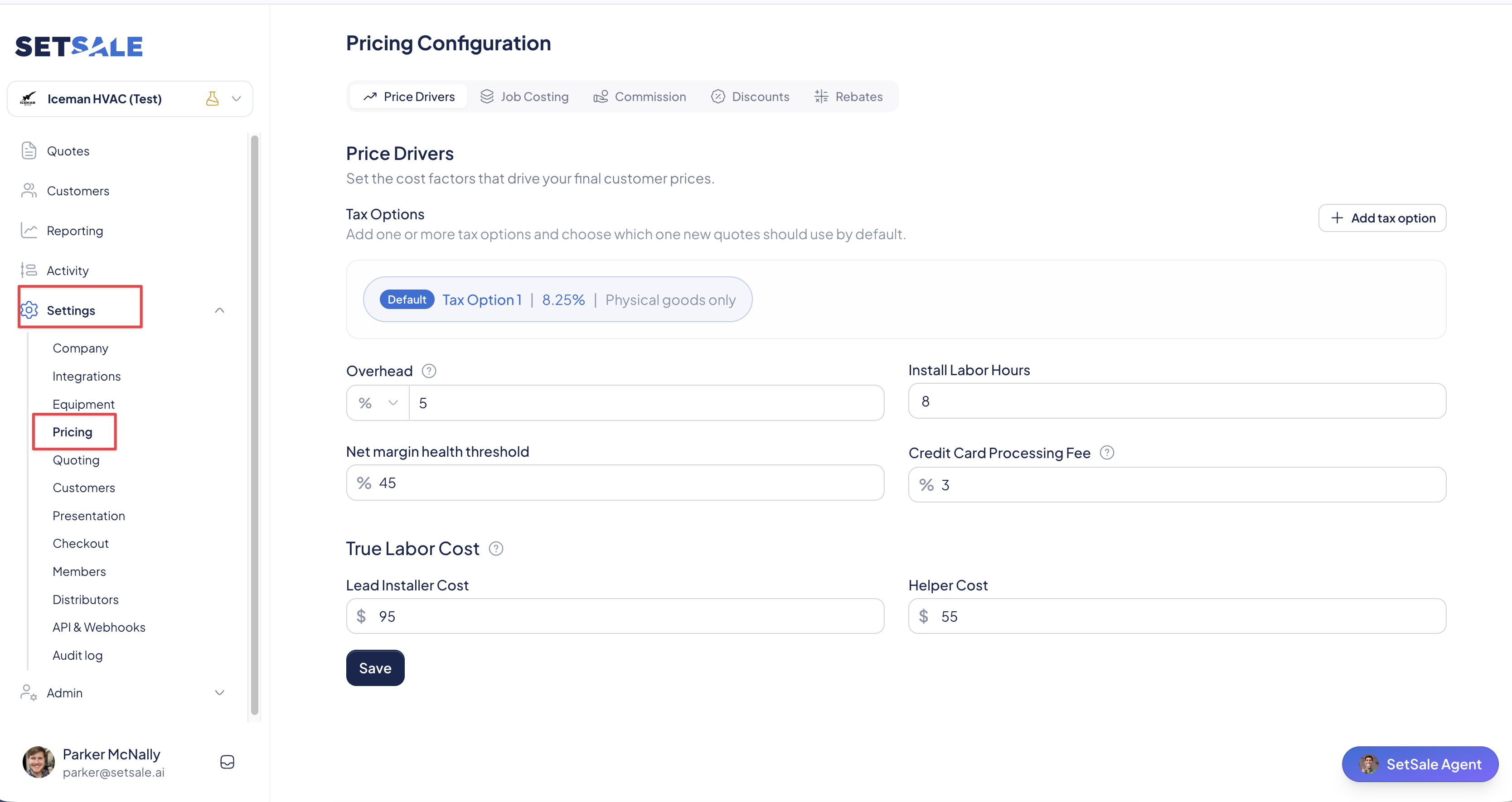
- Go to Settings → Pricing.
- You'll land on Pricing Configuration, starting on the Price Drivers tab.
Step 1: Set Your Price Drivers
Price Drivers are the cost factors behind your final customer prices. Fill in each field, then click Save.
Tax Options
You can create more than one tax option and choose which one new quotes use by default.
- Click Add tax option.
- Enter a name and tax rate, then choose what the tax applies to: Physical Goods Only, Labor Only, Physical Goods and Labor, or Entire Ticket.
- Set the option you use most often as your Default.
Your techs can switch to a different tax option on any individual quote.
Overhead
Enter your cost of doing business. Use the dropdown to set it as either a percentage or a flat dollar amount.
If you choose a percentage, it's calculated on your total equipment and labor costs.
Install Labor Hours
Enter the default number of hours for a typical install. Techs can adjust this on each quote.
Net Margin Health Threshold
Enter the net margin percentage you want your jobs to hit (for example, 20%). SetSale uses this target to show whether a quote's margin is healthy.
Credit Card Processing Fee
Enter the percentage your processor charges. SetSale factors this in so you stay profitable when customers pay by card.
True Labor Cost
Enter hourly rates for your Lead Installer Cost and Helper Cost.
💡 Tip: Use your true labor cost, not just base wage. Include benefits, payroll taxes, and insurance — a common rule of thumb is to add 25–30% to the hourly wage.
Step 2: Choose Your Pricing Model (Job Costing)
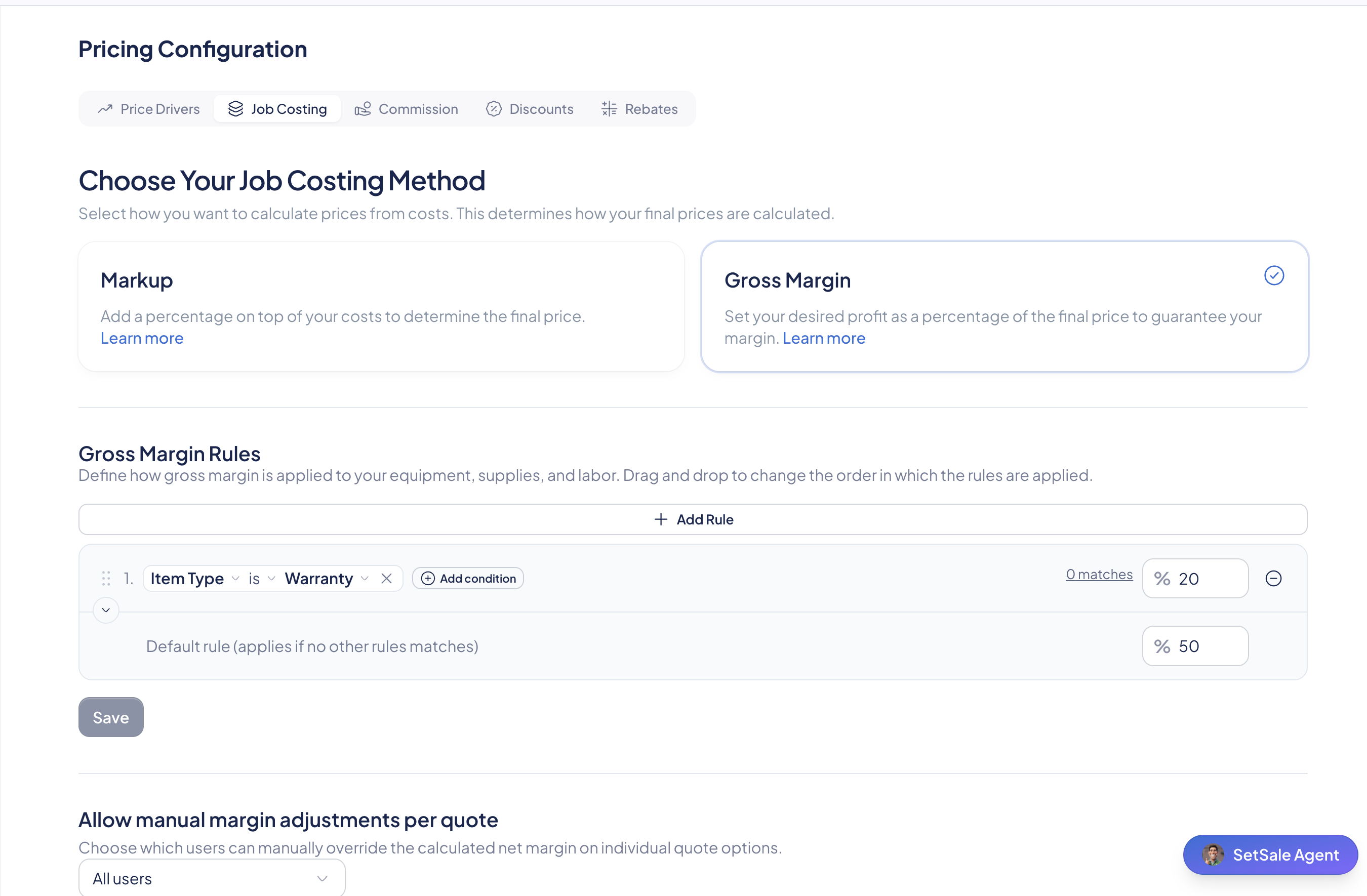
- Click the Job Costing tab.
- Choose your pricing model: Markup or Gross Margin.
- Enter your default percentage.
- Add rules if you need certain equipment, labor, or job types priced differently.
Not sure which model fits your business? See How SetSale Calculates Markup Pricing and Understanding SetSale's Gross Margin Pricing Model.
Step 3: Set Up Commission
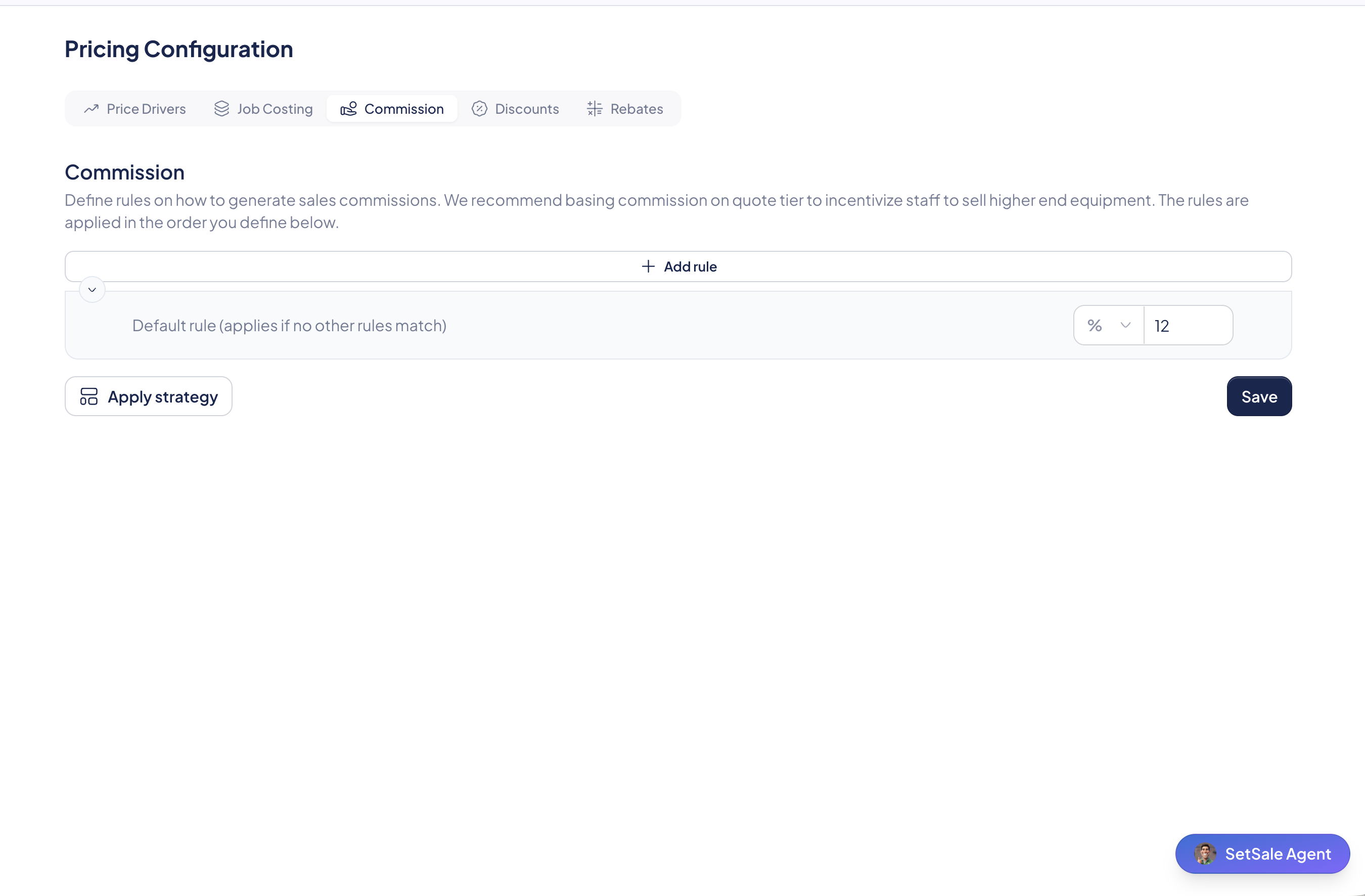
- Click the Commission tab.
- Enter your default commission rate. This applies to any quote that doesn't match a more specific rule.
- Click Add to create rules based on conditions like quote tier, salesperson, system type, or equipment model.
For example, you could pay a higher rate on Platinum tiers to encourage sales of high-efficiency systems.
💡 Tip: SetSale uses commission to calculate job profitability — it isn't payroll software. If you also pay a turnover fee, add it to your commission rate (e.g., 8% commission + 2% fee = 10%).
Step 4: Add Discounts
- Click the Discounts tab.
- Add a flat dollar amount or percentage discount (e.g., veteran, first responder, seasonal promo).
- Choose whether each discount is added automatically: Always, Never, or When certain conditions are met.
Your team can apply any of these discounts on a quote in the field. This is also where you set up a Cash Discount.
Step 5: Add Rebates
- Click the Rebates tab.
- Add each rebate and choose its type. The type controls how the rebate affects pricing:
- Manufacturer (previously Instant) — Lowers your job cost before pricing. The homeowner's price already reflects the savings, so it isn't deducted again.
- Utility — Deducts the full rebate from the homeowner's price after pricing. If you fund part of the rebate, that share is added to your job cost.
- Consumer — Claimed by the homeowner on their own. It shows on the quote for reference but doesn't reduce the amount due.
- Use the Automatically Added column to control when each rebate appears on quotes.
📝 Good to Know: Rebate rules apply to new or recalculated quotes. Existing quotes keep their original calculation until you confirm a recalculation.
Troubleshooting
My pricing isn't calculating correctly. Check that every Price Driver is filled in and saved — especially tax, overhead, labor costs, and your Job Costing percentage. A blank or outdated field is the most common cause. Still stuck? Contact support@setsale.ai.
I changed a setting, but an existing quote didn't update. Pricing changes apply to new quotes. To adjust pricing on a single job, see How to Adjust Pricing on a Specific Quote.