How to Exclude Items from Percentage Rebates
Exclude specific items like labor and permits from percentage rebate calculations so customers see accurate rebate amounts on quotes and presentations
Some rebate programs only pay out on certain parts of a job. A retailer's 10% back offer, for example, usually covers the equipment but not permits, electrical work, ductwork, or labor.
With rebate exclusions, you can tell SetSale which items a percentage rebate should leave out. SetSale then calculates the rebate on eligible items only, so your customer sees an accurate amount everywhere: on the quote, presentation, checkout, and PDF.
How Exclusions Work
Exclusions are built on tags:
- You tag the items that shouldn't count toward a rebate (for example, "Includes Labor").
- You select that tag in the rebate's Exclusions field.
- Any item with that tag is left out of the rebate calculation.
You can also set a rebate to leave out install labor.
Step 1: Tag Items in Your Pricebook
Start by tagging the items that should be excluded.
- Go to Settings > Quoting > Services.
- Open an item that shouldn't count toward the rebate, such as a permit, ductwork, or electrical line item.
- Add a tag, like Includes Labor.
- Save the item.
- Repeat for every item the rebate shouldn't cover.
[Insert Screenshot: Adding a tag to a pricebook item]
Step 2: Add the Tag to Your Rebate
Next, tell the rebate which tagged items to ignore.
- Go to Settings > Pricing > Rebates.
- Open the percentage Consumer rebate you want to update, or create a new one.
- In the Exclusions field, select the tag(s) you added in Step 1.
- To leave install labor out of the rebate, choose to exclude Install Labor.
- Save the rebate.
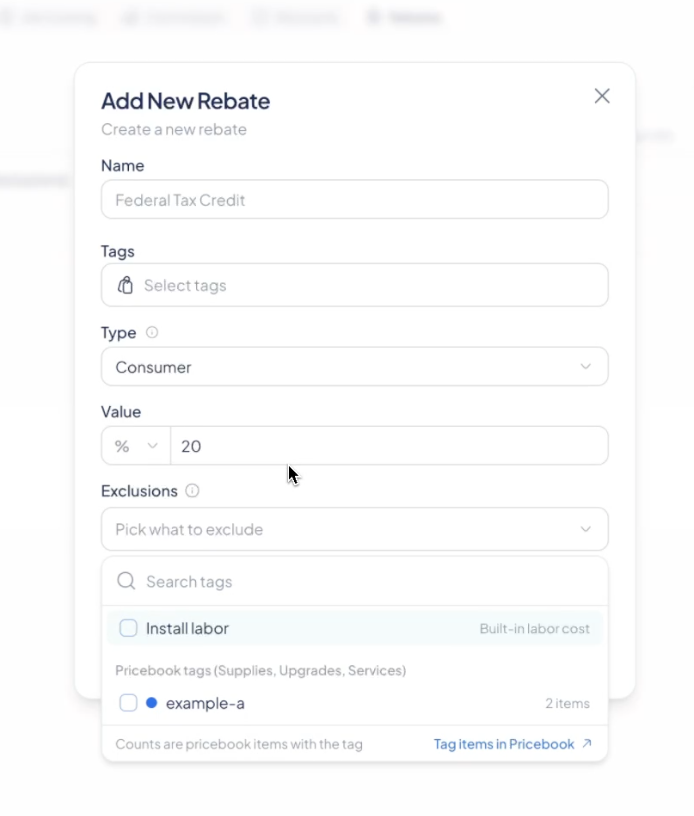
Step 3: Tag Custom Items on a Quote
Custom items typed directly onto a quote can be excluded too. You can tag them in two ways:
- When adding the item: Add the tag as you create the custom item.
- After the item is on the quote: Open the item's menu and add the tag.
The item is left out of the rebate right away.
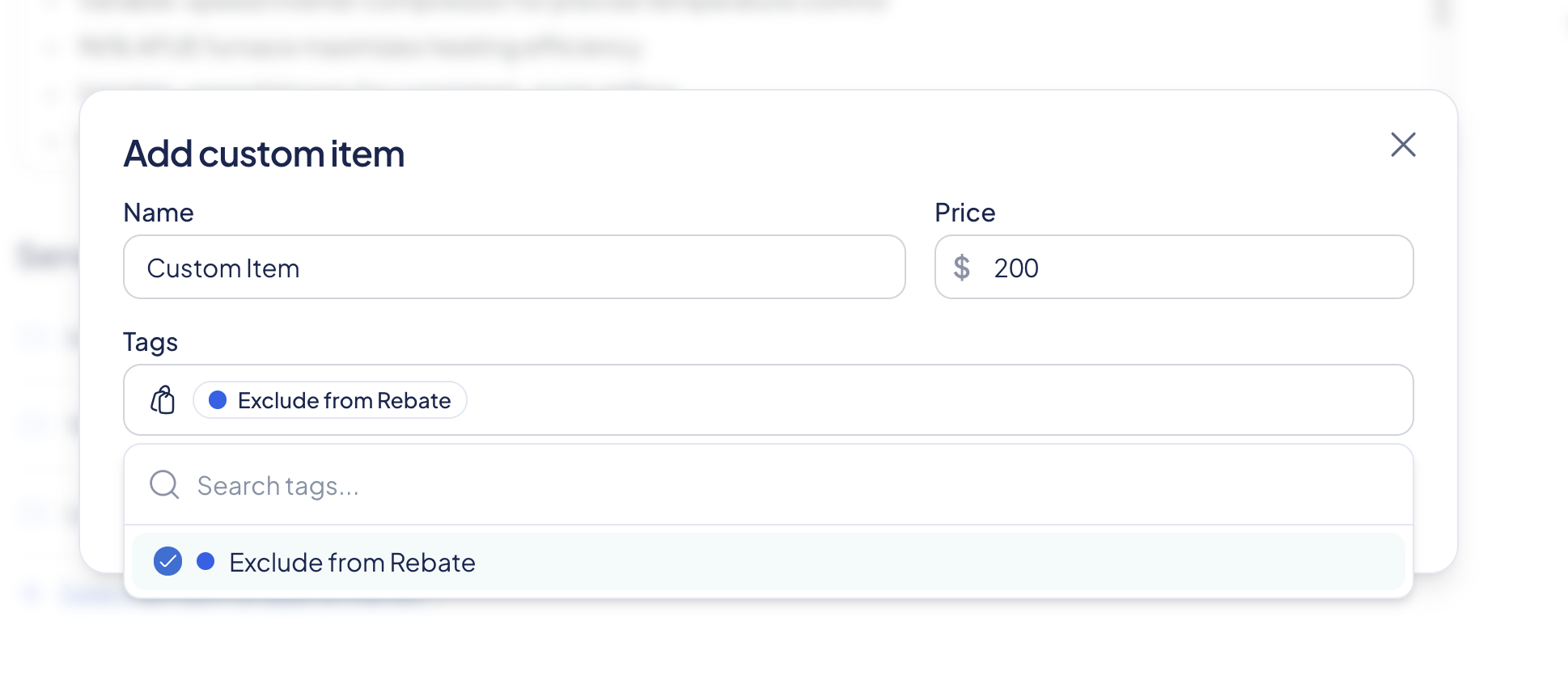
Step 4: Review Rebate Changes with Recalculate
When you click Recalculate on a quote, SetSale shows how each tier's Consumer rebate will change, grouped by tier. This lets you confirm the new amounts before moving forward.
Example
Say you offer a 10% Consumer rebate through a retail partner program. A quote includes:
| Item | Price | Excluded from Rebate? |
|---|---|---|
| Heat pump system | $10,000 | No |
| Ductwork | $1,200 | Yes |
| Permit | $300 | Yes |
- Without exclusions: 10% of $11,500 = $1,150 rebate
- With exclusions: 10% of $10,000 = $1,000 rebate
The customer sees the $1,000 rebate on the quote, presentation, checkout, and PDF.
Good to Know
- Existing quotes don't change. Quotes you've already built keep their saved prices.
- Rebates without exclusions work exactly as before. Nothing changes unless you add an exclusion.
- Tag changes apply on the next edit. If you add or remove a tag in your pricebook, a quote's rebate updates the next time that quote is edited.
Troubleshooting
I tagged an item, but the rebate on my quote didn't change. Tag changes don't update existing quotes automatically. Edit the quote, and the rebate will recalculate with the new tags applied.
The rebate amount looks the same as before. Check that the rebate's Exclusions field includes the same tag you added to your items. Tag names need to match.
My flat-dollar rebate isn't affected by exclusions. That's expected. Exclusions only apply to percentage rebates.
Still stuck? Reach out to us at support@setsale.ai.