How to Create and Manage Presentations
Create multiple customized presentations for different sales scenarios, languages, and equipment brands to use when quoting
Overview
With SetSale's Presentations, you're no longer limited to a single presentation. You can create multiple presentations for different use cases — different languages, different sales approaches, different equipment brands, or different warranty structures.
This article walks you through creating, duplicating, and organizing your presentations.
Getting to the Presentations Home Page
- Log in to SetSale.
- Navigate to Presentations from the main menu.
You'll see a list of all presentations available to your team. Everyone starts with one, but additional presentations can be added as necessary.
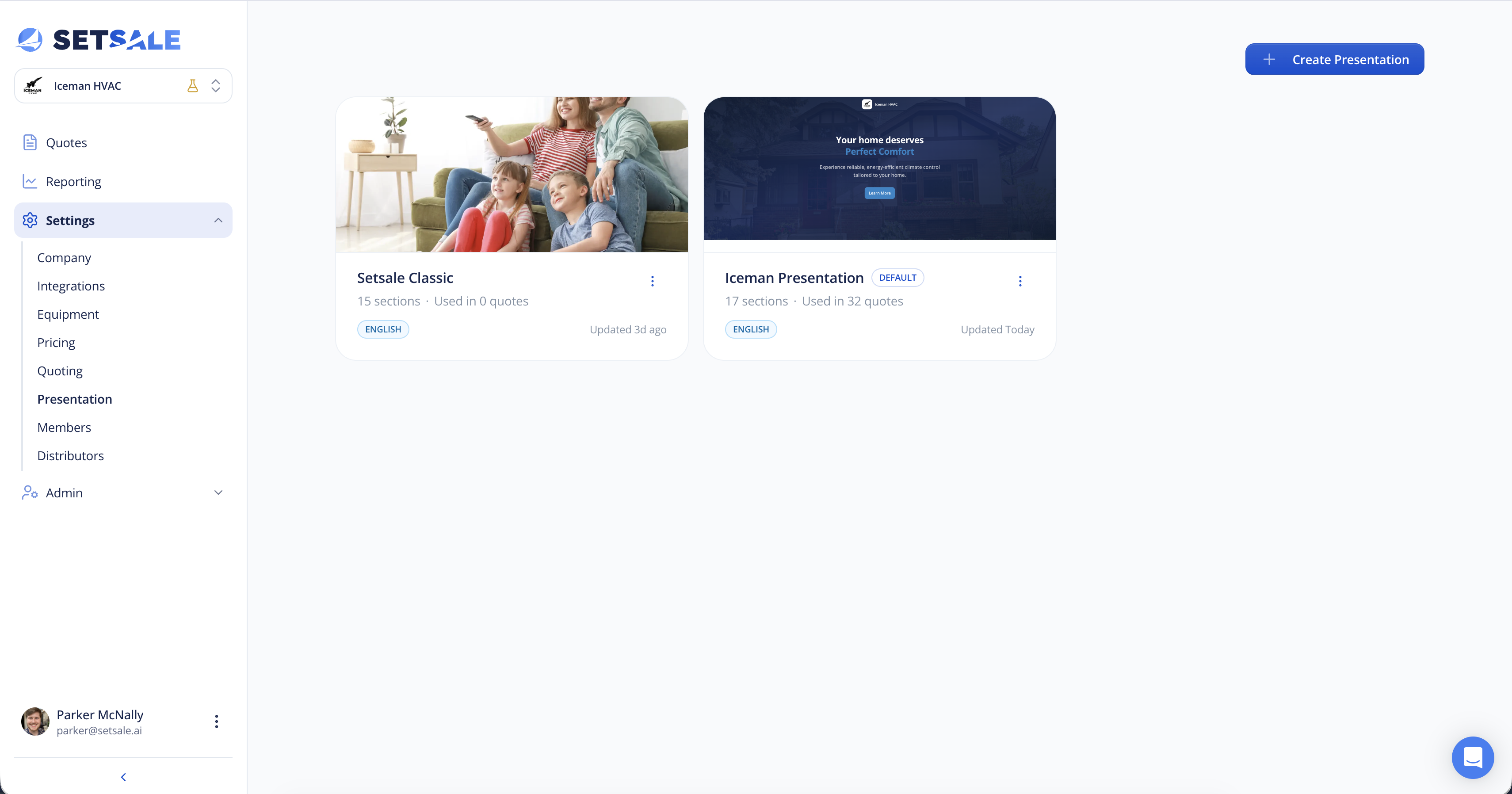
Creating a New Presentation
From Scratch
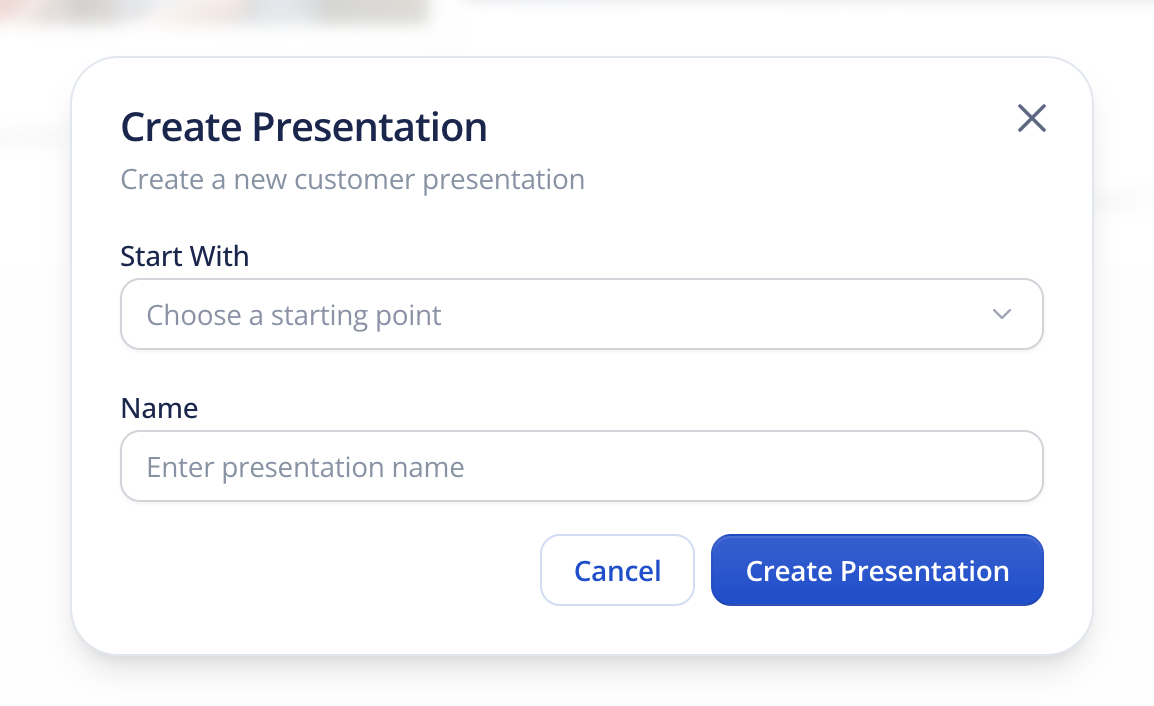
- On the Presentations home page, click Create Presentation.
- Choose whether you want to start with a blank presentation, or copy an existing one.
- Enter a name for your presentation (e.g., "Carrier Warranty Pitch" or "Spanish - Standard").
- Your new presentation, if blank, will open with no slides. You can start adding content from the layout and content libraries.
By Duplicating an Existing Presentation
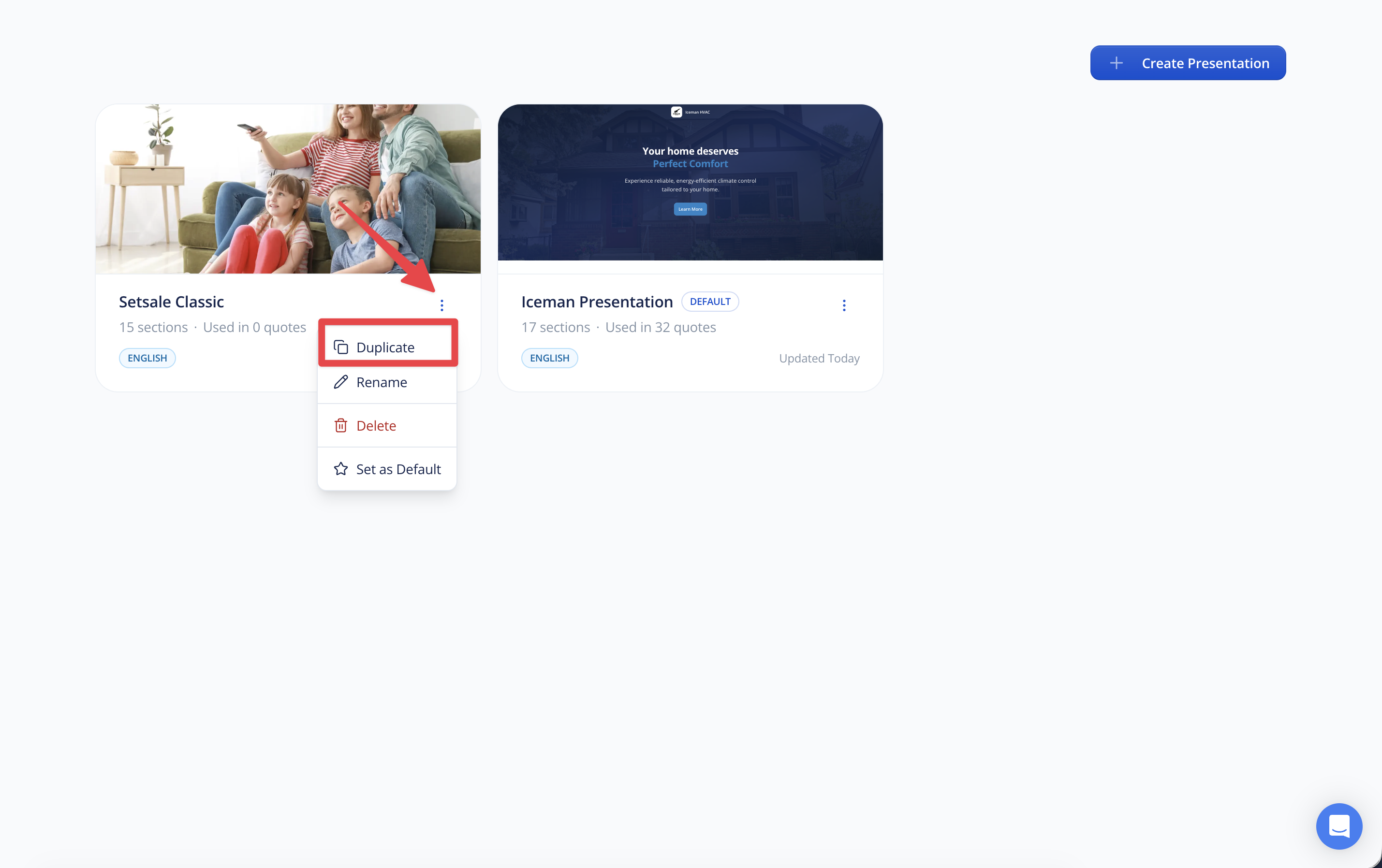
- On the Presentations home page, find the presentation you want to copy.
- Click Duplicate.
- You can optionally change the language during duplication. For example, if you duplicate an English presentation and select Spanish, the content will be automatically translated into Spanish.
- Give the duplicated presentation a new name and save.
This is a great way to create variations without starting from scratch. For example, you might duplicate your default presentation and swap out just the warranty slide for a different equipment brand.
Understanding Language Options
If you need a presentation in a different language, you can duplicate your presentations and translate them to the desired language. Each language is its own separate presentation.
- If you need a Spanish or French version, duplicate your English presentation and select Spanish or French during the duplication process. The system will translate the content automatically.
- Currently, automatic translation is available for English to Spanish and English to French. For other languages, you can create a blank presentation and manually enter your content in any language or character set.
- Your sales reps will choose which presentation (and therefore which language) to use when they assign a presentation to a quote.
Managing Your Presentations
From the Presentations home page, you can:
- Open a presentation to edit its slides, content, and settings.
- Duplicate a presentation to create a variation.
- Delete a presentation you no longer need.
All presentations are shared across your entire team. Any user on your team can select any available presentation when building a quote.