How to Use Slide Visibility Rules
Control which slides appear in your quotes based on system type, manufacturer, or custom criteria so homeowners only see relevant content
Overview
Not every slide belongs in every quote. Slide visibility rules let you control which slides appear in your presentation based on conditions like system type, manufacturer, or other custom criteria. This means you can build one presentation with multiple warranty slides, equipment slides, or brand-specific content — and SetSale will automatically show only the relevant ones.
How Visibility Rules Work
Each slide in your presentation can have rules attached to it. When a presentation is shown to a homeowner, SetSale checks those rules against the quote details and only displays the slides that match.
For example:
-
Show the Carrier warranty slide only when the quote includes Carrier equipment.
-
Show a specific efficiency comparison slide only for heat pump system types.
-
Hide a financing slide when the customer has already declined financing options.
Setting Up Visibility Rules
-
Open your presentation and navigate to the slide you want to add rules to.
-
Click the gear icon on the slide.
-
Select Visibility Rules (or Slide Rules).
-
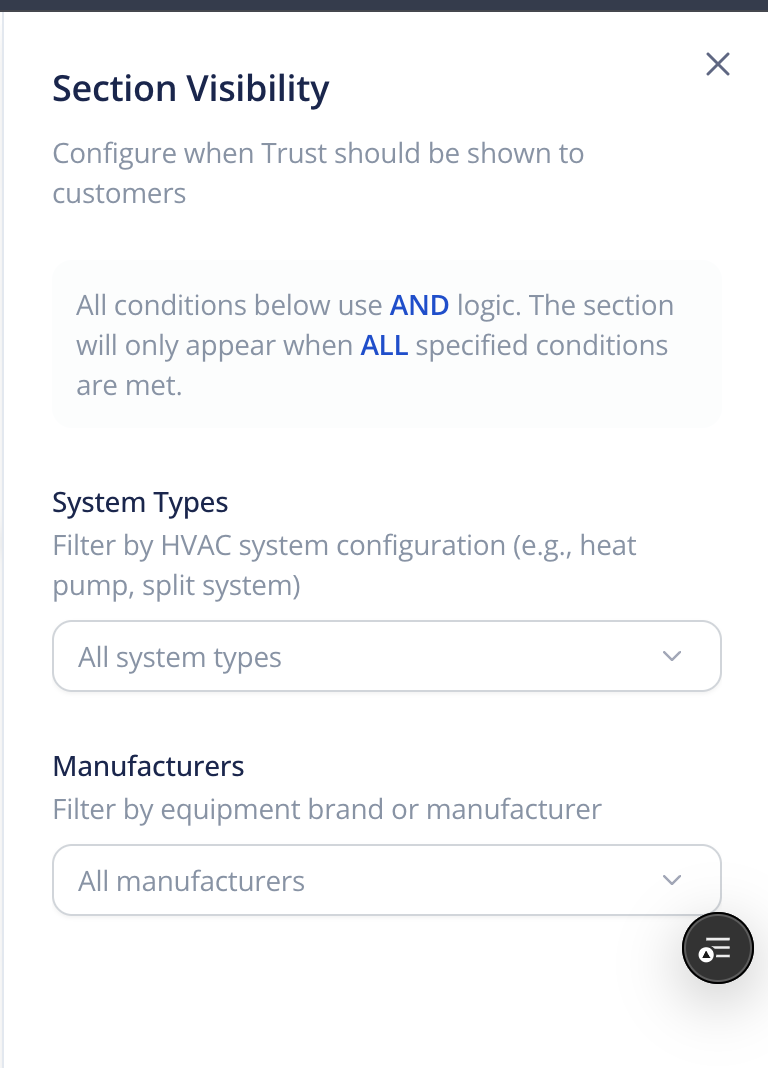
Configure your conditions:
System Type — show or hide based on the type of HVAC system (e.g., heat pump, furnace + AC, etc.).
-
Manufacturer — show or hide based on equipment brand (e.g., Carrier, Daikin, Lennox).
-
Custom Rules — additional conditions may be available based on your team's configuration.
-
Save your rules.
Example Use Case: Multiple Warranty Slides
A common scenario: your company installs equipment from several manufacturers, each with different warranty terms.
-
Create a warranty slide for each manufacturer (or duplicate the default warranty slide and edit it).
-
On the Carrier warranty slide, set a visibility rule: Manufacturer = Carrier.
-
On the Daikin warranty slide, set a visibility rule: Manufacturer = Daikin.
-
Repeat for any other brands you carry.
Now, when a sales rep builds a quote with Carrier equipment and presents it, only the Carrier warranty slide will appear. The homeowner never sees irrelevant warranty info for other brands.
Tips
-
Combine rules with multiple presentations. If your sales process varies significantly by brand or job type, consider creating separate presentations rather than relying on a large set of rules within one.
-
Test your rules. After setting up visibility rules, create a test quote and present it to verify the correct slides are showing.
-
Rules apply at presentation time. The rules are evaluated when the presentation is shown to the homeowner, based on the equipment and configuration in that specific quote.