How Do I Change My Company Email?
Update your company email in SetSale so homeowners see your current contact information on quotes
PWritten by Parker McNallyUpdated September 29, 2026
How to Change Your Company Email in SetSale
Your company email appears on the quotes you send to homeowners, so it's worth keeping current. This article shows you how to add or update it in under a minute.
Steps to Update Your Company Email
- Log in to SetSale. Go to app.setsale.ai and sign in.
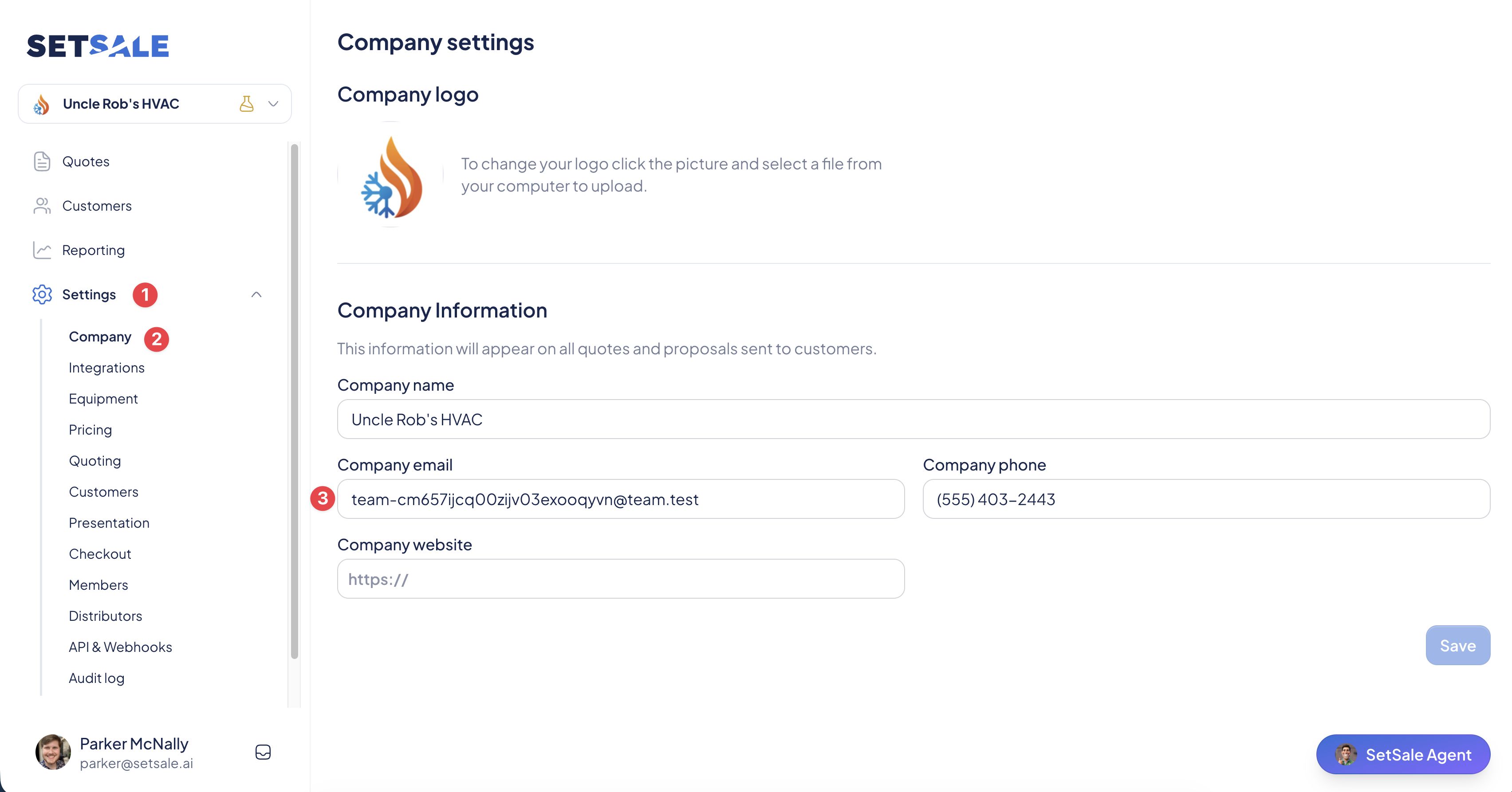
- Open Settings. Click Settings in the left menu.
- Go to the Company tab. Select Company to open your company information.
- Find the Company Email field. It's grouped with your Company Name, Phone, and Website.
- Enter your new email. Click into the Company Email field, clear the old address, and type the new one.
- Click Save. The Save button is in the bottom-right corner of the page.
💡 Tip: Use a shared inbox (like office@ or sales@) rather than a personal address. That way, homeowner replies still reach your team if someone leaves or changes roles.
Good to Know
- This is your company's public contact email. It's shown on quotes delivered to your customers.
- It's not your login email. Changing it won't affect how you or your team sign in to SetSale.
- Quotes already sent may still show the old email. New quotes will use the updated address.
💬 Need Help?
- Chat with us: Click the chat icon in the lower-right corner.
- Email us: support@setsale.ai