How to Use Tasks in SetSale
Find, filter, and complete quote tasks in one place, including JB Warranties registration.
Tasks appear in three places in SetSale: the Tasks view, the quote page, and the dashboard. Use the full Tasks view to manage your list, or act on tasks while reviewing a quote or your dashboard.
Where to find your tasks
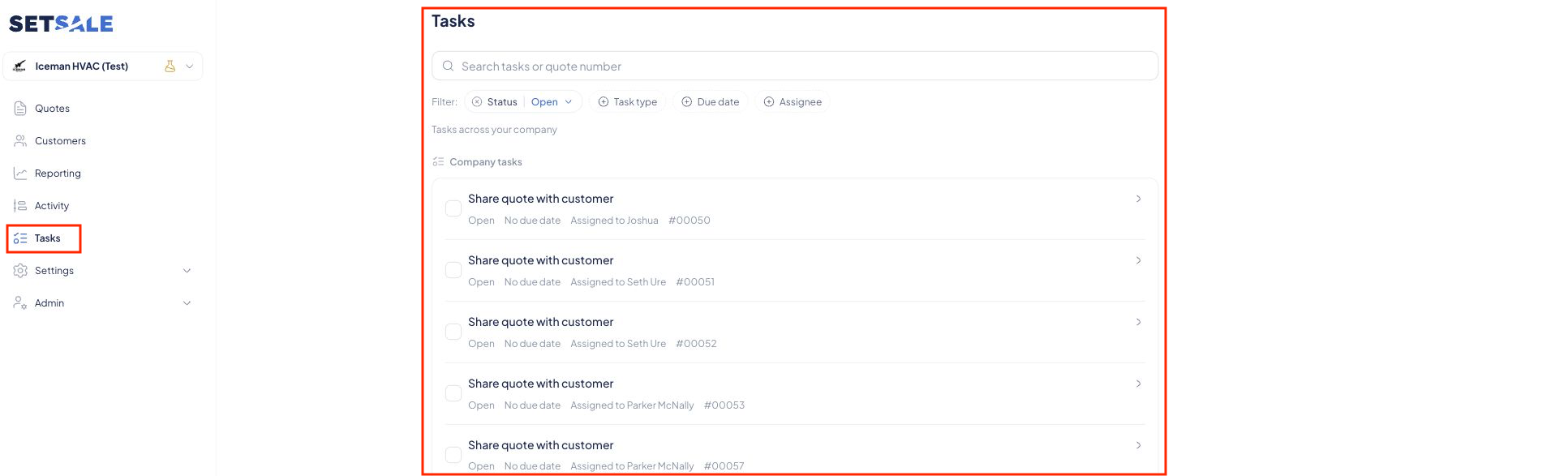
1. In the Tasks view
Choose Tasks in the main menu to see your task list, search, and apply filters.
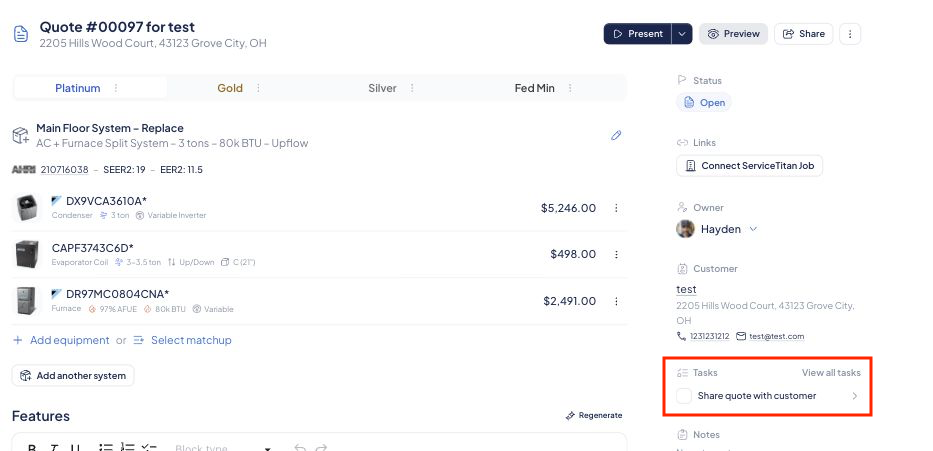
2. On the quote page
Open a quote and find the Tasks section in the right-hand panel. It shows tasks for that quote. Use View all tasks to open the full Tasks view filtered to that quote.
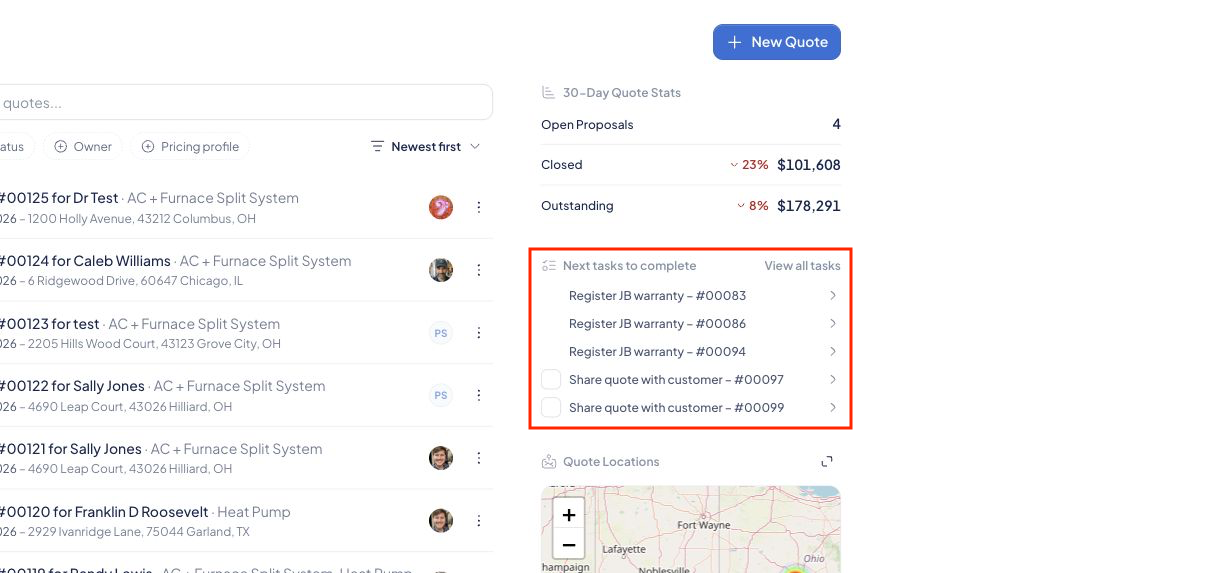
3. On the dashboard
The dashboard’s Next tasks to complete widget shows upcoming work. Open a task directly, or choose View all tasks to see the full list.
Open your Tasks page
Choose Tasks in the main menu. The page opens with the Open status filter selected. Depending on your permissions, you may see tasks assigned to you or tasks across your company.
Find the task you need
- Search: enter a task name or quote number in Search tasks or quote number.
- Status: switch between Open, Completed, and All tasks.
- Task type: narrow the list to a specific action, such as Share quote with customer or Register JB warranty.
- Due date: narrow the list by when work is due.
- Assignee: if available, filter by a teammate. You can also click the assignee shown on a task.
Combine filters to focus your list. Use Clear filters to remove your selections. For longer lists, use Previous and Next at the bottom.
Open and complete a task
- Click the task title to open its related action. For example, Share quote with customer opens the quote’s sharing flow.
- Click the quote number if you want to review the quote first.
- For tasks with a checkbox, complete the work, then use the checkbox to mark the task completed. With the Open filter active, completed tasks leave the list. Switch to Completed or All tasks to find them again.
Marking a task complete is a status update. It does not send a quote or register a warranty for you. Open the task and finish the action first.
Handle a JB warranty task
Choose Task type → Register JB warranty, then click the warranty task title to open the registration flow for that quote. These tasks use the registration flow rather than a manual completion checkbox.
With an active JB Warranties integration, eligible registrations can be completed in SetSale. Without an active integration, follow the link to the JB Warranties portal. For the full process, see How to Register a JB Warranty.
Tasks at a glance
The annotated screenshots below show where to find the main controls. Match the red numbers to the list that follows.
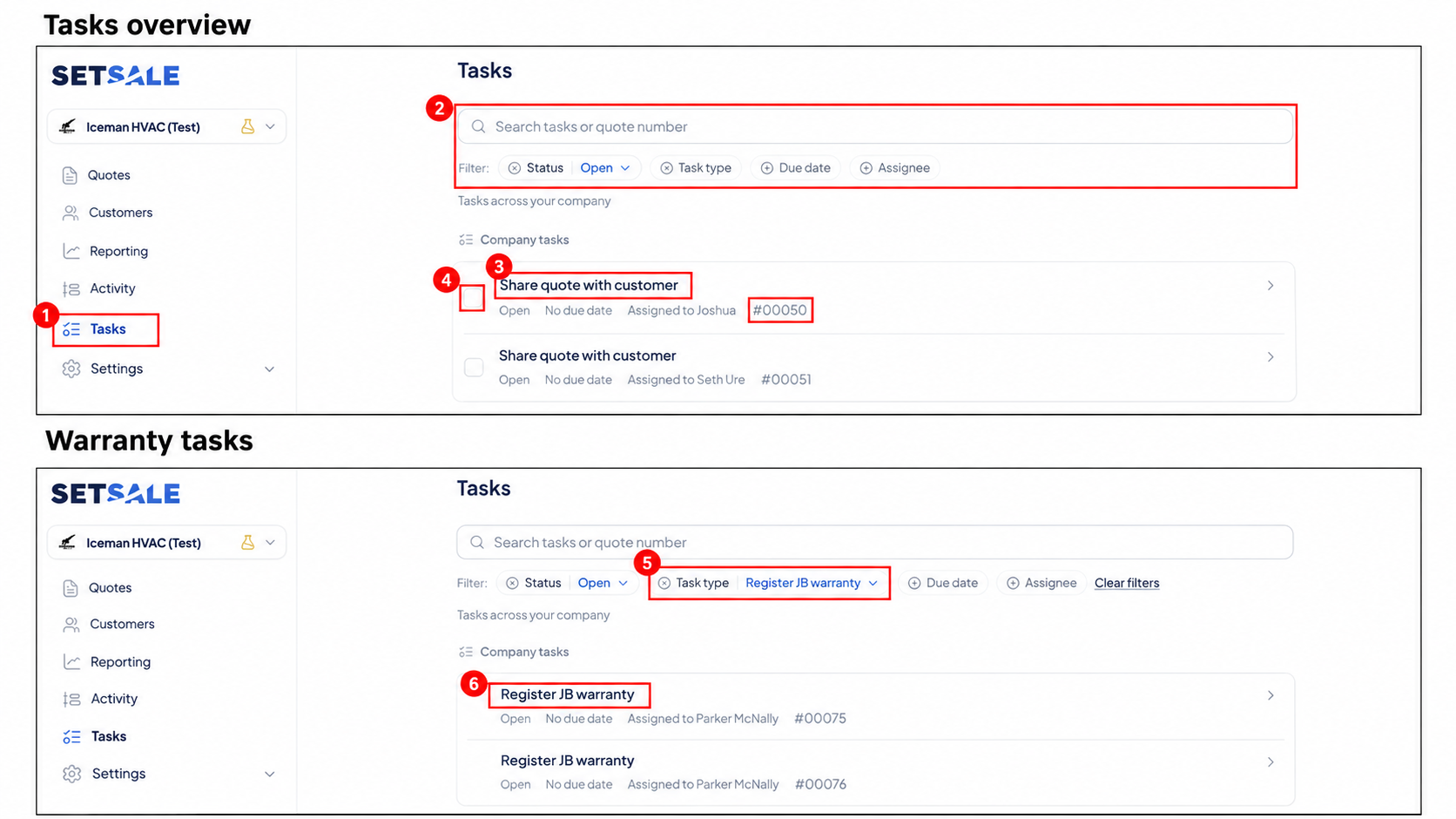
- Tasks: open the full page from the main menu.
- Search and filters: narrow the list to the work you need.
- Task title: open the related action.
- Checkbox and quote number: update a task’s status or review its quote.
- Warranty task filter: show JB warranty registration tasks.
- Register JB warranty: open registration for that quote.
Frequently asked questions
Why don’t I see any tasks?
Your search or filters may exclude them. Clear filters and select All tasks in the Status filter. The tasks you can see also depend on your permissions.
Why did a task disappear after I completed it?
The page defaults to Open tasks. Switch the Status filter to Completed or All tasks to see completed work.
Does a task with “No due date” need attention?
No due date means a deadline has not been assigned. Check the task and quote to decide when to act; it does not mean the task is already complete.