How to Manage Rebates and Send them to Your Dealers
Create rebate programs, attach program guidelines PDFs, and publish rebates directly to your connected contractors' SetSale accounts.
With distributor rebates in SetSale Connect, your dealers no longer have to hunt through emails or spreadsheets to find current rebate amounts while pricing a job. You build each program once in your distributor portal—complete with dates, dollar amounts, and official PDF guidelines—and publish it straight to every connected contractor.
✋ Before You Begin
You'll need:
- To be a Distributor Team Owner or Admin in SetSale Connect (other team members have read-only access and cannot create, edit, publish, or delete rebate programs).
- At least one connected contractor in SetSale Connect if you want dealers to see your published programs right away.
- Your rebate program PDF(s) ready to upload (PDF format only, up to 20 MB per file).
Note: Want to make sure your dealers know how to use their rebates? Send them this guide to using distributor-managed rebates.
1. Open the Rebates Page
In the SetSale Connect left navigation menu, click Rebates.
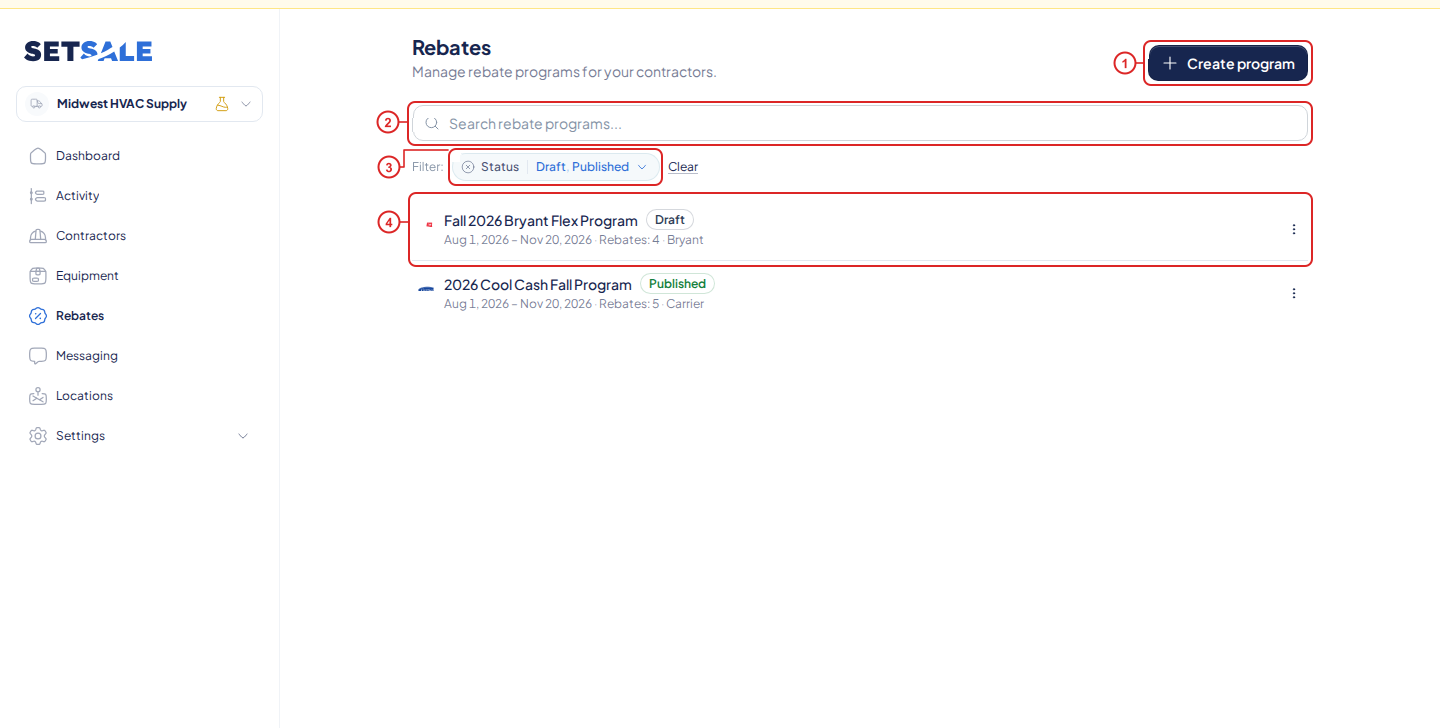
- Click Create program in the top right to start a new rebate program.
- Use Search rebate programs... to filter by program name or manufacturer.
- Use the Status filter to switch between Published, Draft, and Archived programs (by default, SetSale shows Published and Draft programs).
- Click any program row to manage its rebates and PDFs, or click the three-dot (⋮) menu for quick actions (View, Edit, Unpublish, Archive, Restore, or Delete).
2. Create a Rebate Program
Every program starts as a Draft, so you can build out the rebates and attach documents before dealers see anything.
- On the Rebates page, click Create program.
- Enter the program details:
- Name (required) — For example,
2026 Cool Cash Fall Program. - Description (optional) — Summarize eligibility or claiming rules so dealers see them at a glance. For example:
Instant consumer rebates on qualifying Carrier residential replacement and add-on systems. Dealers apply 100% upfront on the invoice and submit claims at carrierincentives.com by Dec. 20, 2026. - Start date (required) — For example,
Aug 1, 2026. - End date (required) — For example,
Nov 20, 2026(must be on or after the start date). - Manufacturer (optional) — Select the brand (for example, Carrier) so its logo appears beside the program, or leave as None.
- Name (required) — For example,
- Click Create. SetSale opens the program's detail page.
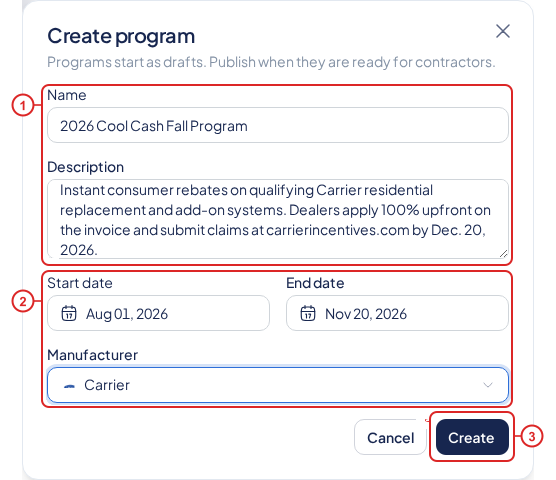
- Enter the program Name and optional Description.
- Set the Start date, End date, and optional Manufacturer logo.
- Click Create to open the program detail page.
3. Attach Program Guidelines PDFs
Give dealers instant access to the official program rules right where they review rebates.
- On the program detail page, click Add document near the top of the page.
- Select one or more PDF files from your computer—for example,
2026-Cool-Cash-Fall-Program-Guidelines.pdf(orFall-2026-Bryant-Flex-Program-Reference-Guide.pdffor a Bryant program). - Wait for the file badge to appear. Once attached, click a file name to preview it in a new tab, or click the × icon on the badge to remove it.
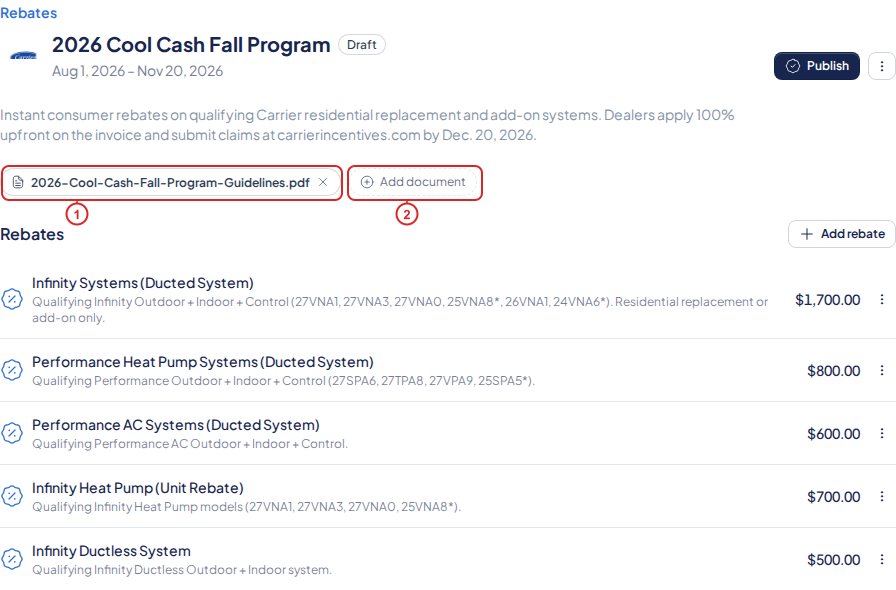
- Attached program PDFs appear as clickable badges—dealers can open or download these from their Settings and directly from quotes.
- Click Add document to upload additional PDFs (up to 20 MB each).
4. Add Rebates to the Program
Add each rebate amount dealers can apply on their quotes.
- Under Rebates, click Add rebate.
- Fill in the rebate fields:
- Name (required) — Be specific about the qualifying tier or unit, e.g.,
Infinity Systems (Ducted System)orInfinity Heat Pump (Unit Rebate). - Description (optional) — List qualifying model series or conditions from the program guide, e.g.,
Qualifying Infinity Outdoor + Indoor + Control (27VNA1, 27VNA3, 27VNA0, 25VNA8*, 26VNA1, 24VNA6*). Residential replacement or add-on only. - Amount (required) — Enter the dollar value, e.g.,
1700for$1,700(or700for$700).
- Name (required) — Be specific about the qualifying tier or unit, e.g.,
- Click Add rebate to save it to the program.
- Repeat for the remaining rebates in your program. For example, from the 2026 Cool Cash Fall Program:
Infinity Systems (Ducted System)—$1,700Performance Heat Pump Systems (Ducted System)—$800Performance AC Systems (Ducted System)—$600Infinity Heat Pump (Unit Rebate)—$700Infinity Ductless System—$500
Or, for a Fall 2026 Bryant Flex Program (Aug 1, 2026 – Nov 20, 2026, Manufacturer: Bryant):
Evolution Extreme Heat Pump (Unit Rebate)—$350Evolution Extreme Air Conditioner (Unit Rebate)—$300Preferred Heat Pump System (Ducted System)—$250Evolution Ductless Outdoor Unit—$400
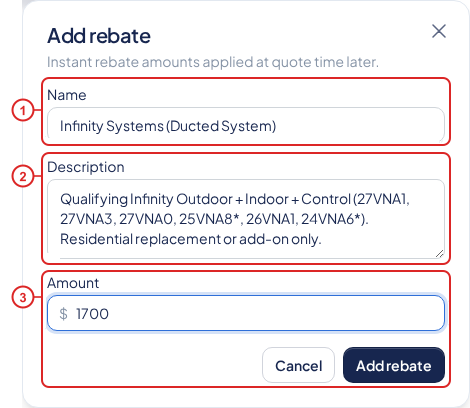
- Enter a clear Name that tells dealers what qualifies.
- Add qualifying model numbers or notes in Description.
- Enter the dollar Amount and click Add rebate.
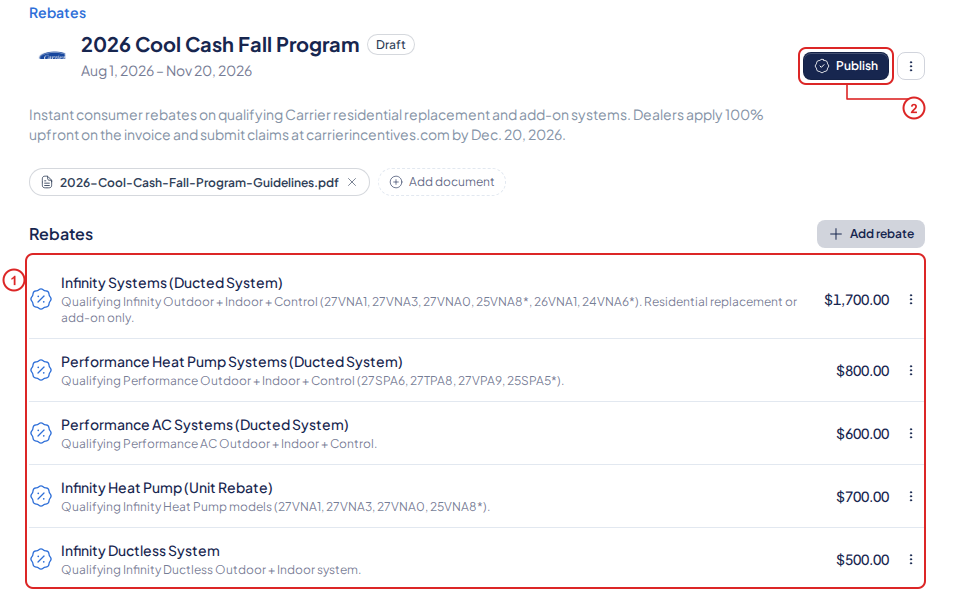
- Review your rebate lines—click any row or its three-dot (⋮) menu to Edit or Delete a rebate.
- When everything looks right, click Publish in the top right.
5. Publish the Program to Your Dealers
Programs stay hidden from contractors while in Draft status.
- On the program detail page, click Publish.
- Review the confirmation prompt (
Publish "2026 Cool Cash Fall Program"? It will become available for contractors.) and confirm.
Once published:
- The program status changes to Published.
- All of your connected contractors automatically see the program and its PDFs in Settings → Pricing → Rebates and in the Rebates selector on their quotes during the program's active date range (
Start datethroughEnd date). - If you publish before the Start date, contractors will see the program automatically once the start date arrives (and it hides automatically after the end date).
6. Update, Unpublish, Archive, or Delete a Program
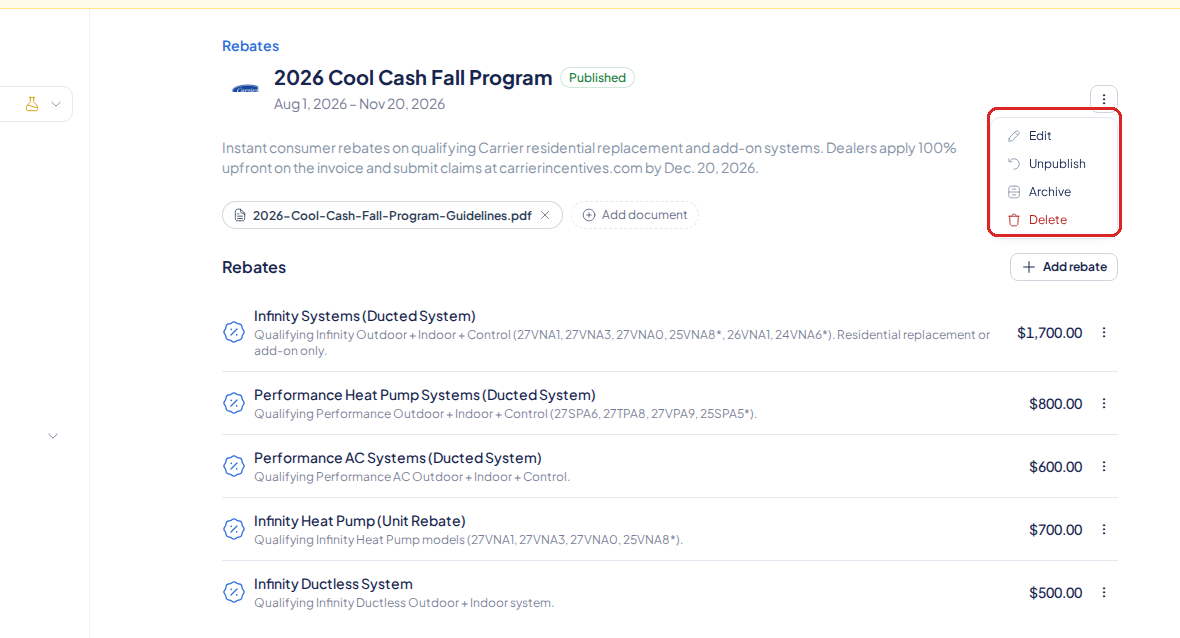
Need to make a change after publishing? Use the three-dot (⋮) menu on the program's detail page (or on its row in the Rebates list):
- Edit — Update the program's name, description, dates, or manufacturer at any time. Changes appear to connected contractors right away.
- Unpublish — Moves a Published program back to Draft and immediately hides it from contractors.
- Archive — Moves a Published program to Archived, hiding it from contractors and from your default Rebates list. You can bring it back anytime using the Status filter (Archived) and clicking Restore.
- Delete — Permanently deletes the program, its rebates, and its document links. (This cannot be undone.)
Tips
- Put key deadlines and exclusions in the Description — Contractors see the program description both in Settings and inside the rebate details dialog on every quote. Including claim deadlines (e.g.,
Submit claims at carrierincentives.com by Dec. 20, 2026) and exclusions (Excludes new construction and commercial) helps prevent claim rejections. - Attach the full program PDF — Even if you only list the most common system rebates, uploading the full guidelines PDF lets dealers double-check exact model numbers and add-on rules without leaving SetSale.
- Use Draft status for upcoming seasons — Build next quarter's program ahead of time in Draft, then click Publish when you're ready for dealers to see it.