How to Use Distributor-Managed Rebates
View active rebate programs published by your connected distributors, download program guidelines PDFs, and apply distributor rebates to your quotes.
When a distributor you're connected with in SetSale publishes a rebate program, SetSale automatically surfaces those rebates inside your account—so your team doesn't have to re-enter seasonal manufacturer promos or dig through emails for the latest guidelines PDF.
✋ Before You Begin
- Your company must be connected to a distributor in SetSale (check Settings → Distributors).
- Only Published programs currently within their active date window appear in your account. Future and expired programs are hidden automatically.
- Company Owners and Admins can view all distributor programs under Settings → Pricing → Rebates. Any team member building quotes can view rebate details and add distributor rebates to quotes.
Note: Want your distributor to share their rebate programs in SetSale? Send them this guide to creating and publishing rebate programs.
1. View Distributor Rebates in Settings
To see all active programs from your connected distributors in one place:
- In the left navigation menu, go to Settings → Pricing.
- Select the Rebates tab.
- Scroll below your company's rebates to the Managed by {Distributor Name} section(s).
For each distributor, you'll see their active programs—for example, 2026 Cool Cash Fall Program – Aug 1, 2026 – Nov 20, 2026 (with the Carrier logo) or Fall 2026 Bryant Flex Program – Aug 1, 2026 – Nov 20, 2026 (with the Bryant logo).
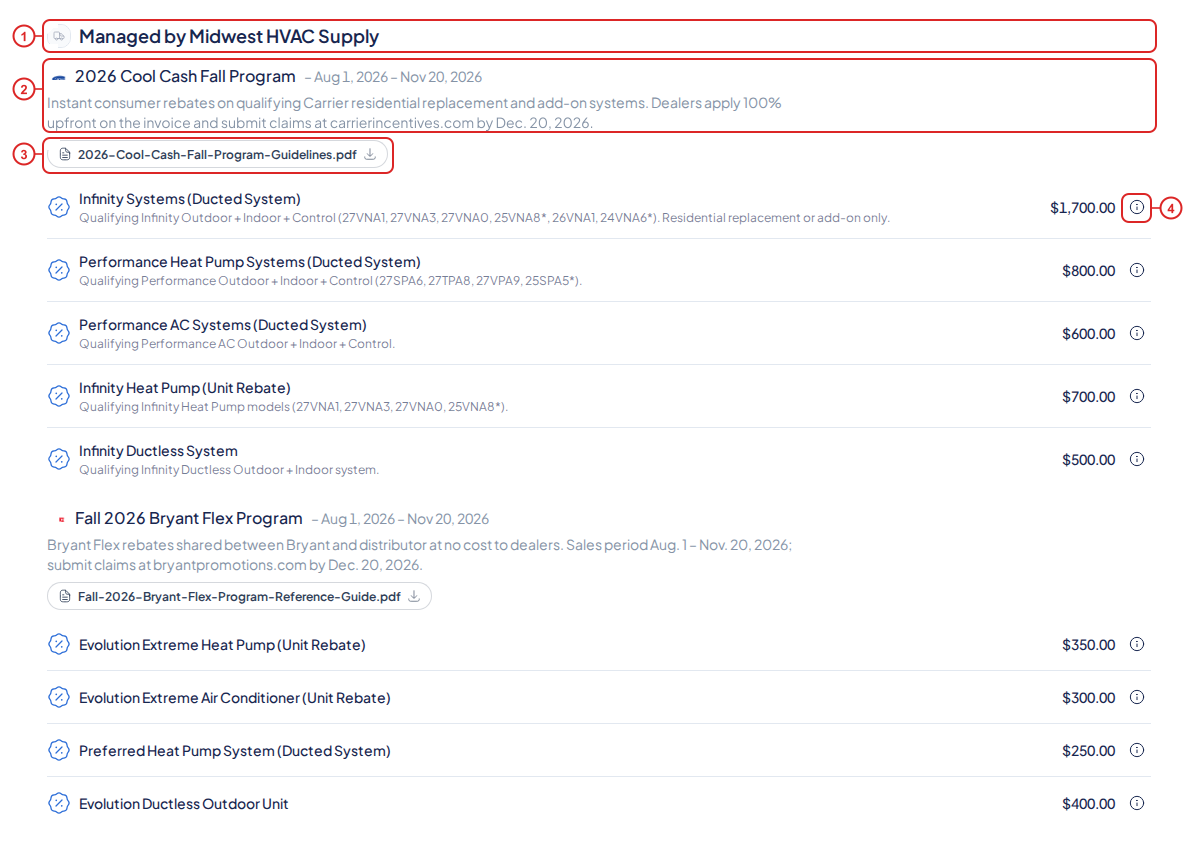
- The Managed by {Distributor} heading groups active programs by distributor.
- Each program displays its Manufacturer logo (if set), program name, active dates, and summary description.
- Click any PDF badge (such as
2026-Cool-Cash-Fall-Program-Guidelines.pdf) to open it in a new tab, or click the download icon to save a copy. - Click the info (
i) icon on any rebate row to view full program details and documents.
2. Inspect Rebate Details & Program PDFs
Click the info (i) icon next to any distributor rebate—either in Settings → Pricing → Rebates or directly inside a quote—to open the rebate details dialog.
Inside the dialog, you can review:
- Managed by {Distributor} — Which distributor published the program.
- Program and Valid dates — For example,
2026 Cool Cash Fall Program, validAug 1, 2026 – Nov 20, 2026. - Value — The instant dollar rebate amount (for example,
$1,700.00for Infinity Systems (Ducted System) or$700.00for Infinity Heat Pump (Unit Rebate)). - Program & Rebate Descriptions — Eligibility notes, qualifying model series, and claim submission deadlines (such as submitting claims at
carrierincentives.comby Dec. 20, 2026). - Documents — Click a PDF badge to open the full guidelines in a new tab, or click the download icon to download it.
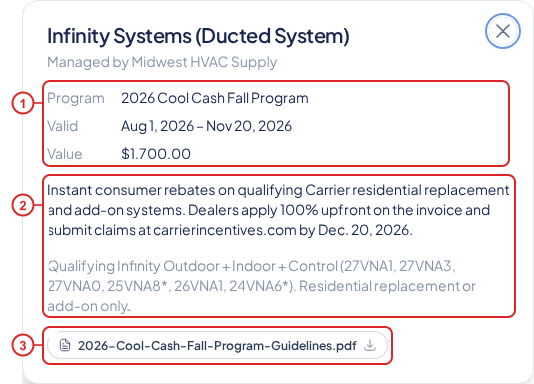
- Program name, valid date window, and rebate Value.
- Program and rebate descriptions with eligibility and claim instructions.
- Click the PDF name to open it in a new tab, or click the download icon to save it.
3. Add a Distributor Rebate to a Quote
Salespeople and techs can add active distributor rebates to any Replacement or Repair quote option right alongside your company's own rebates.
- Open a quote and scroll to the Pricing section on the quote option you are configuring.
- Under Rebates, click Select rebates....
- Search or scroll to find the distributor rebate you want to apply (for example,
Infinity Systems (Ducted System)for-$1,700.00, orEvolution Extreme Heat Pump (Unit Rebate)for-$350.00). - Click the rebate to add it to the quote option.
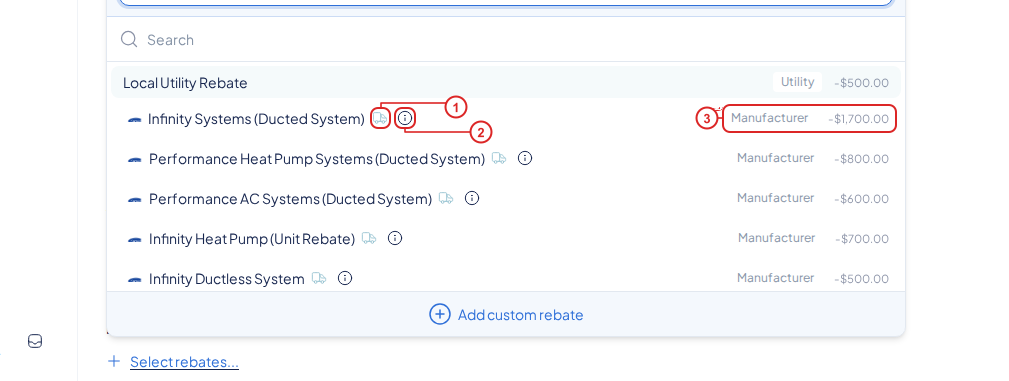
- Distributor rebates appear in the same Select rebates... list as your own rebates, marked with a truck icon (
Managed by {Distributor}). - Click the info (
i) icon right from the dropdown (or after adding it to the quote) to double-check qualifying model numbers or open the program PDF before promising the rebate to a homeowner. - All distributor rebates are applied as Manufacturer (instant) rebates, shown with a subtle Manufacturer chip and the amount (for example,
-$1,700.00). That means they reduce job cost before pricing so the homeowner sees the savings reflected in the quoted price.
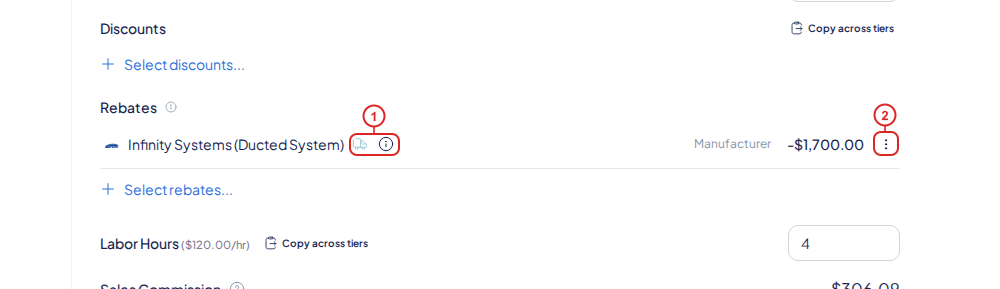
- Hover over the truck icon to see which distributor manages the rebate, or click the info (
i) icon to review the guidelines PDF anytime. - To remove a distributor rebate from the quote, click the three-dot (⋮) menu on the row and select Delete.
4. What Happens When a Program Expires or Is Unpublished?
- New quotes: Once a program passes its End date (or if the distributor unpublishes or archives it), its rebates automatically stop appearing in Settings → Pricing → Rebates and in the Select rebates... dropdown for new quotes.
- Existing quotes: Any distributor rebate already saved on an existing quote stays on that quote—SetSale never silently changes or removes pricing on quotes you've already built.
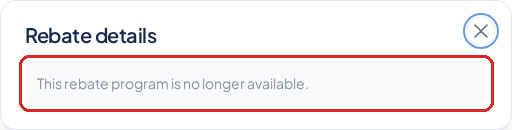
- If you click the info (
i) icon on a quote whose program is no longer active, SetSale displays: "This rebate program is no longer available."
Tips
- Check the PDF before finalizing — Use the info (
i) icon right inside the quote dropdown to confirm eligible models, property rules (e.g., residential replacement vs. new construction), and invoice requirements (such as showing the rebate as a separate line item with customer name, address, and model numbers). - Watch the claim deadline — Programs like 2026 Cool Cash (
Aug. 1 – Nov. 20, 2026) and Fall 2026 Bryant Flex (Aug. 1 – Nov. 20, 2026) may have a later installation and claim deadline (Dec. 20, 2026) after the sales window closes. Save the PDF if your team needs it for post-install claims. - Remove a rebate if equipment changes — If you swap equipment on a quote to a non-qualifying model, open the three-dot (⋮) menu on the rebate line and click Delete.